Yes, you can schedule medication reminders right now using tools already on your phone. Built-in features like Apple’s Health app or Google Assistant handle simple, single-medication routines with almost no setup. For complex regimens or when a caregiver needs visibility, a dedicated app or smart dispenser does more. Either way, turn on follow-up and critical alerts. That one setting change is the difference between a reminder you notice and one you sleep through.
TL;DR:
- Setting critical alerts for medications with narrow safety margins, like blood thinners and insulin, significantly reduces the risk of missed doses.
- Combining follow-up reminders, escalation alerts, and caregiver notifications improves adherence more effectively than single alarms alone.
- Native phone tools like Apple Health and Google Assistant are quick to set up for simple routines but require customization for complex or multi-medication schedules.
- For older adults or those with accessibility needs, increasing alert volume, adding persistent notifications, and involving caregivers enhance reminder effectiveness.
- Managing polypharmacy effectively involves separate reminders for each medication, staggered schedules, and regular review with healthcare professionals to minimize errors.
Table of Contents
- How to Schedule Medication Reminders on iPhone
- How to Schedule Medication Reminders on Android
- What to Include When You Schedule Reminders
- Native Tools, Dedicated Apps, or Smart Dispensers: Which Fits You?
- Scheduling Around Multiple Medications and PRN Doses
- Setting Up Reminders for Seniors and Accessibility Needs
- Does the Research Support Scheduled Reminders?
- Why We Built Well-Check Around Reminders, Not Just Alarms
- Get Reminders and Caregiver Alerts in One App
- Sources
How to Schedule Medication Reminders on iPhone
Apple’s Health app is the fastest way to get a working reminder set up without downloading anything. It handles the schedule, the follow-up nudge, and the logging in one place.
- Open the Health app and tap Browse, then Medications.
- Tap Add a Medication, type the name, and confirm the dosage form (pill, liquid, inhaler).
- Set the strength, frequency, and how many doses per day, then choose start and end dates.
- Turn on Follow Up Reminders so the phone nudges you again if you don’t log a dose within a set window.
- Go to Settings and allow Critical Alerts for medications you can’t afford to miss. These bypass Do Not Disturb and silent mode entirely.
- When a reminder fires, tap it to mark the dose Taken or Skipped. This log is what powers refill reminders later.
- Enable Refill Reminders when you add the medication so the app prompts you before you run out.
If you’d rather skip the app entirely for a one-off reminder, ask Siri: “Remind me to take my blood pressure medicine every day at 8 AM.” It creates a standard Reminders entry, which works fine for a single, low-stakes medication.
Apple’s own medication tracking guidance confirms that Follow Up Reminders and Critical Alerts are the two settings most likely to catch a missed dose, yet they’re not turned on by default. Most people set up the schedule and stop there.
Pro Tip: Set Critical Alerts on the medications with the narrowest safety margin, blood thinners, insulin, heart medications, and leave standard alerts for supplements or vitamins where a missed dose is low risk.
How to Schedule Medication Reminders on Android
Android splits this job across a few tools instead of one dedicated app, so the setup looks different depending on your phone.
- Say “Hey Google, remind me to take my medication at 9 AM every day” to Google Assistant. It builds a recurring reminder instantly.
- Check or edit these anytime by opening the Google app and tapping the Reminders section, or asking “What are my reminders?”
- For more control over repeat patterns (every other day, specific weekdays, end dates), create the reminder directly in Google Calendar instead, where you can set custom recurrence and exceptions for travel days or schedule changes.
- If you own a Samsung device, open Samsung Health, go to More and then Medication, and enter the drug name, dose, and times. Samsung Health also flags basic interaction warnings between logged medications.
- Open your phone’s notification settings and add your reminder app to the Do Not Disturb or Focus mode exception list, otherwise a scheduled reminder can arrive silently and go unnoticed.
Native tools like Google Assistant work well precisely because they don’t require learning a new interface, which is part of why WIRED’s guide to phone-based medication reminders recommends starting there before installing anything specialized. The friction of a new app is real, and it’s often the reason reminder systems get abandoned within a few weeks.
Pro Tip: If you take medication at a time your phone is usually charging overnight or sitting in another room, set the reminder 15 minutes earlier than the actual dose time to build in a buffer for physically reaching your phone.
What to Include When You Schedule Reminders
A reminder that just beeps once is the weakest version of this system. The features below separate a reminder you’ll actually respond to from one that quietly fails.
- Repeat rules that match your actual schedule, not just “daily,” since twice-daily or every-other-day dosing needs its own logic.
- Confirm versus snooze options, so a tap logs the dose instead of just dismissing the alert.
- Follow-up reminders that fire again if you don’t respond within a set window.
- Escalation alerts that notify a caregiver if a dose goes unconfirmed for too long.
- Refill alerts tied to your logged dose count, not a guess at when the bottle will run out.
- Dose logging you or a caregiver can review later to spot patterns of missed doses.
- Interaction warnings when a new medication conflicts with something already on your schedule.
The layering matters more than any single feature. A standard alarm gets missed if you’re in the shower or your phone is on silent. A follow-up reminder catches you ten minutes later. A critical alert, which bypasses Focus and mute settings entirely, catches you even then. Stack enough layers and the odds of a dose slipping through drop sharply.
Adherence research backs the layered approach. Clinical reviews of medication reminder interventions find that multi-component systems, ones combining reminders with caregiver involvement and escalation, consistently outperform a single daily alarm. A lone alarm is a start. It isn’t a system.
Before you hand over medication data to any app, check what it does with that information. Health apps tied to your phone’s operating system, like Apple Health, keep data on-device by default. Third-party apps vary widely, so look for a stated data policy and be cautious about apps that request more permissions (contacts, location, camera) than the reminder function actually needs.
Native Tools, Dedicated Apps, or Smart Dispensers: Which Fits You?
The right category depends less on how many medications you take and more on who else needs to see that you took them.
- Native phone tools (Health app, Google Assistant, Calendar) win on simplicity. No account to create, no new app to learn, and reminders live right alongside your other notifications. They’re the right starting point for one or two daily medications and no caregiver involvement.
- Dedicated medication apps add refill tracking, multi-medication scheduling with staggered times, interaction checks across a full drug list, and the ability to share status with a family member or caregiver. The trade-off is more setup time and, often, a subscription.
- Smart dispensers and connected devices physically lock or dispense the correct dose and escalate to a caregiver’s phone if it isn’t taken, independent of whether the patient’s own phone is nearby or charged. Devices in this category suit someone with significant memory impairment, but they cost more upfront and need periodic refilling and maintenance.
Setup time roughly tracks with capability: native tools take minutes, dedicated apps take an evening to configure properly across a full medication list, and dispensers take longer still because someone has to physically load them. Caregiver visibility runs the opposite direction. Native tools show almost nothing to a caregiver, dedicated apps often share status, and dispensers are built around that visibility from the start.
Scheduling Around Multiple Medications and PRN Doses
Polypharmacy, taking five or more medications regularly, is common among older adults, and it’s where reminder systems tend to break down if you treat every medication the same way.
- Give each medication its own reminder rather than bundling them into one alert. A combined “morning meds” alarm hides which specific drug got missed.
- Stagger dosing windows when a schedule allows it, so you’re not trying to track four medications firing at the exact same minute.
- For PRN (as-needed) medications, set a reminder to log the dose immediately after you take it rather than trying to schedule it in advance, since the whole point is that timing is unpredictable.
- For medications taken in cycles, like a two-week-on, two-week-off pattern, use an app with cycle logic rather than manually resetting a recurring reminder every time the pattern changes.
- Review the full list with a pharmacist or clinician periodically. Structured regimen reviews reduce medication errors, particularly when new prescriptions get added without anyone checking them against what’s already being taken.
Polypharmacy guidance from Johns Hopkins Medicine points out that complexity itself is a risk factor. More medications means more chances for a dosing error, an interaction, or a missed dose that goes unnoticed until it becomes a bigger problem. If a missed dose could cause real harm, that’s the threshold for escalating the alert to a caregiver rather than just letting a follow-up reminder try again.
Pro Tip: Keep a single written list, digital or on paper, of every medication, dose, and time, and update it the same day any prescription changes. Reminder apps are only as accurate as the list behind them.
Setting Up Reminders for Seniors and Accessibility Needs
A reminder system fails for older adults for reasons that have nothing to do with memory: the text is too small, the sound is too quiet, or the confirmation step requires more taps than someone with arthritis can manage comfortably.
- Increase alert volume and choose a distinct sound so a medication reminder doesn’t blend in with regular notifications.
- Use persistent banner notifications instead of alerts that disappear after a few seconds.
- Add a home screen widget showing the next dose, so there’s no need to open an app to check.
- Turn on voice control for people who find typing or small buttons difficult.
- Set confirmations to a single tap rather than a multi-step process.
- Connect a family member’s phone to receive a notification if a dose goes unconfirmed.
Families helping set this up should test the full loop together once: trigger a reminder, confirm the dose, and check that the caregiver notification actually arrives. It’s easy to configure something that looks right on screen and fails silently the first time it matters.
Pro Tip: Ask the person using the reminder system to demonstrate confirming a dose without your help. If they hesitate or get stuck, simplify that step before relying on it.
Does the Research Support Scheduled Reminders?
The evidence on reminders is more nuanced than “set an alarm and adherence improves.” Reminders help, but the design of the reminder system matters as much as having one at all.
- Systematic reviews of reminder-based adherence interventions show that a single daily alarm has a modest effect, while systems combining reminders with caregiver involvement and escalation show a stronger, more consistent one.
- Apple’s own documentation confirms that Follow Up Reminders and Critical Alerts exist specifically because a single notification isn’t reliable enough for medications where a missed dose carries real risk.
- Practical reporting from outlets like WIRED reinforces that starting with tools already on your phone reduces the chance you’ll abandon the system within the first few weeks.
The honest takeaway: reminders are a meaningful lever, not a guarantee. A follow-up alert catches a missed notification. A critical alert catches a missed follow-up. Caregiver escalation catches everything else. Each layer covers for the failure of the one before it, which is exactly why relying on just one rarely holds up over months of real use.
Why We Built Well-Check Around Reminders, Not Just Alarms
A basic reminder answers one question: did the alert fire? It doesn’t answer whether the person actually took the medication, or whether anyone would know if they didn’t. That gap is what shaped how Well-Check approaches this problem.
A wellness app pairs scheduled medication reminders with a daily check-in, so a missed confirmation triggers escalation to family rather than disappearing into an unread notification. For an independent older adult living alone, that combination matters more than the reminder itself. A busy caregiver managing a parent’s medications from another city gets the same visibility without a phone call. A shared household with one primary caregiver and multiple people needing reminders gets one system instead of several disconnected apps.
The pattern that shows up across the adherence research, that layered systems with caregiver involvement outperform standalone alarms, is the whole design principle here, not an add-on feature.
— Brian
Get Reminders and Caregiver Alerts in One App
This type of app is built for exactly the situation this article has been describing: a reminder that needs a backup plan when it gets missed. Instead of juggling a native reminder app plus a separate way to check on a loved one, some apps offer scheduling, unlimited check-ins, missed check-in alerts to caregivers, an emergency contact network, and GPS tracking in one place.
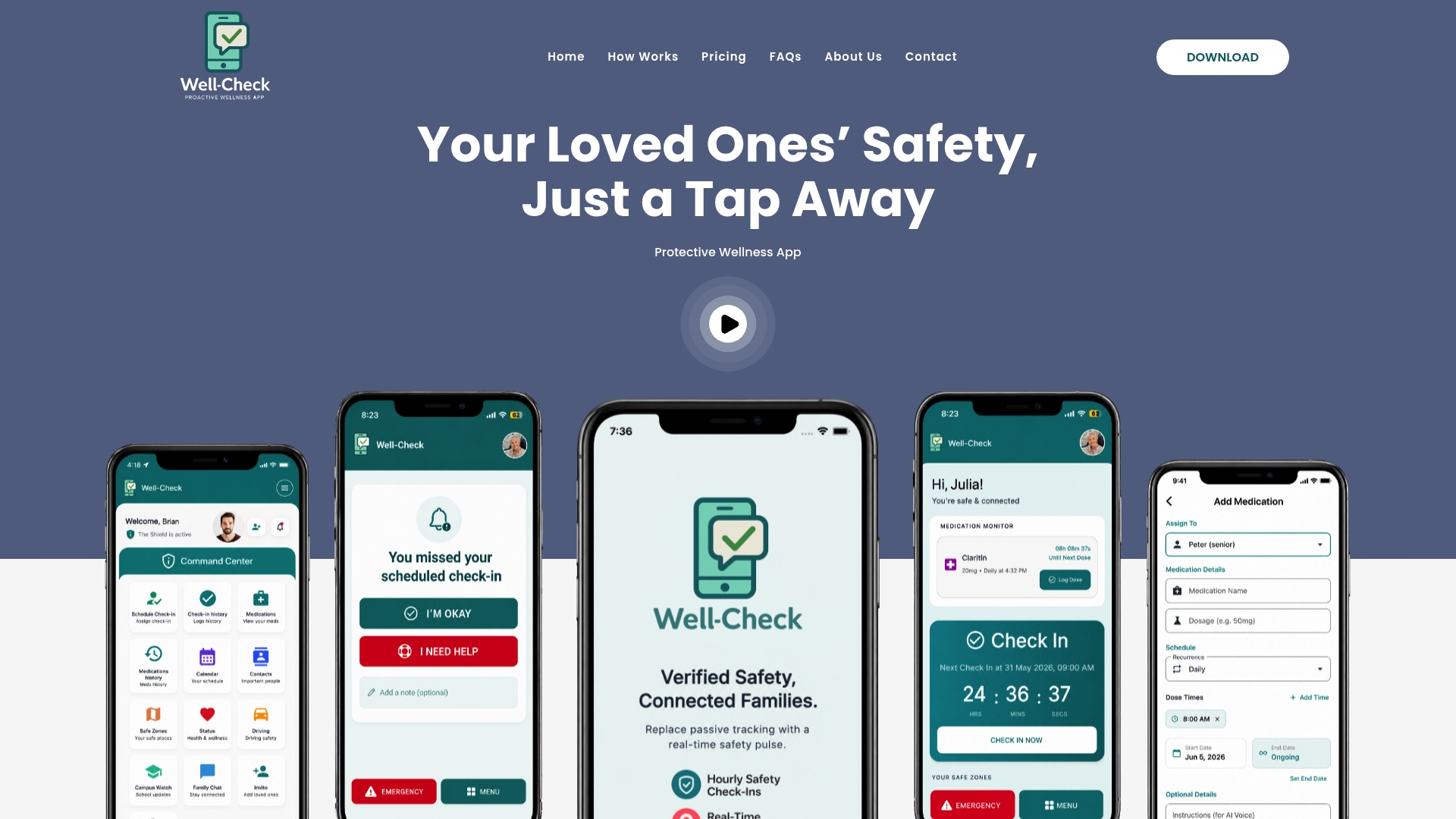
Setup takes a few minutes. You add the medication schedule, invite the family members or caregivers you want notified, and set how a missed check-in or missed dose should escalate. From there, the app handles the daily prompts, and your emergency contacts only hear from it when something actually needs their attention. You can see exactly how the scheduling and caregiver alerts work together on the how Well-Check works page, or go straight to Well-Check’s pricing plans to start a trial and set up your first reminder today.
Sources
The iPhone setup steps in this article come directly from Apple’s own medication tracking support documentation, which confirms exactly how Follow Up Reminders and Critical Alerts function. The Android and voice assistant methods draw on WIRED’s practical guide to phone-based medication reminders. Claims about adherence outcomes and caregiver escalation reference clinical research on reminder interventions, and the polypharmacy guidance reflects recommendations from Johns Hopkins Medicine.
This article is general information, not a substitute for advice from a qualified doctor. Consult a qualified healthcare professional about your own circumstances before acting on anything here.