Most grandparents can use a smartphone well once someone removes the fear, trims the screen down and teaches three or four habits in the right order. The phone is rarely the problem. Worry about breaking it, about spending money by accident, or about looking foolish is usually what holds people back. This guide covers what to set up, what to teach first, and how to add safety features without turning the phone into a leash.
TL;DR
- Start with trust, not buttons: tell your grandparent that the Home button gets them back to safety, and that nothing they tap will break the phone.
- Simplify the home screen: larger text, fewer icons, and only the five or six apps they will really use (phone, messages, camera, video calls, photos, one safety app).
- Teach in this order: answer a call, send a text, start a video call, take and share a photo. Add everything else later.
- Add safety quietly and with their consent: emergency contacts, Emergency SOS, medication reminders, and an optional daily check-in.
- Keep expectations realistic: video calls help, but they do not fully replace being in the same room.
Table of Contents
- Where grandparents actually stand with smartphones
- Start with confidence, not features
- Build a senior-friendly home screen
- The first four skills to teach, in order
- Scams, accidental purchases and other worries
- Add safety features without taking over
- What we think: independence without surveillance
- Where Well-Check fits
- A simple two-week plan
- What if they still struggle?
- FAQ
- Sources
Where grandparents actually stand with smartphones
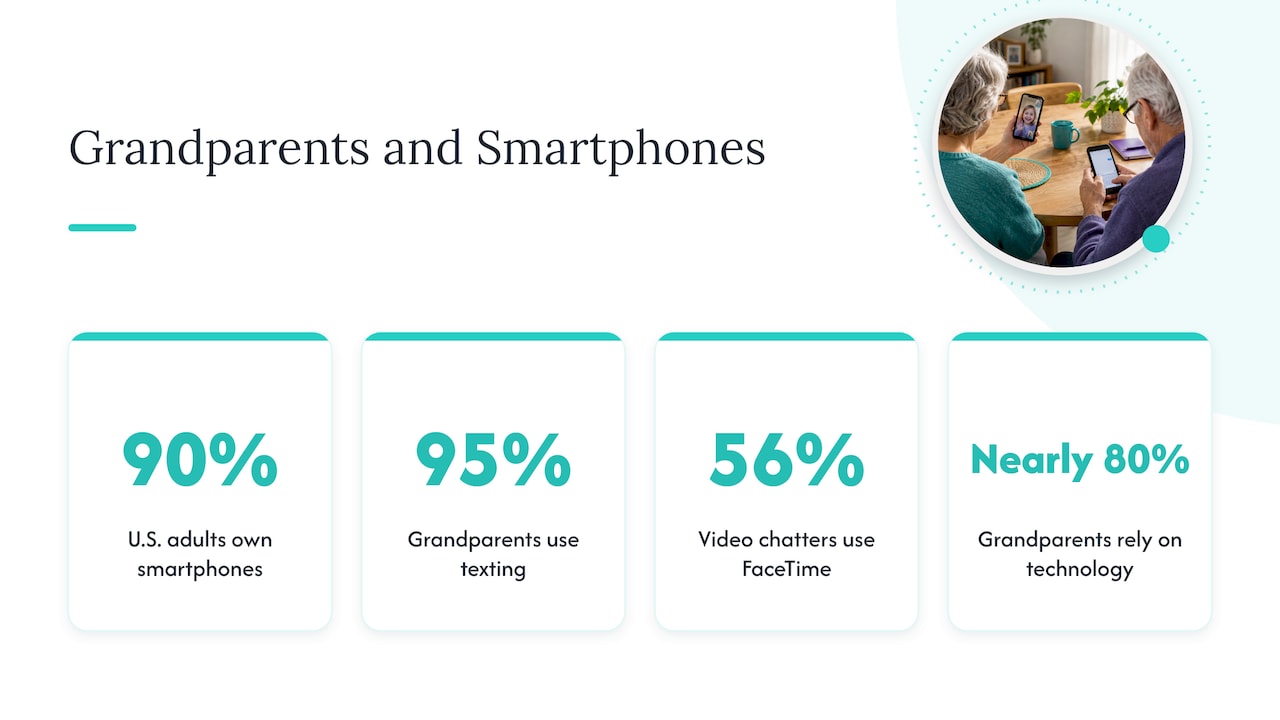
The old picture of grandparents who refuse technology is out of date. Pew Research Center reports that 90% of U.S. adults own a smartphone, though ownership among adults 65 and older still trails younger groups. The gap is tied to income and education: seniors in households earning $100,000 or more are far more likely to own a smartphone than those earning under $30,000. Pew also found that 41% of U.S. adults say they are online almost constantly, against just 15% of those 65 and older.
What grandparents do with the phone is mostly personal. In AARP’s Tech Trends Among Grandparents 50+ report, texting was the most common way grandparents communicate (95% use it). Among those who video chat, FaceTime was the most popular platform, at 56%. Nearly 80% of grandparents say they rely on technology to stay connected.
Research from a 2021 study on smartphone usage among older adults adds a useful twist. Habit and social influence predicted usage more strongly than loneliness did. In plain terms, grandparents keep using a phone when it becomes part of their routine and when people they care about use it too. A grandchild who texts back is worth more than any tutorial.
There is also a health reason to bother. A 2022 analysis of National Health and Aging Trends Study data found that older adults with access to a working cell phone had a significantly lower risk of social isolation than those without one (incidence rate ratio of 0.62). That is an association, not a promise, but it explains why a patient hour of setup is worth it.
Start with confidence, not features
Trainers who work with seniors say digital literacy is rarely about learning where the buttons are. It is about building trust in the device. According to VTC of California’s phone guide, many seniors are held back by the fear of breaking the phone or accidentally spending money, and the Home button works as a reset that lets them experiment without consequence.
Use that insight in the first ten minutes:
- Name the safety net. Show the way back to the home screen (on an iPhone, the Home button or a swipe up from the bottom; on most Android phones, the Home gesture or button). Have them press it five times from five different screens.
- Say what can’t happen. Explain that a phone call or a text will not cost extra on most plans, and that apps do not charge money unless someone types a password or confirms a purchase. Check their actual plan first so that statement is true.
- Let them make mistakes on purpose. Open an app, back out, open another. The goal is to prove that nothing breaks.
- Sit beside them, not in front of them. Do not grab the phone. Point, describe, and let their finger do the tapping.
If you are not sure which kind of phone your grandparent has, VTC’s guide offers a simple tell: an apple on the back means iPhone, and almost anything else is an Android.
Build a senior-friendly home screen
A crowded home screen is the single biggest source of confusion. Aim for a first screen that fits on one glance and does not scroll.
What to put on the first screen
- Phone and Contacts, with favorites for the five people they call most.
- Messages, with large text.
- Video calling (FaceTime on iPhone, or whichever app the family already uses).
- Camera and Photos.
- One safety app, placed where it is easy to find but not easy to tap by accident.
Move everything else to a second page or into a folder named “Other.” Do not delete apps your grandparent might want later; just get them out of the way.
Settings that make the biggest difference
| Setting | What it does | Why it matters |
|---|---|---|
| Larger text and bold text | Makes words bigger and thicker across the phone | Reduces squinting and mis-taps |
| Display zoom or larger icons | Enlarges everything on screen | Easier targets for less steady fingers |
| Ringer and call volume to high | Makes calls audible | Fewer missed calls, fewer worried relatives |
| Hearing aid compatibility and captions | Supports hearing devices and live captions where available | Makes calls and videos usable |
| Auto-lock set longer | Keeps the screen on while reading | Avoids the “it went black” panic |
| Passcode they can remember | Protects the phone | A forgotten passcode is the most common lockout |
For grandparents who find even a trimmed-down screen overwhelming, iPhone has a dedicated option. Apple’s Assistive Access, often called “Senior Mode,” simplifies the interface with enlarged icons and limited app access. Android phones offer font size and display size controls in the accessibility settings, and many manufacturers add an easy mode of their own. Menu names differ by brand and software version, so check the phone’s Settings search bar for “accessibility.”
Write the passcode and the Apple ID or Google account recovery details on paper and keep a copy somewhere safe, ideally with a trusted family member. Do this together and with their permission.
The first four skills to teach, in order
Teach one skill per session if you can. Ten minutes done well beats an hour of everything.
- Answering and making a call. Practice with you in the next room. Show them what a missed call looks like and how to call back from the Recents list.
- Sending a text. Start with voice dictation if typing is hard: tap the microphone on the keyboard and speak. Have them send you “Hello” and reply with a photo.
- Starting a video call. Because FaceTime is so popular among grandparents who video chat, it is often the easiest place to begin if both sides use iPhones. Set up the contact once, then make the call a weekly ritual.
- Taking and sharing a photo. This one pays off emotionally. A grandparent who can send a picture of the garden or the cat has a reason to open the phone daily.
Then add the optional skills: looking up a weather forecast, using maps, scanning a pharmacy code, or reading a patient portal message.
Keep your expectations honest
Digital contact is a real lifeline, but it is not the same as being there. A 2020 research review found that phone calls and text or email provide a functional equivalent to face-to-face interaction for families, but none of these methods reaches true emotional equivalence with in-person presence. Treat the phone as a bridge between visits, not a replacement for them.
Scams, accidental purchases and other worries
Safety fears are fair, and the answer is a few simple house rules rather than a lecture.
- The pause rule. If a call, text or pop-up demands money or a code right now, hang up and call a family member first.
- Never read out verification codes. Make this a family rule, not just a grandparent rule.
- Turn on purchase approval. Both iPhone and Android allow purchases to require a password or approval. Set this up before anything else.
- Practice with a fake scam. Send a harmless suspicious-looking text and walk through what to do. It lands better than a warning.
For guidance on the broader plan, our safety plan for seniors walks through three moves you can make the same evening.
Add safety features without taking over
Many families want the phone to do more than make calls. The risk is that safety features become surveillance. The World Health Organization’s Be He@lthy, Be Mobile guidance makes a related point: the old digital divide has become a digital use divide, and simply handing someone a device is not enough. Programs have to account for digital literacy, engagement habits and limits such as vision or hearing loss. It also recommends pairing digital tools with low-tech options, such as printed summaries or help from a caregiver, instead of assuming smartphone-only use.
In practice, that means a layered approach:
- Emergency contacts on the phone itself. Our guide to setting up emergency contacts on an iPhone takes about five minutes.
- Emergency SOS. Here is how to enable Emergency SOS on iPhone, and then practice what it feels like (with calls to emergency services turned off for the rehearsal, or by reading the confirmation screen only).
- Medication reminders. If pills are part of the day, a reminder at the right time is more helpful than a phone call. See how to schedule medication reminders that seniors and caregivers can rely on.
- Location sharing, only by agreement. If you use it, decide the rules first. Our location sharing etiquette agreement and privacy playbook for senior GPS apps cover what to agree on.
- A printed card. Keep a paper list of contacts, medications and allergies by the phone or on the fridge. If the battery dies, the plan still works.
For a fuller walk-through, use our senior safety checklist, built so a caregiver can set it up in a single sitting.
What we think: independence without surveillance
We build Well-Check around one idea: a grandparent should be able to say “I’m okay” with one tap, and the family should be told only when something is wrong. We did not want a product that watches people. We wanted one that respects them.
That shapes how we think about grandparents and smartphones. A phone that is easy to use is the foundation, and the safety layer should be light enough that your grandparent barely notices it. A daily check-in works because it is small: one tap, once a day, at a time they choose. If the check-in is missed, the people they have chosen as emergency contacts hear about it. Nobody reads their messages or tracks their afternoon.
Our advice to families is to ask before installing anything, show your grandparent exactly what you will see and what you won’t, and let them pick the contacts. People accept help that they helped design. They resist help that arrives as a surprise.
We also think families confuse two kinds of tools. A messaging or journaling platform is good for sharing news with relatives. A logistics tool is good for medications, schedules and check-ins. Using one for the other’s job is where frustration starts, so we encourage a small stack of simple tools instead of a single sprawling one.
— Brian
Where Well-Check fits
If your grandparent lives alone and you want a quiet safety net on top of a phone they already use, Well-Check offers daily check-ins, medication reminders, missed check-in alerts to emergency contacts and a network of contacts you build together. The Essential plan is 5.99 USD per month and the Complete plan is 7.99 USD per month. You can compare both on the Well-Check pricing page.
If you want to understand how a missed check-in is handled before you commit, read our explainer on the 30-minute grace period for a wellness check.
A simple two-week plan
Here is a schedule that works for most families and does not demand daily coaching.
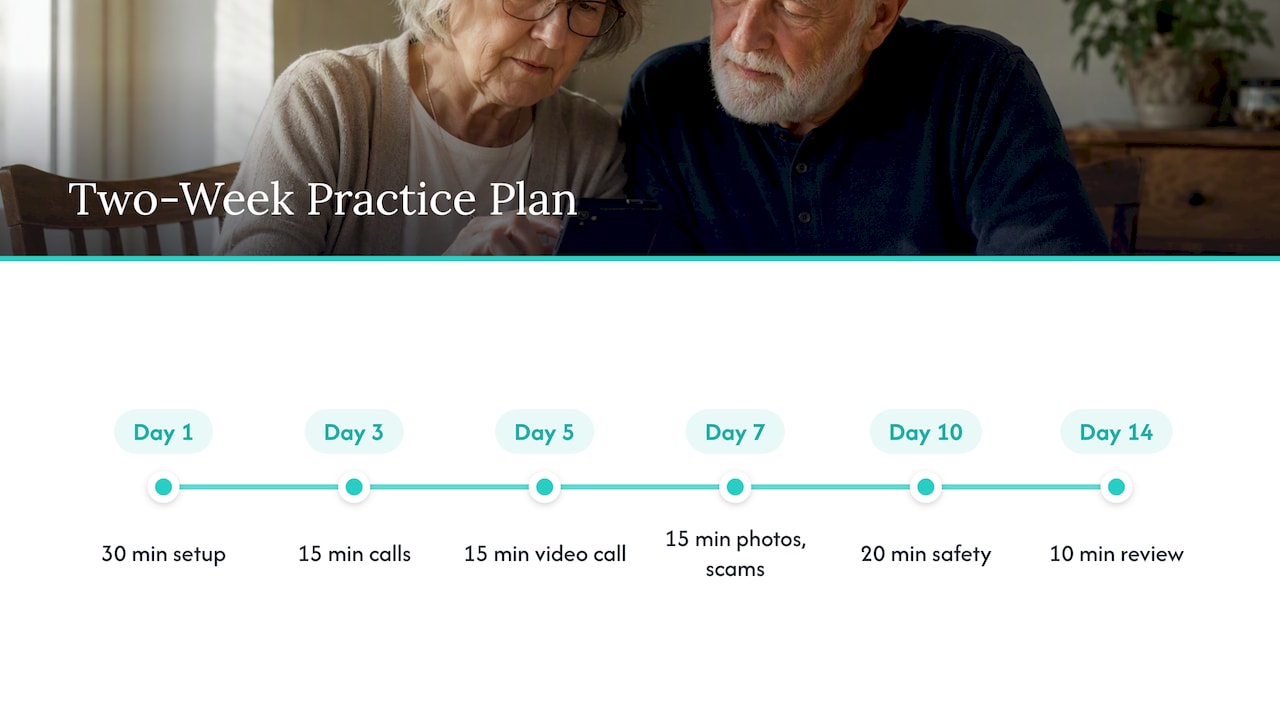
Day 1 (30 minutes). Set up the home screen, text size, volume and favorites. Practice returning home.
Day 3 (15 minutes). Practice calls and texts. Try dictation.
Day 5 (15 minutes). First video call, with you and one other family member.
Day 7 (15 minutes). Take and send a photo. Review the pause rule for scams.
Day 10 (20 minutes). Add the safety layer: emergency contacts, SOS, medication reminders, and a check-in if your grandparent agrees.
Day 14 (10 minutes). Review. Ask what annoyed them, what they liked and what they never used. Remove or hide whatever they dislike.
If you live far away, plan the review as a video call and bring the other relatives in. Our 45-minute family meeting plan for long-distance caregiving helps divide roles so one person does not carry everything.
What if they still struggle?
Some grandparents have vision loss, hand tremors, hearing loss or memory changes that make a touchscreen hard. The WHO guidance above says solutions must account for these limits and be supplemented with low-tech options. That can mean:
- Voice control or voice dictation for typing.
- A stylus or screen protector that gives more grip.
- A paper plan beside the phone.
- A caregiver who handles the settings, while the grandparent only has to answer calls.
- Group or community classes. One small pilot, Talking Tech, tested technology training for homebound older adults to reduce loneliness and social isolation.
If you notice sudden confusion with a phone they used easily before, or new difficulty with tasks, talk with their primary care doctor. That is a health conversation, not a tech problem.
FAQ
What should grandparents learn first on a smartphone?
Start with answering calls, then texting, then video calls and photos. These match what grandparents already do most: AARP’s research found 95% text, and video chatting is widely used. Add apps like maps or a pharmacy app only after the basics feel natural.
How do I make a smartphone easier for an older person to use?
Increase text size, enlarge icons, raise the volume and keep only a handful of apps on the first screen. On iPhone, Assistive Access offers a simplified layout with limited apps. On Android, use the accessibility settings for font and display size.
Is it safe for grandparents to have a phone with location sharing or check-ins?
It can be, if they agree and understand what the family will see. Decide who sees what, how often, and what happens when an alert fires. If location sharing is used without consent, it can become a privacy problem, so agree on rules in advance.
Does a smartphone really help with loneliness?
It can help, but it is not a cure. A 2022 study found that older adults with a working cell phone had a lower risk of social isolation, while other research shows that video and text calls do not fully match in-person contact. Pair the phone with regular visits when you can.
Should I use one app for everything?
Usually not. Messaging and photo sharing are different jobs from medication reminders and check-ins. A small stack of simple tools is easier to learn and easier to fix when something goes wrong.
Sources
- Pew Research Center: Americans’ use of mobile technology and home broadband
- AARP: Tech Trends Among Grandparents 50+
- Smartphone usage among older adults (ScienceDirect)
- Technology access and social isolation, NHATS analysis (PMC)
- Digital communication and family connection, 2020 (PMC)
- WHO: Be He@lthy, Be Mobile
- Phone Basics Guide, VTC of California
- Talking Tech pilot intervention (PMC)
- iPhone Senior Mode: Assistive Access (The Senior List)