Yes, you can enable Emergency SOS at Settings > Emergency SOS, and once it is on, your iPhone will call local emergency services and can notify your emergency contacts with your location. Two main triggers are available: Call with Hold and Release, and Call with 5 Presses. Choose either or both, then confirm your Auto Call setting so the call goes through the way you expect.
TL;DR:
- Emergency SOS can be triggered by holding buttons or pressing the side button five times, with regional variations affecting activation methods.
- Enabling Auto Call allows the phone to dial automatically once the countdown ends, while disabling it requires manual confirmation.
- Medical ID must be set up in the Health app, with emergency contacts added and sharing options enabled for responders to access critical health information.
- Satellite SOS is limited to iPhone 14 or newer, needing a clear sky view and regional support, and it functions only when cellular or Wi-Fi coverage is unavailable.
- Automatic location sharing with emergency contacts occurs after the call, requiring Messages and Location Services to be active, even if you cancel or prevent the call.
Table of Contents
- Turn on Emergency SOS in your iPhone settings
- Set up Medical ID and emergency contacts in Health
- How to trigger SOS and cancel it before it dials
- Emergency SOS via satellite: what it covers and what it doesn’t
- What happens after you call or text SOS
- Fixing SOS status issues and missed alerts
- Practice makes Emergency SOS actually useful
- Why a two-minute setup is worth doing today
- Well-Check adds a daily layer Emergency SOS doesn’t cover
- FAQ
- Sources
Turn on Emergency SOS in your iPhone settings
Setting this up takes about two minutes, and the exact toggles depend slightly on your iPhone model.
- Open Settings, then tap Emergency SOS.
- Switch on Call with Hold and Release if you want to hold the side button and a volume button together until a slider appears.
- Switch on Call with 5 Presses if you prefer to press the side button five times quickly instead.
- Decide whether Auto Call should be on. With Auto Call on, the countdown finishes and the phone dials automatically. With it off, you need to release and then tap “Call” manually.
- Leave the Countdown Sound on unless you have a specific reason to silence it. It warns people nearby that a call is about to start.
Newer Face ID iPhones and older models with a Home button use slightly different button combinations, covered in detail in the next section. If physical buttons are hard to press reliably, check Accessibility settings for alternative input options tied to the same SOS function, as Apple Support documents for each iPhone generation.
Set up Medical ID and emergency contacts in Health
Emergency SOS is only half the picture. The other half is making sure responders and your chosen contacts actually know who you are and how to reach someone who cares about you.
- Open the Health app, tap your profile picture, then select Medical ID.
- Tap Edit, scroll to Emergency Contacts, and tap the add button to choose people from your contacts list.
- Turn on Share During Emergency Call so Medical ID information is visible to responders automatically.
- Turn on Show When Locked so anyone who finds your phone can see allergies, conditions, and blood type without unlocking it.
Emergency services themselves cannot be listed as an emergency contact. Only real people, such as family members or close friends, qualify, since they are the ones who receive the automatic text alert.
Pro Tip: Add multiple emergency contacts with different relationships so someone is almost always reachable.
How to trigger SOS and cancel it before it dials
Triggering Emergency SOS depends on your iPhone model, but the pattern is consistent: a physical button sequence, a countdown, and a window to back out.
- On Face ID iPhones, hold the side button and either volume button until the slider appears, then keep holding through the countdown, or release early if you enabled Call with Hold and Release.
- On models with Call with 5 Presses enabled, click the side button rapidly five times.
- In some regions, including India, pressing the side button five times opens a local emergency options screen rather than dialing directly, reflecting regional carrier and regulatory differences.
- To cancel, simply stop holding the button or swipe away the slider before the countdown ends. No call goes out if you cancel in time.
Apple Watch uses a near-identical side-button sequence, so the muscle memory you build on your phone carries over.
Emergency SOS via satellite: what it covers and what it doesn’t
Satellite SOS extends emergency contact to places with no cellular signal at all, but it has real limits worth knowing before you rely on it.
- Available on iPhone 14 or later, and requires a compatible iOS version along with regional support, according to Apple Support.
- Needs a clear, unobstructed view of the sky. Dense tree cover, canyons, or being indoors can block the connection entirely.
- It is a backup for when cellular and Wi-Fi calling are unavailable, not a replacement for normal coverage when you have it.
- Apple includes a Try Demo mode so you can walk through the satellite connection screens without starting a real emergency session.
- Satellite access has at times been offered free for a limited activation period after purchasing a new iPhone, though terms can change.
What happens after you call or text SOS
Once your call to emergency services ends, your iPhone does not just hang up and move on.
- It automatically sends a text message to your emergency contacts with your current location, unless you cancel the sequence first.
- Location updates continue to your contacts for a period after the emergency call, so they can track movement if you are not somewhere expected.
- The Messages app needs to be present and functional on your iPhone for these alerts to send.
- The Emergency Calls & SOS toggle under Settings > Privacy & Security > Location Services > System Services must stay enabled, or location won’t transmit with the alert.
The automatic location text is sent to designated contacts right after your call ends, based on how Apple documents Emergency SOS data handling, which means your family finds out where you are even if you can’t speak to them directly.
Fixing SOS status issues and missed alerts
A few recurring problems trip people up, and most have quick fixes.
- “SOS” or “SOS only” on your status bar means your iPhone can’t reach its home carrier network but can still place emergency calls through another available network, which is different from “No Service”, where no calls go through at all, as Avast explains.
- If contacts never got an alert, check that Medical ID has valid contacts saved, confirm Messages is working, and verify Emergency Calls & SOS is still enabled in Location Services.
- To avoid accidental triggers, be mindful of how you carry your phone in tight pockets or bags where buttons might get pressed repeatedly.
- If you accidentally start a satellite SOS session, stay connected and tell the responder you don’t need help rather than hanging up, since Apple Support notes this closes the session properly instead of leaving it open.
Practice makes Emergency SOS actually useful
A feature you’ve never tested is a feature you’ll fumble when it matters most.
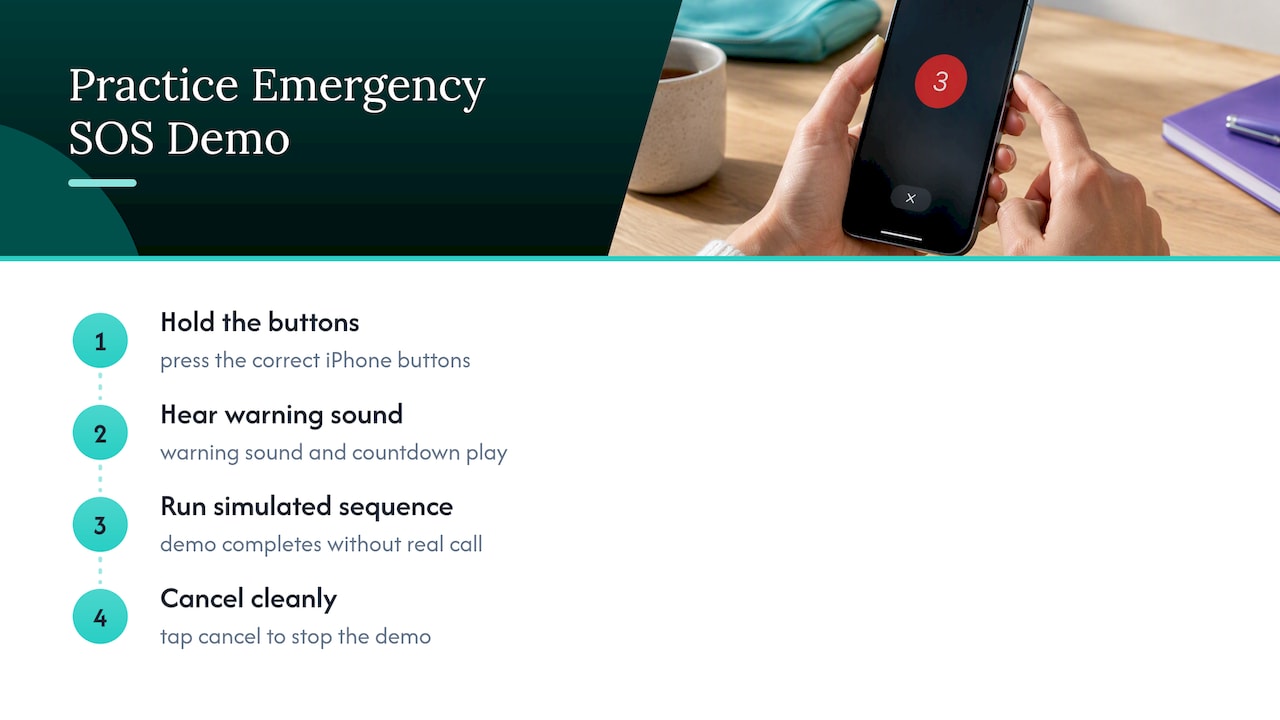
Apple’s Try Demo option lets you walk through the entire Emergency SOS sequence, including the warning sound and countdown, without placing a real call to emergency services. Running through it once or twice builds the muscle memory to hold the right buttons and cancel cleanly if you change your mind. Preparedness guidance from UC Denver’s accessibility training recommends this kind of practice before an emergency, not during one.
Pro Tip: Leave Emergency Calls & SOS turned on in System Services even if you limit other location permissions elsewhere; it’s the one location setting that directly protects you.
Why a two-minute setup is worth doing today
Enabling Emergency SOS and filling out Medical ID takes less effort than setting up a new streaming app, yet it’s the difference between a bystander knowing your blood type and allergies or guessing. I’d encourage anyone living alone, or caring for someone who does, to check these settings every few months and update contacts before travel or after a medical change. It fits naturally alongside broader caregiver routines, including daily check-in habits that catch problems before they become emergencies.
— Brian
Well-Check adds a daily layer Emergency SOS doesn’t cover
Emergency SOS is built for the moment something goes wrong. It doesn’t know if someone simply didn’t get out of bed, skipped a dose of medication, or went quiet for a day with no dramatic trigger to set off a call. That’s the gap Well-Check fills, as a daily companion rather than a replacement for emergency calling.
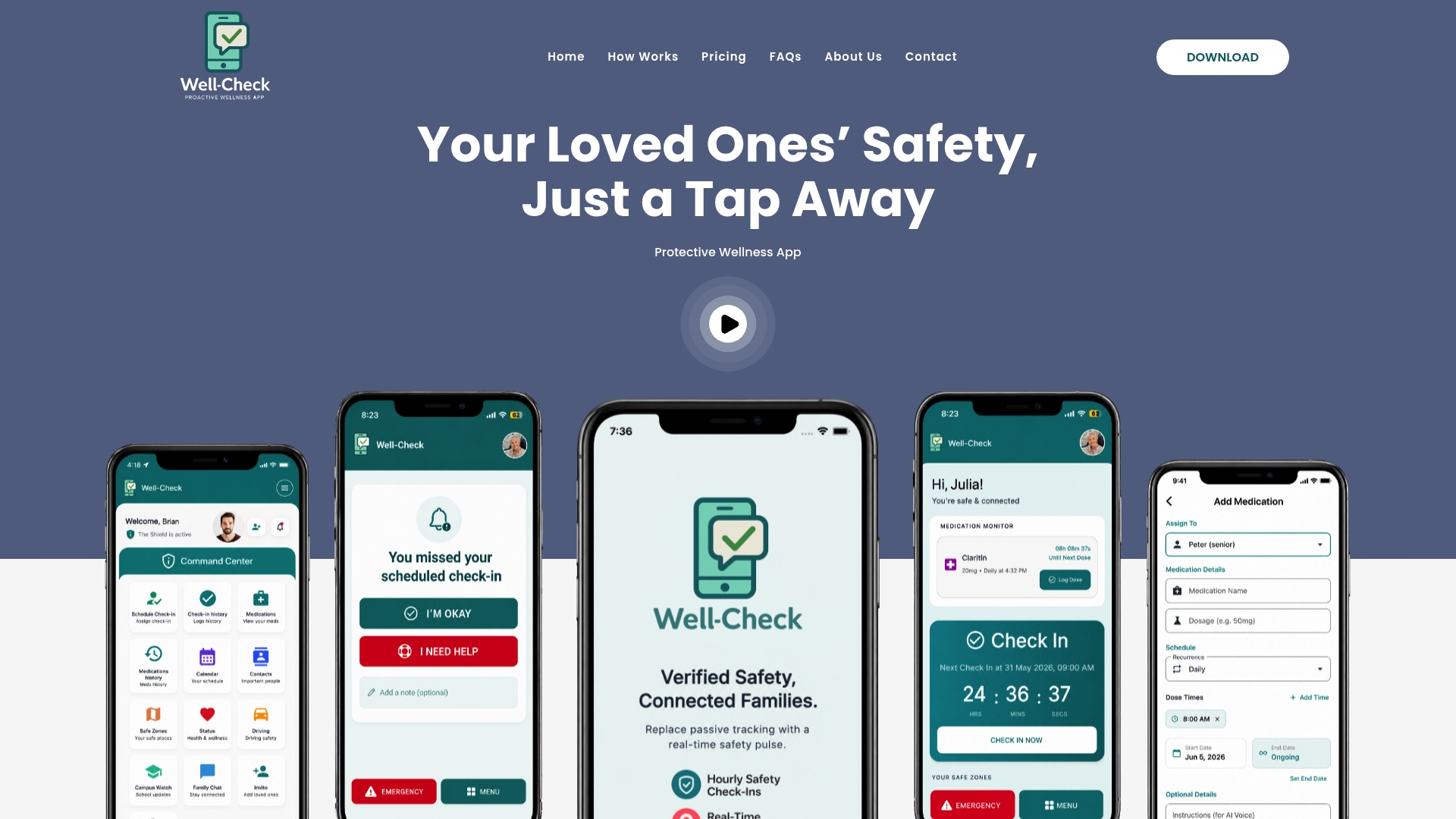
- Daily check-ins let someone confirm they’re okay with one tap, and missed check-ins alert family or caregivers automatically.
- GPS tracking and smart caregiver analysis give families visibility into patterns, not just one-off emergencies.
- An emergency contact network you build once keeps everyone informed without constant phone calls.
If you want a monitoring layer that works quietly in the background between emergencies, our Essential and Complete plans start at $5.99 a month. See exactly how Well-Check works before you decide, and for readers coordinating care for an older relative, pairing it with practical guidance like preventing caregiver burnout often makes the whole arrangement easier to sustain.
FAQ
What happens if you turn on Emergency SOS?
Your iPhone gains a quick button sequence that calls local emergency services, plays a warning sound during the countdown, and can text your emergency contacts with your location once the call ends. It does not place any calls on its own until you trigger the sequence intentionally or accidentally.
Why is my iPhone saying Emergency SOS?
This usually means your phone can’t connect to your regular carrier network but has found another network that allows emergency calls only, a status Apple and other sources label “SOS” or “SOS only.” It’s different from losing service entirely, since you can still reach emergency responders in this state.
Why didn’t I get an emergency alert on my iPhone?
Check that your emergency contacts are correctly saved in Medical ID within the Health app, that the Messages app is functioning, and that Emergency Calls & SOS is enabled under Location Services. Any one of these being off or misconfigured can prevent the automatic location text from sending.
Why did my emergency SOS go off?
Accidental triggers often happen when a phone is pressed against something in a tight pocket or bag, activating the side button sequence without your knowledge. If this happens with a satellite session specifically, stay connected and tell the responder you don’t need help rather than hanging up.
Sources
These official Apple pages cover the exact settings, satellite requirements, and privacy details referenced throughout this guide, useful if you want to verify a setting directly from the source.

[…] In 2 Minutes: Enable Emergency SOS on iPhone for Caregivers with Demo […]