Well-Check lets you set up emergency contact sharing directly on an iPhone, sending designated family members missed check-in alerts, one-tap SOS notifications, and optional location links when something looks wrong. Open the Well-Check app, go to Profile, then Emergency Contacts, and tap Add Contact to start. Caregiver apps that automate this kind of coordination reduce the burden on family caregivers by handling the notifications nobody has time to send manually.
TL;DR:
- Proper setup of permissions, roles, and testing of alert notifications is crucial for reliable emergency response on Well-Check.
- Location sharing should be limited to alert triggers with precise GPS enabled, and permissions must be verified through practical tests.
- Contact verification and regular retesting of alert flow minimize false alarms and ensure responders recognize genuine emergencies swiftly.
- Common failure points include silenced notifications, outdated contact info, disabled background refresh, and GPS issues, all of which are fixable within minutes.
- Practicing the alert process early and regularly keeps emergency responders prepared and reduces response delays during real crises.
Table of Contents
- How Do You Set Up Emergency Contact Sharing on an iPhone?
- What iPhone Permissions Does Well-Check Need to Work Reliably?
- How Do You Verify Emergency Contacts and Test the Alert System?
- What Do Emergency Contacts Actually Receive When an Alert Fires?
- Why Do Emergency Alerts Sometimes Fail, and How Do You Fix It?
- How Does Well-Check Support Caregivers and Older Adults Day to Day?
- What’s the One Thing Most Families Get Wrong About This Setup?
- Ready to Set Up Emergency Contact Sharing With Well-Check?
- Sources
How Do You Set Up Emergency Contact Sharing on an iPhone?
Adding an emergency contact in Well-Check takes about five minutes, but the setup choices you make now determine whether alerts actually reach the right person later. Do this part carefully, especially if you’re setting it up on behalf of a parent or older relative.
Start with these steps:
- Open Well-Check and tap Profile, then Emergency Contacts.
- Tap Add Contact and fill in the required fields: full name, relationship to the user, mobile number, and email address.
- Set permissions for that specific contact. This matters more than most people realize.
- Repeat for each additional contact, then designate one as primary and the rest as backup.
- Save, and wait for the verification step (covered in the next section) before considering the job done.
Permissions can be set per contact, which can accommodate different comfort levels around privacy. For each person you add, you’ll typically choose:
- Whether they receive location on alert (sent only when an SOS or missed check-in triggers, not continuously)
- Whether they can view medical notes, if the user has added any
- Whether SMS fallback kicks in if the push notification fails to deliver
A daughter in another state might get full access including location and medical notes, while a neighbor added as a backup contact might only get the missed check-in ping. That distinction avoids the common mistake of treating every contact the same way.
Once contacts are added, assign roles clearly. A primary responder is the person expected to act first when an alert fires. Backup responders are the second and third calls if the primary doesn’t answer within a reasonable window. Skipping this step is one of the most common setup mistakes: without a designated order, three family members can all assume someone else is handling it.
What iPhone Permissions Does Well-Check Need to Work Reliably?
Well-Check depends on a handful of iOS settings that people either skip or turn off later without realizing what breaks. Go to Settings > Well-Check on the iPhone and check the following:
- Notifications: set to Allow, with banners and sounds on. If this is off, missed check-in alerts and SOS pushes simply won’t arrive.
- Location: set to “While Using the App” at minimum; “Always” if the household wants location included automatically during an SOS event rather than only when the app is open.
- Precise Location: turned on. Approximate location can put a responder several blocks off, which matters if someone needs to be found quickly.
- Background App Refresh: enabled for Well-Check, so check-in reminders and alert triggers keep working even when the app isn’t open.
Precise location doesn’t mean constant tracking. Well-Check sends location data on an alert trigger, not as a running feed, and GPS-based alert systems have been piloted successfully in social care settings even though reliability still depends on coverage and device conditions.
If a parent is uneasy about sharing location, a simple line helps: “This only shares where you are if you tap SOS or miss a check-in. It’s off the rest of the time.”
Pro Tip: Test the Location toggle right after setup by switching the phone to airplane mode briefly and back. If Well-Check still shows a recent location on reconnect, permissions are working as intended.
How Do You Verify Emergency Contacts and Test the Alert System?
An unverified contact is a contact who won’t recognize the alert when it actually matters. A verification message is sent to each new contact to help ensure the system works under pressure.
- After adding a contact, confirm they received and accepted the in-app verification message.
- Run a test alert from the user’s phone and have the contact confirm they got the push notification, the SMS fallback, and the location link.
- Walk the contact through what a real alert will look like, so a 2 a.m. notification doesn’t get mistaken for spam.
- Retest monthly, or immediately after an iOS update, a new phone, or a change in contact information.
A short script helps here: “If you get a Well-Check alert, it means Mom missed her check-in or hit the help button. Call her first. If she doesn’t answer in a few minutes, call me.” Setup guides that build in a verification message, a role explanation, and a live test consistently produce fewer false alarms and faster real responses, because everyone already knows their job before an emergency happens.
What Do Emergency Contacts Actually Receive When an Alert Fires?
Contacts get one of three alert types: a missed check-in, a manual SOS, or a medication reminder that went unacknowledged. Each one arrives as a push notification and SMS fallback, and the content scales with the urgency.
- Missed check-in: a notification that the daily “I’m okay” tap didn’t happen by the expected time, similar to the check-in pattern common across senior monitoring apps.
- Manual SOS: an immediate alert with a map link to the last known location and any medical notes the user chose to share.
- Medication miss: a lower-urgency notice, useful for spotting a pattern before it becomes a bigger problem.
The location link points to the last reported GPS position. If the phone is offline or in an area with poor signal, that location may be delayed or approximate rather than live.
When an alert comes in, the responder’s job is straightforward: call the user first, call the next contact on the list if there’s no answer, judge the urgency based on what the alert says, and call emergency services if anything suggests a fall, medical event, or unresponsive phone. With more than one caregiver on the list, decide in advance who takes the first call during work hours versus overnight, so response doesn’t stall while two people wait for the other to act.
Why Do Emergency Alerts Sometimes Fail, and How Do You Fix It?
Most alert failures trace back to a handful of repeat offenders, and nearly all of them are fixable in under a minute.
- Notifications silenced: check that Focus or Do Not Disturb isn’t blocking Well-Check alerts on either phone.
- Wrong or outdated contact number: a typo in setup means a real alert goes nowhere.
- Background App Refresh disabled: if it’s off, check-in reminders and alert triggers can lag or miss entirely.
- Low Power Mode: aggressive battery saving can delay background location updates and notification delivery.
- Poor GPS coverage: location becomes approximate rather than exact when signal is weak, a known limitation of GPS-based systems in social care use.
If the phone goes fully offline, alerts queue and send once connectivity returns, which is why testing under realistic conditions, not just at home on strong Wi-Fi, matters more than most people assume. Households managing an older adult with a complex medical history or unpredictable mobility should consider layering in a local emergency contact or a human dispatch option rather than relying on family alone.
How Does Well-Check Support Caregivers and Older Adults Day to Day?
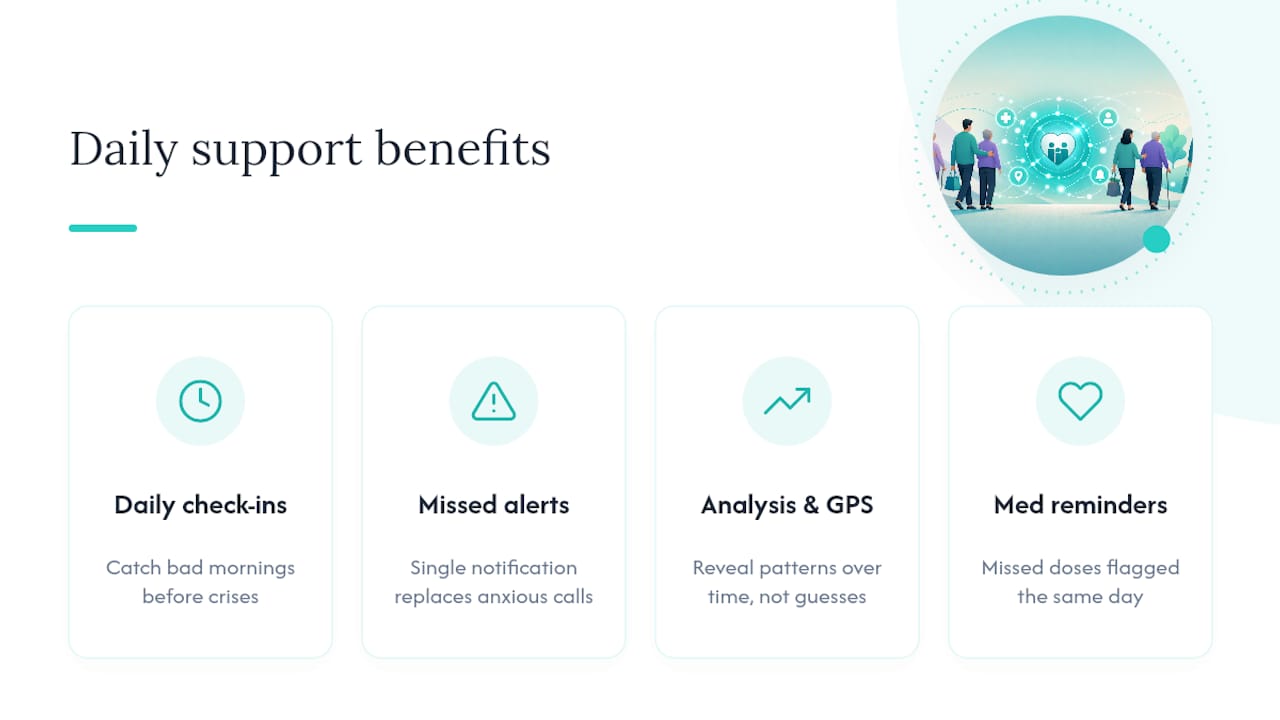
Well-Check’s feature set maps directly onto the problems caregivers actually deal with: daily check-ins catch a bad morning before it becomes a crisis, missed check-in alerts replace the anxious phone call nobody wants to make, and smart caregiver analysis and GPS tracking give families a clearer read on patterns over time instead of guessing.
Fewer than one in five caregiver apps reviewed in a 2017 analysis covered three or more real support categories at once, which is exactly the gap a combined check-in and alert system is built to close.
A daughter checking her phone at work sees a single missed check-in notification instead of wondering all day whether her father took his morning walk safely. That’s the difference between reacting to a crisis and catching a problem early.
Medication reminders paired with missed check-in alerts mean a single missed dose doesn’t sit unnoticed for a full day.
What’s the One Thing Most Families Get Wrong About This Setup?
Most families treat emergency contact sharing as a settings toggle they flip once and forget. That’s backwards. The setup itself is the easy part. What actually determines whether an alert saves time in a real emergency is whether the contact has practiced getting one.
Conventional advice on senior safety apps spends nearly all its attention on features: GPS accuracy, battery life, notification types. Almost none of it addresses the fact that an unrehearsed responder wastes precious minutes trying to figure out if an alert is real. That gap matters more than any spec sheet.
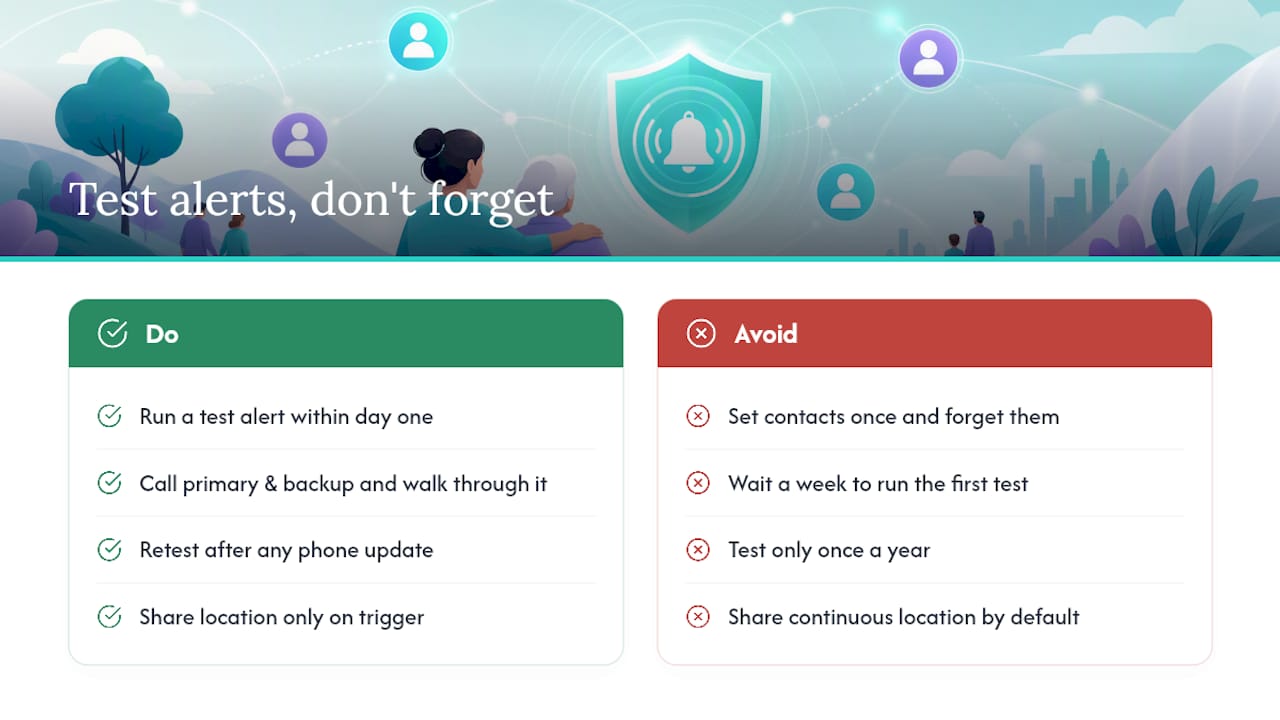
Here’s what I’d prioritize first: run the test alert within the first day of setup, not the first week. Get the primary and backup contacts on a short call where you literally walk through what the notification looks like and who calls whom. Retest after any phone update, not just once a year. A verified contact who has already seen a test alert responds in seconds. An unverified one hesitates, and hesitation is exactly what a missed check-in system is trying to eliminate.
Privacy-safe defaults matter too. Sharing location only on trigger, not continuously, respects a parent’s independence while still closing the gap when it counts. Get that balance right, and the technology stops feeling like surveillance and starts feeling like backup.
— Brian
Ready to Set Up Emergency Contact Sharing With Well-Check?
Everything in this guide, from adding contacts to running a test alert, happens inside the same app that handles daily check-ins, medication reminders, and GPS tracking in one place. Instead of using separate tools for monitoring and emergency notification, some apps offer a unified setup flow and dashboard for caregivers to manage these functions.
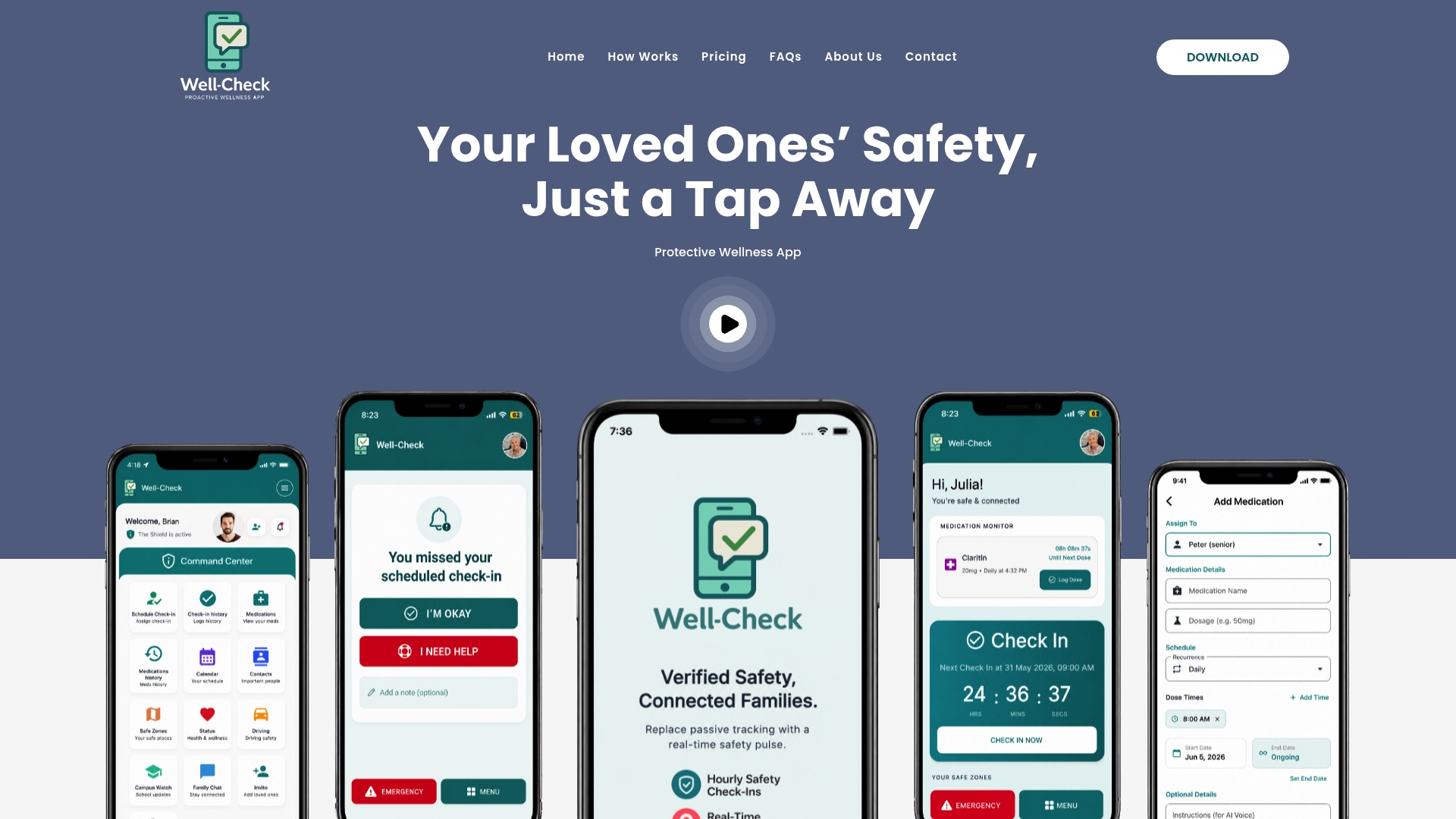
If you want to see the permissions and alert flow in more detail before setting anything up, how Well-Check works walks through the check-in and notification system step by step. Ready to move forward for your family? Compare pricing plans to find the right tier, and once installed, run that first test alert immediately. It’s the single fastest way to know your emergency contact list actually works before you ever need it to.

[…] you’re also setting up a broader safety net, it helps to pair these settings with a verified emergency contact list so the right people are the ones you’re allowing […]
[…] Set Up Emergency Contacts on iPhone in 5 Minutes for Caregivers […]
[…] a second device or second person as a backup. If you want to save contacts properly, our guide on setting up emergency contacts on iPhone walks through […]
[…] number, and knows the patient’s medication list. If your loved one is a senior, our guide to setting up emergency contacts on an iPhone walks through the phone […]