Yes, both iPhone and Android let specific people and apps break through Do Not Disturb. On iPhone, open Settings, then Focus, then Do Not Disturb, and set People, Apps, and Emergency Bypass. On Android, go to Settings, then Modes (or Sound & Vibration), then Do Not Disturb, and set People and Apps exceptions.
TL;DR:
- On iPhone, Allow Repeated Calls lets a second call from the same person ring through within three minutes, even when that contact is not approved.
- On Android, a second call from the same number within 15 minutes can ring through; menu labels vary across Samsung, Pixel, and Motorola phones.
- For a contact who must always reach you, enable Emergency Bypass in that person’s Ringtone or Text Tone settings; it works for calls or texts.
- If an allowed Android app stays silent, check both its Do Not Disturb exception and notification permission, then remove battery restrictions or deep sleep settings.
Table of Contents
- How to configure Do Not Disturb exceptions on iPhone
- How to configure Do Not Disturb exceptions on Android
- Common problems and troubleshooting steps when exceptions don’t work
- Quick verification checklist: 6 things to confirm after changing exceptions
- Why exceptions matter for caregivers
- An extra layer of reassurance alongside your phone’s settings
- FAQ
- Sources
- Authoritative support pages to follow for platform UI and latest details
How to configure Do Not Disturb exceptions on iPhone
Open the Settings app, tap Focus, then select Do Not Disturb. From here you control exactly who and what can reach you while the rest of the phone stays quiet.
- Tap People under Do Not Disturb to choose which contacts or groups can send calls and messages through, using Allow Notifications From.
- Tap Apps to pick which apps can still alert you, and turn on Time Sensitive Notifications so urgent app alerts get through immediately, according to Apple’s Focus support page.
- Open a contact’s card and turn on Emergency Bypass under Ringtone or Text Tone so that person’s calls or texts can bypass Do Not Disturb, a feature available since iOS 12.
Apple also builds in a safeguard for urgent callers: the Allow Repeated Calls setting lets a second call from the same person within three minutes ring through, even if that contact isn’t on your allowed list, according to Apple Support. This matters most overnight, when a single missed call from an older adult could otherwise sit silent until morning.
If you’re also setting up a broader safety net, it helps to pair these settings with a verified emergency contact list so the right people are the ones you’re allowing through.
Pro Tip: After setting exceptions, ask the allowed contact to call you once while your phone is locked and Do Not Disturb is on, then confirm it actually rings instead of going straight to voicemail.
Newer versions of iOS increasingly use automated breakthrough systems to judge which notifications matter, but you can still override these manually for any contact or app when you want full control.
How to configure Do Not Disturb exceptions on Android
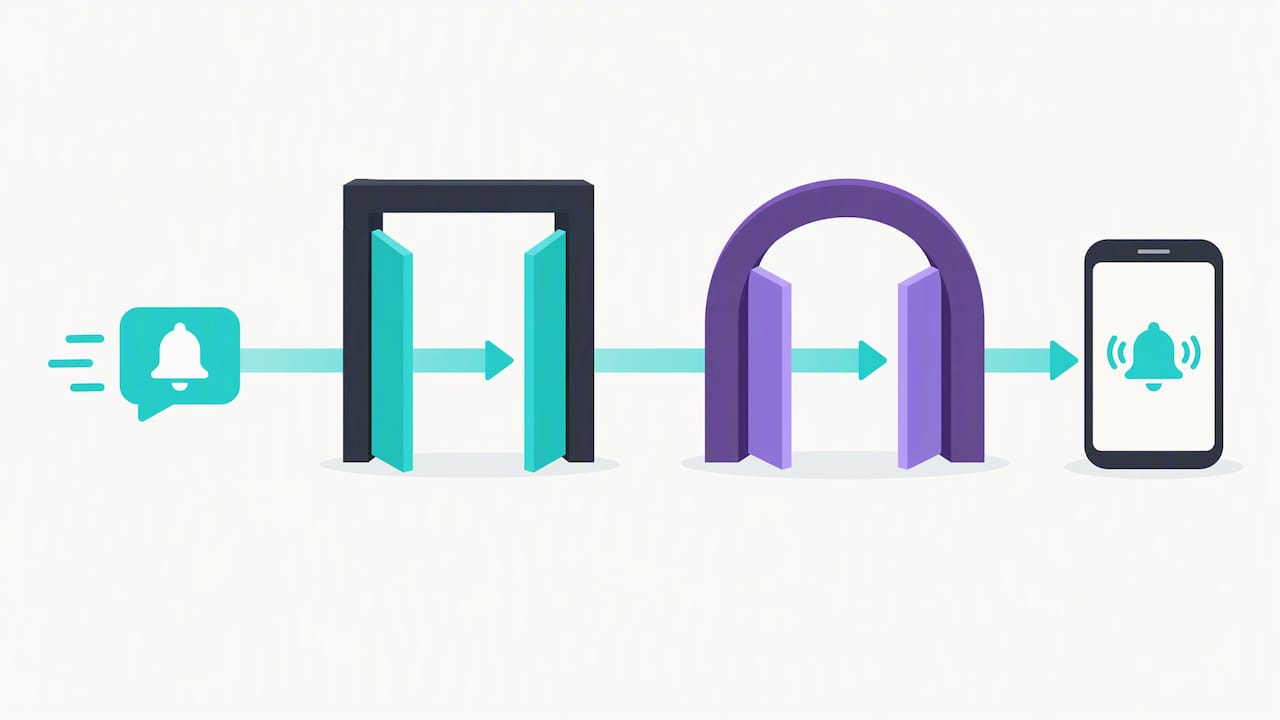
On Android, exceptions live under Settings, then Modes, or on some phones under Sound & Vibration, then Do Not Disturb. You can also reach the toggle quickly from Quick Settings by pulling down the notification shade.
- Under People, choose whether calls, messages, or conversations from starred contacts, favorites, or specific people can interrupt you, as described by Android Help.
- Under Apps, select which apps are allowed to notify you. If your phone offers Override Do Not Disturb, check its settings for the app.
- Under Alarms & other interruptions, confirm alarms are allowed by default, and adjust media, touch sounds, or reminders as needed.
Most Android builds also include a repeat-caller rule: if the same number calls twice within 15 minutes, the second call rings through even without being listed as an exception, according to Illinois State University’s device support guide. You can also set how long Do Not Disturb stays active, choosing “until turned off,” a set time, or “ask every time” each time you enable it, per Android Help.
Keep in mind that Samsung, Pixel, and Motorola phones label these menus slightly differently, so the exact tap path may shift even though the underlying People, Apps, and Alarms categories stay the same.
Pro Tip: If a caregiving app or messaging app isn’t making it through, check both the Apps exception list and the app’s own notification permissions, since Android treats these as two separate gates.
Common problems and troubleshooting steps when exceptions don’t work
When an allowed contact or app still gets silenced, a few common settings are worth checking before assuming the feature is broken.
- The app is missing from your notification or exceptions list. On Samsung and other Android phones, check whether the app has been placed in Deep Sleeping Apps under battery settings; removing it from that list or setting its battery use to Unrestricted typically restores normal notification behavior, according to Android Community troubleshooting threads.
- The app’s own notification permissions are off. Confirm notifications are enabled for that app in system settings, then check whether Override Do Not Disturb (Android) or Time Sensitive Notifications (iPhone) is available and enabled.
- A schedule or another Focus may be affecting your choice on iPhone. Check any active Focus profiles and schedules.
- Check the device receiving the alert. Test the exception on that device rather than assuming settings match across your Apple devices.
Pro Tip: After changing a battery or notification setting, retest the device to see whether the change resolved the issue.
Run through each fix with a real test: toggle Do Not Disturb on, place a call from the allowed contact, and send a time-sensitive alert from the app in question.
Quick verification checklist: 6 things to confirm after changing exceptions
A setting that looks correct on screen isn’t the same as a setting that works, so it pays to verify before relying on it.
- Confirm the contact or app actually appears in your Focus or Do Not Disturb allow list, not just a similar-sounding one.
- Call or text from the allowed contact while the phone is locked, and watch whether it rings and shows on the lock screen.
- Check that the app’s own notifications are on and that Override Do Not Disturb or Time Sensitive Notifications is enabled.
- Make sure the app isn’t sitting in a battery-restriction or deep-sleep list that blocks it in the background.
- Temporarily disable any Do Not Disturb schedule while testing, so a timer doesn’t mask a setting problem.
- Test on the exact device meant to receive the alert, not a synced tablet or secondary phone.
Why exceptions matter for caregivers
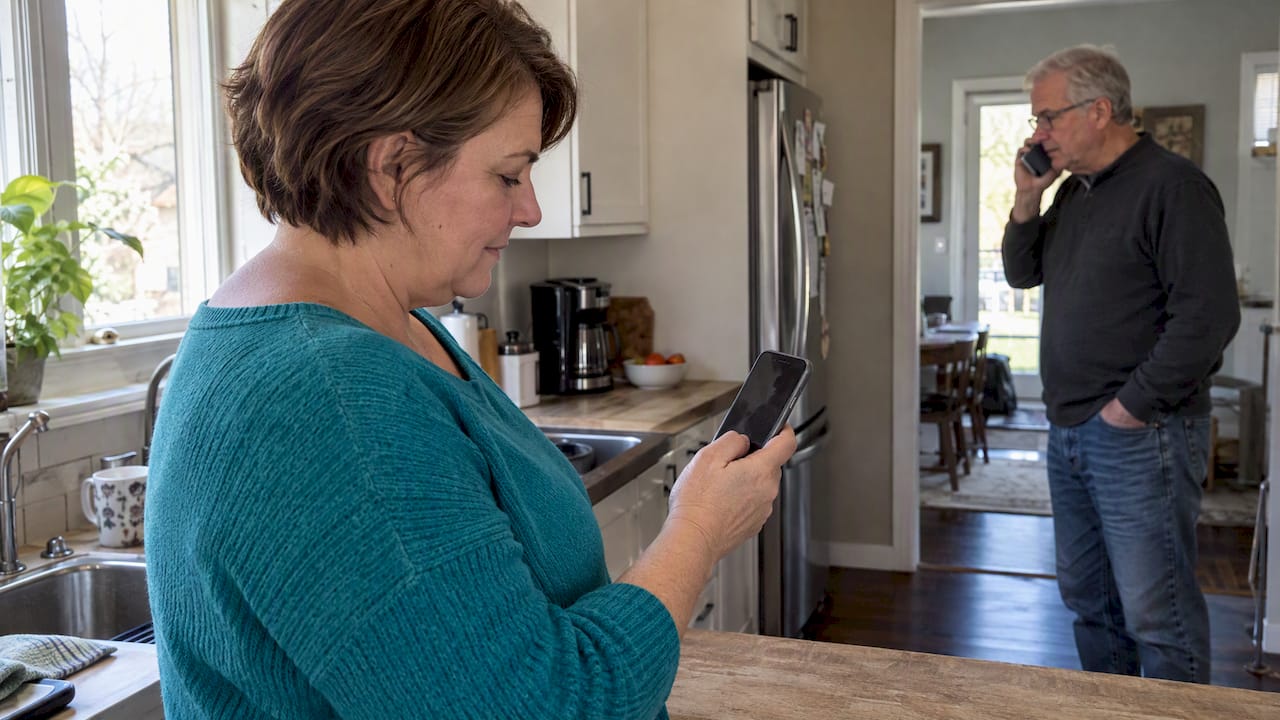
Getting these settings right does more than silence spam calls at night. It lets a parent or older relative sleep without the phone buzzing over every app update, while still guaranteeing that one specific person, like an adult child or an emergency contact, can always reach them. That balance between quiet and reachability is the point of Do Not Disturb exceptions: a quieter phone, while still allowing selected people or apps to reach you. Device settings handle the phone side of that promise well, but they can’t tell anyone if a check-in never happens in the first place.
— Brian
An extra layer of reassurance alongside your phone’s settings
Do Not Disturb exceptions make sure the right calls and texts get through, but they don’t tell anyone when a loved one hasn’t checked in at all. That’s the gap Well-Check is built to address. See the service’s details to learn which check-in, alert, reminder, location, and emergency-contact features it offers.
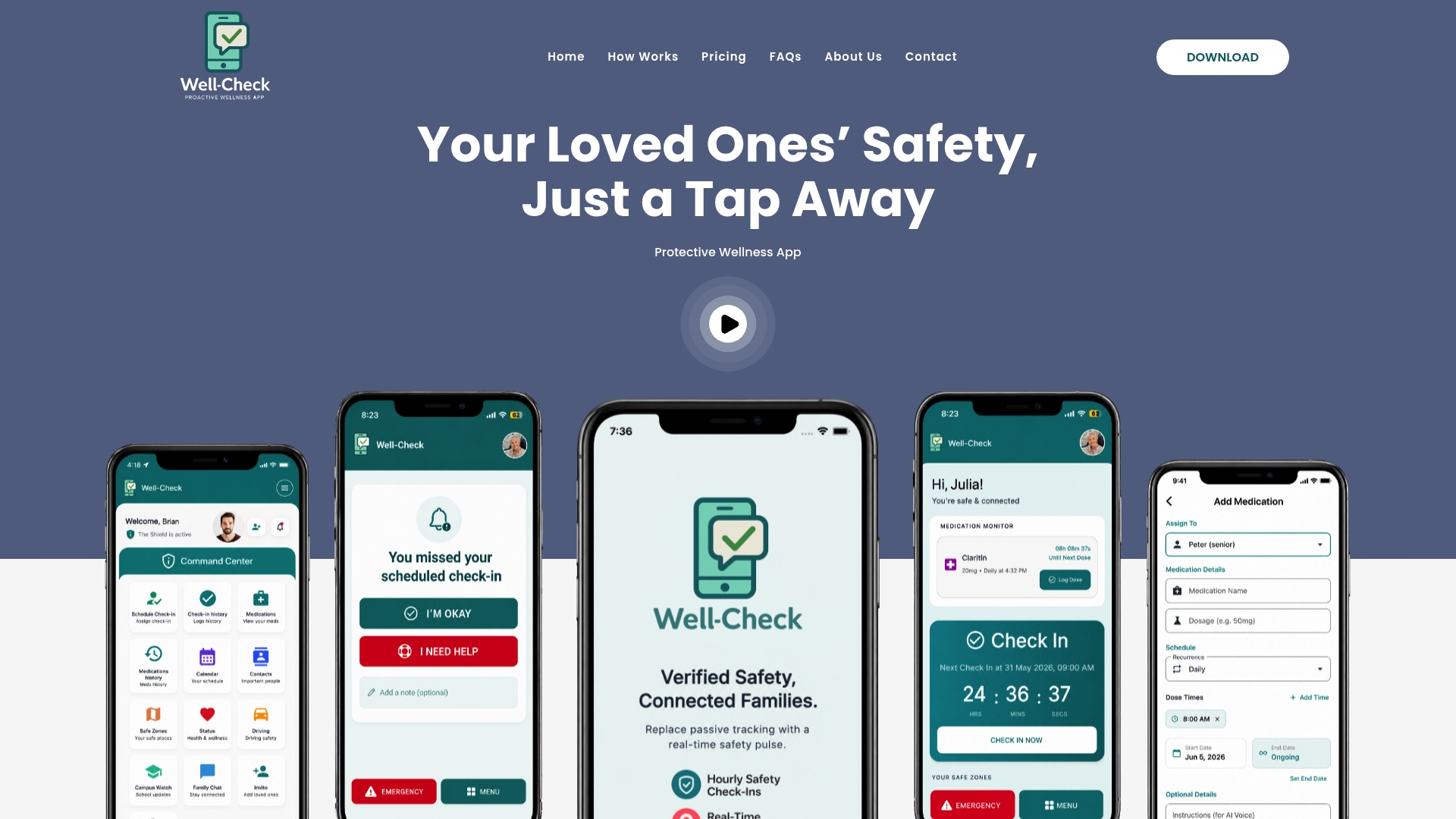
Used together with the exceptions you just set, a daily check-in habit means a quiet night never has to mean an unanswered one. You can compare the Essential and Complete plans to see which fits your family’s routine.
FAQ
Can you make exceptions to Do Not Disturb on iPhone?
Yes, under Settings, then Focus, then Do Not Disturb, you can allow specific people and apps to notify you, and turn on Emergency Bypass on a contact card so that person always rings through, according to Apple Support.
How do I turn on Do Not Disturb on Android?
Open Settings, then Modes or Sound & Vibration, then Do Not Disturb, and toggle it on, or use the Quick Settings shortcut from the notification shade. From there you can set People, Apps, and Alarm exceptions under the same menu, per Android Help.
How do I turn off Do Not Disturb notifications?
Open the same Do Not Disturb menu on iPhone or Android and toggle the mode off, or remove it from Quick Settings. On iPhone this is under Settings, then Focus; on Android it’s under Settings, then Modes.
What happens when a phone is in Do Not Disturb mode?
Do Not Disturb settings let you choose which calls, texts, and app alerts to silence or allow. How notifications appear depends on the device and settings. People and apps you allow can still send notifications, and Android offers a repeat-caller setting. See Android Help for details.
Sources
- Allow or silence notifications for a Focus on iPhone – Apple Support
- Help
- Limit interruptions with Modes & Do Not Disturb on Android – Android Help
Authoritative support pages to follow for platform UI and latest details
For the most current steps, Apple’s guide on allowing or silencing Focus notifications and Google’s guide on limiting interruptions with Modes and Do Not Disturb stay updated as each platform evolves. Manufacturer pages for Pixel, Samsung, and Motorola cover device-specific menu wording when the stock Android steps don’t quite match what’s on your screen.