
Android gives you three core location permission states: deny, allow only while using the app, and allow all the time, plus a separate toggle for precise versus approximate accuracy. If you are a user, open Settings and review App location permissions today. If you are a developer, request only the scope your feature actually needs, following Android developer guidance and Google Play policy before you ship.
TL;DR:
- Most permission issues are quickly resolved by checking app-specific location access levels in system settings and ensuring the Location Accuracy setting aligns with expectations.
- Apps requesting location should be limited to necessary scopes, with foreground, background, precise, or approximate options properly declared and used based on feature requirements.
- Turning off location services at the device level or letting permissions auto-revoke for inactive apps can unexpectedly block or reset location access.
- Developers must match manifest declarations with runtime permissions, especially for background location on Android 11 and later, to avoid crashes or rejections.
- Users and developers should prioritize minimal, purpose-driven location sharing, revisiting permissions regularly to protect privacy while enabling essential features.
Table of Contents
- How to review and change your app location permissions
- Foreground, background, precise, and approximate: what each setting actually means
- Developer checklist: manifest entries, runtime flow, and platform-specific rules
- Privacy best practices worth building into your routine
- Fixing common permission and runtime problems
- Designing safety features without turning them into surveillance
- How Well-Check handles location without constant tracking
- FAQ
- Sources
How to review and change your app location permissions
Most permission problems get solved in under two minutes once you know where to look. Open Settings, tap Location, then App location permissions to see every app sorted by its current access level.
- Find the app and check which bucket it sits in: Allow all the time, Allow only while using the app, Ask every time, or Don’t allow.
- Tap into any app to switch its level, and look for the Use precise location toggle just below the main setting.
- If precise location seems grayed out or ignored, check the device-wide Location Accuracy setting first.
- Turning off Location entirely at the device level blocks every app from getting a fix, regardless of individual app settings.
Android also auto-resets permissions for apps you have not opened in months, according to Google’s own guidance on managing location access. That protects you from forgotten apps quietly holding onto background access.
Pro Tip: Sort through “Allow all the time” apps first since that is the bucket most worth auditing for privacy exposure.
Foreground, background, precise, and approximate: what each setting actually means
“While using the app” (foreground) means location only flows to an app when it is open and visible on your screen, like a maps app giving turn directions. “Allow all the time” (background) means the app can request your location even when closed or minimized, which is what powers things like geofenced alerts.
Precise and approximate location are a separate axis entirely:
- Approximate location gives an app your general area, accurate to about 3 square kilometers.
- Precise location narrows that down to about 50 meters, tight enough for navigation or exact positioning.
- Many apps function fine on approximate alone, including weather, local search, and general safety check-ins.
The accuracy gap between approximate and precise location is roughly 60 times, since 3 square kilometers covers far more ground than a 50 meter radius. That gap is exactly why Android lets you choose the coarser option for apps that do not need pinpoint accuracy.
This tristate structure (deny, while-in-use, always) replaced a simpler on/off model starting with Android 10, as described in Android’s tristate permissions documentation. Before that version, apps requesting any location access got an all-or-nothing grant with no in-between option.
Developer checklist: manifest entries, runtime flow, and platform-specific rules
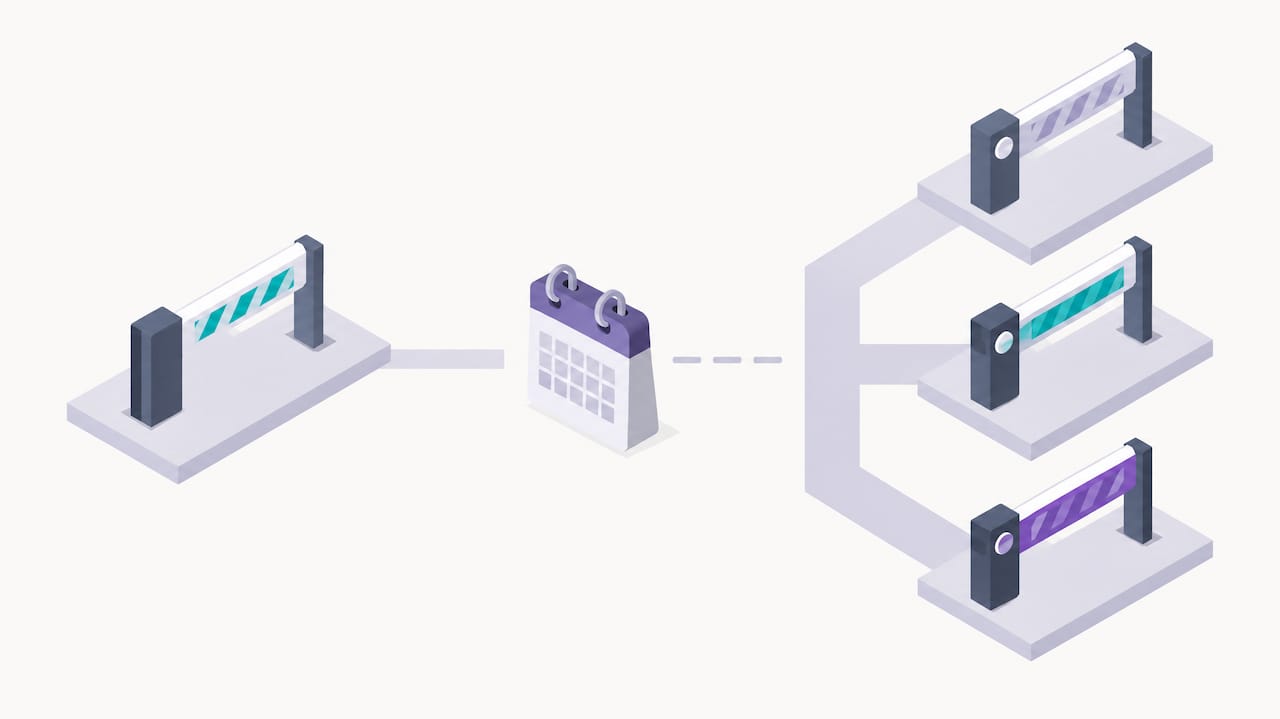
Getting location right in your app means matching your permission requests, manifest declarations, and runtime flow to the Android version you target. A mismatch anywhere in that chain tends to surface as a rejected Play Console submission or a runtime crash.
- Declare ACCESS_COARSE_LOCATION and ACCESS_FINE_LOCATION together, since some releases ignore a lone fine-location request according to Android’s runtime permissions guide.
- Add ACCESS_BACKGROUND_LOCATION only when your core feature genuinely requires it, and remember that on Android 11 and later users must explicitly flip background access on in system settings, separate from the initial runtime prompt.
- On Android 14 (API level 34) and up, declare a foreground service type of “location” in your manifest and request FOREGROUND_SERVICE_LOCATION, or the service will throw a SecurityException at launch.
- Never start a location-type foreground service while your app is backgrounded. While-in-use permissions are only active while the app is visible.
- On apps targeting Android 17 and later, use the location button for one-time precise requests, and complete the Play Console location declaration if you need persistent precise or background access.
- Audit third-party SDKs in your build. An SDK that calls ACCESS_FINE_LOCATION attributes that request to your app, not the library.
Pro Tip: Request foreground access first and wait until a user actually triggers a background-dependent feature before asking for that second permission.
Privacy best practices worth building into your routine
Good location hygiene looks different depending on which side of the permission prompt you sit on, but the underlying principle is the same: grant or request the minimum that gets the job done.
- As a user, default to “Allow only while using the app” or “Ask every time” rather than always-on access, and turn off precise location for apps that only need a general area.
- As a user, revisit App location permissions every few months and revoke access for anything you no longer trust or use.
- As a developer, default new location requests to approximate accuracy and reserve precise access for features that cannot work without it.
- As a developer, lean on the location button for one-off needs instead of asking for standing background permission.
- As a developer, explain the specific benefit of background access in plain language before the system prompt appears, since a vague justification tends to get rejected in Play Console review.
Android’s background execution limits, in place since Android 8.0, exist partly to protect battery life, so building a feature that assumes constant background updates is a design flaw as much as a privacy one, per Android’s background location guidance.
Fixing common permission and runtime problems
Most location bugs trace back to one of a few repeat offenders.
- If the precise location toggle seems to do nothing, check the device-wide Location Accuracy setting, since a system-level restriction can override a per-app choice.
- If a foreground service throws a SecurityException on startup, confirm the permission was granted while your app was visible and that you declared the correct foreground service type for Android 14+.
- If a feature that worked last month silently stops, check whether Android auto-revoked the permission for inactivity, a protection Google documents for unused apps.
- If your app requests location you did not expect, check every bundled SDK, since library-level requests count against your app’s declared permissions.
Designing safety features without turning them into surveillance
The hardest part of building for caregiving scenarios is resisting the urge to default to constant, precise tracking just because it is technically possible. A one-tap check-in or a location-button request at the moment of need respects a person’s independence far better than a background feed running all day.
Transparency matters as much as the permission itself. Older adults and their families both deserve to know exactly when location is being shared and why, not just that it technically can be.
— Brian
How Well-Check handles location without constant tracking
We built Well-Check around the same least-privilege thinking: daily check-ins, medication reminders, and an emergency contact network give families real peace of mind without requiring a phone to report its position around the clock. GPS tracking is there for safety moments, not passive surveillance, and every escalation comes with a clear reason attached.
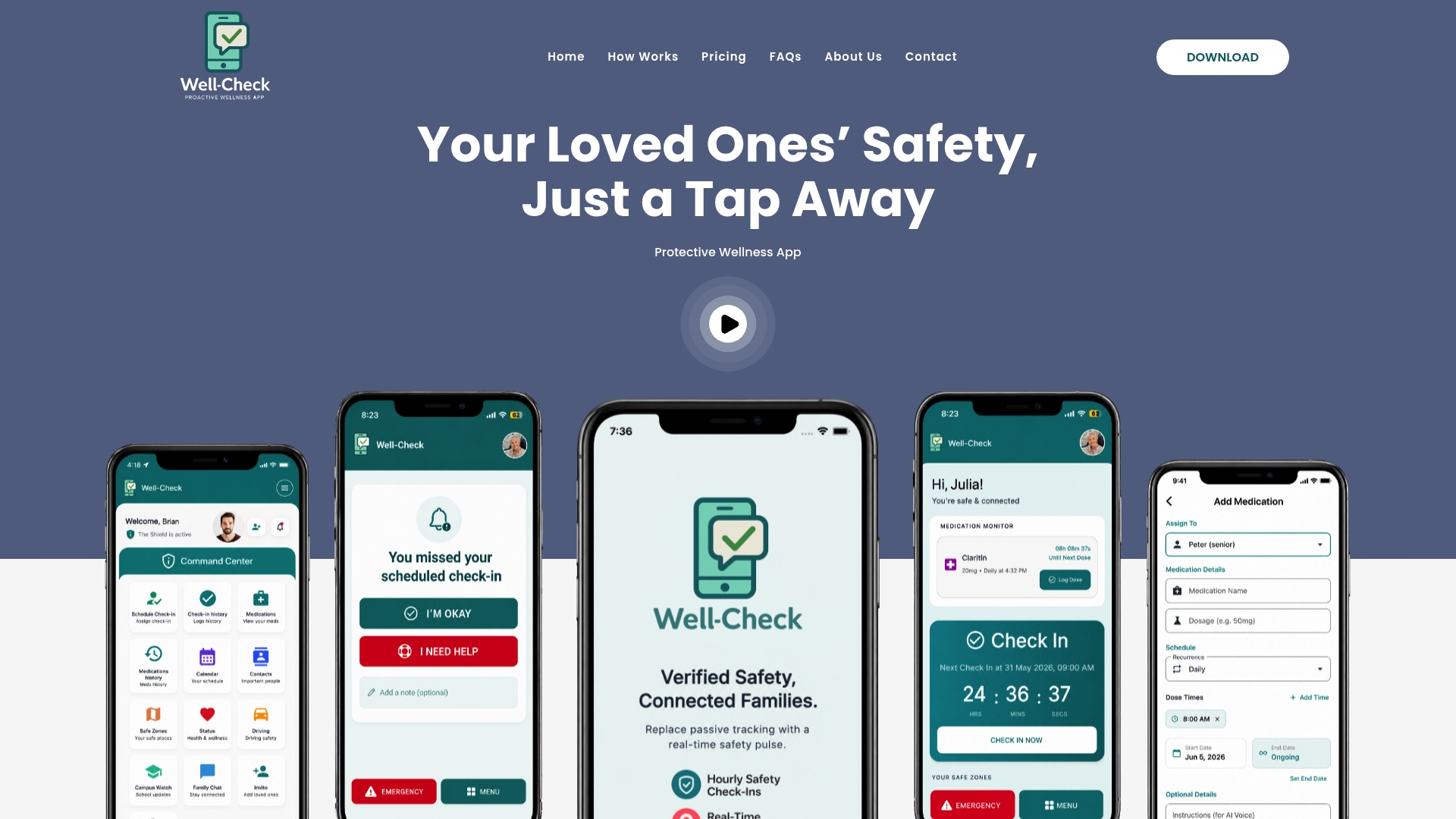
- Daily “I’m okay” check-ins replace the need for continuous background monitoring.
- Missed check-ins trigger alerts to a caregiver’s chosen contact network rather than a silent location log.
- Smart caregiver analysis flags patterns worth a second look without demanding precise tracking at all times.
If this kind of balance between independence and safety fits your family, you can compare the Essential and Complete plans starting at $5.99 per month and pick the one that matches how closely you want to stay connected.
FAQ
How do I give an app permission to access my location?
Open Settings, tap Location, then App location permissions, and select the app you want to adjust. Choose “Allow all the time,” “Allow only while using the app,” “Ask every time,” or “Don’t allow” based on what that app actually needs, as Google’s support documentation explains.
What is the Android permission SYSTEM_ALERT_WINDOW?
SYSTEM_ALERT_WINDOW lets an app draw content on top of other apps, like a floating chat bubble or an overlay alert. It is unrelated to location data and governs screen overlays rather than GPS or network-based positioning.
How do I stop an app from sharing my location?
Go to Settings, Location, App location permissions, select the app, and switch it to “Don’t allow.” You can also turn off Use precise location for that same app if you want to keep rough access while blocking pinpoint accuracy.
Can someone track another person’s location on an Android phone?
Location sharing between two people only works when both devices have an app or feature set up with explicit permission and consent from the person being located. Android does not allow one phone to silently access another phone’s location without that device granting permission first, per Android’s permission model.
Why does my precise location toggle not seem to work?
Check the device-wide Location Accuracy setting first, since a system-level restriction can override an individual app’s precise location toggle. If that setting is already correct, the app itself may be requesting only approximate access regardless of your preference, as outlined in Google’s location permission guide.


[…] connects to other settings caregivers manage. If you’re setting up location access, our 2-minute Android location permissions check covers the permission side. For the broader plan, the app-ready senior safety checklist puts the […]
[…] Android location permissions check […]