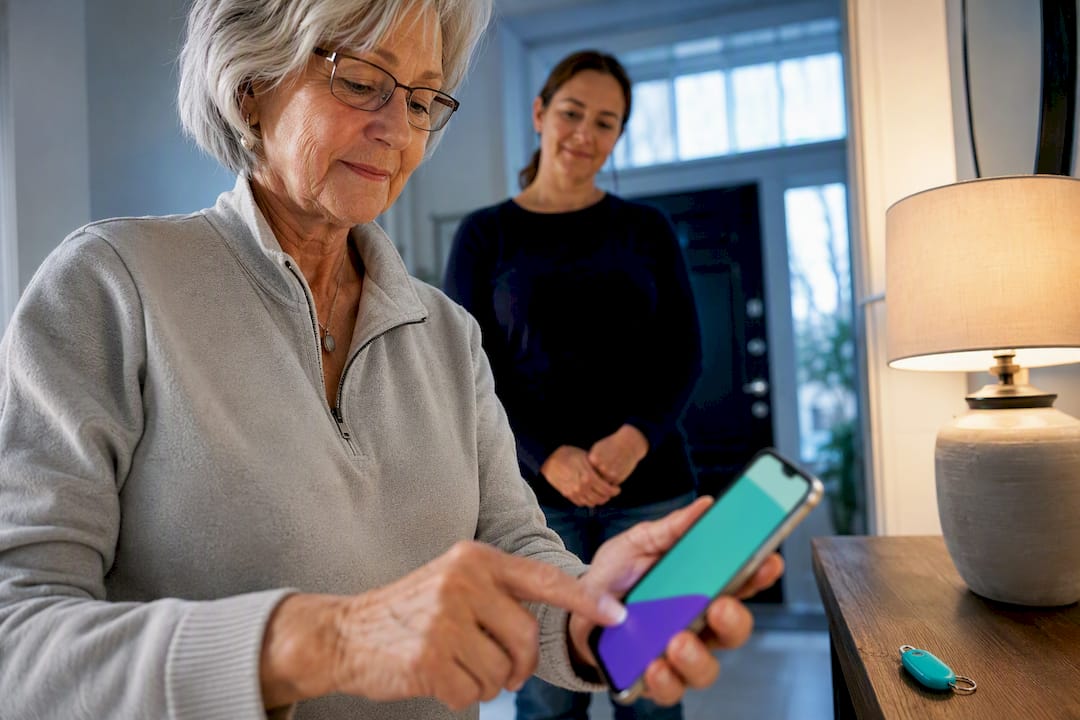
The most effective family emergency alert setup pairs scheduled daily check-ins with a one-tap SOS button and a missed-check-in escalation path that automatically reaches a backup contact. Well-Check builds this exact combination into a single app. Follow the setup steps below to get it running with an older adult in under an hour.
TL;DR:
- Family alert systems should prioritize a straightforward, one-tap SOS button and automated escalation to backup contacts for missed check-ins.
- GPS accuracy is limited indoors and in dense urban areas, so location sharing must be paired with clear verbal descriptions to ensure safety.
- Regular testing, including staged alerts and re-tests after app updates, is essential to maintain system reliability and responsiveness.
- Privacy discussions and explicit consent are critical, especially for location sharing, and should be revisited after health changes or new assessments.
- Tailoring alert settings to individual risk profiles, such as check-in frequency and medication reminders, enhances effectiveness without sacrificing independence.
Table of Contents
- What Are Family Emergency Alerts, and Who Needs Them?
- Key Features Caregivers Should Prioritize
- How to Set Up an Effective Family Emergency Alert Plan
- What Are the Privacy and Accuracy Limits of These Systems?
- Comparing Types of Family Alert Solutions
- How Well-Check Maps to Caregiver Priorities
- Legal and Ethical Considerations for Data Sharing
- Best Practices for Family Communication During an Alert
- How Do These Systems Connect to Emergency Services?
- Customizing Alerts for Different Risk Profiles
- Author Perspective: Practical Priorities and Dignity-First Tips
- Getting Started With Well-Check
- Sources
What Are Family Emergency Alerts, and Who Needs Them?
Family emergency alerts are notifications, triggered manually or automatically, that tell a designated contact something is wrong. They travel through smartphone apps, wearable devices, or SMS and phone escalation when no app is available. The category covers everything from a panic button on a pendant to a missed daily check-in that quietly pings an adult child three states away.
The scenarios that push families toward these systems repeat themselves: a missed medication dose, a fall in the bathroom, a parent who drives alone to visit grandchildren, or simply the silence that follows a night with no phone call. Older adults living alone benefit most, and so do long-distance caregivers who can’t run over to check on a parent in person. If you’re managing care from another city, a scheduled check-in system replaces guesswork with an actual signal.
Key Features Caregivers Should Prioritize
Not every safety app deserves your parent’s home screen. Before you commit to one, run it against this checklist.
- One-tap SOS: a single button that fires an alert to trusted contacts without requiring a phone call or a menu hunt during a crisis.
- Scheduled check-ins with missed-check-in escalation: the system should notice silence and escalate on its own, not wait for someone to remember to check.
- Location sharing with realistic accuracy: GPS works well outdoors but degrades indoors and in dense urban areas, so location data works best as a guide rather than an exact indoor coordinate.
- Fall detection and medication reminders: useful additions, but fall detection can trigger false positives from sitting down quickly or setting a phone down hard.
- Battery and connectivity resilience: an alert system that dies with the phone battery is not a safety net.
- Senior-friendly design: large buttons, minimal steps, and no nested settings menus.
Pro Tip: Test the SOS button with your parent while you’re both standing in the room together. If they hesitate or can’t find it in three seconds, the interface is too complicated, no matter how many features it has.
How to Set Up an Effective Family Emergency Alert Plan
Setting this up right the first time saves you from a false sense of security later. Work through these steps in order.
- Build a short escalation list. Name one primary contact and one backup, not five people who might all assume someone else is handling it.
- Choose the app or device and create accounts. Set the check-in schedule (morning and evening works for most seniors) and decide how long a missed check-in should wait before escalating.
- Configure one-tap SOS and add emergency instructions, including medical conditions, allergies, and a spare house key location. Confirm SMS or phone escalation reaches contacts who don’t have the app installed.
- Run a staged test. Trigger a real alert, confirm the contact receives it, and check what happens when the phone is at 5% battery or in a low-signal room.
- Schedule monthly re-tests and repeat after every app update or new phone.
- Write down who does what, so it’s clear who calls emergency services versus who checks in first if an alert fires.
| Setup Step | Who’s Responsible | How Often |
|---|---|---|
| Confirm check-in schedule | Older adult + primary contact | Daily |
| Test SOS button | Caregiver | Monthly |
| Verify escalation reaches backup contact | Secondary contact | Monthly |
| Update emergency instructions | Primary contact | After any health change |
What Are the Privacy and Accuracy Limits of These Systems?
No alert system is flawless, and pretending otherwise sets families up for false confidence. GPS accuracy drops indoors and in urban canyons where buildings scatter the signal, so location-based safety tools work best paired with a verbal description of where someone actually is rather than treated as a precise pin. False alerts usually come from oversensitive fall detection or a phone left in a jacket pocket during a car ride; adjusting sensitivity settings and adding a quick verification step (a text asking “are you okay?” before dispatching help) cuts down on unnecessary panic.
Privacy matters just as much as accuracy. Before turning on location sharing, talk with your parent about who can see their whereabouts and for how long. Real consent, not just a tap through a setup screen, keeps the relationship one of care rather than surveillance. Back up every digital system with a low-tech fallback: a scheduled phone call or a landline check, in case the app itself fails.
Comparing Types of Family Alert Solutions
Three broad categories cover most of what’s available, and each fits a different situation.
- Smartphone family apps: flexible, usually the cheapest option, and they work well for tech-comfortable seniors. The tradeoff is that they depend entirely on the phone being charged, on the person, and connected.
- Wearable medical alert pendants: better for someone who doesn’t carry a phone reliably, since the button is always on their wrist or around their neck. Most run on ongoing subscription pricing.
- Monitored services with live dispatch: the right call for high-risk individuals with a history of falls or serious medical events, though they cost more than app-based options and add a call center into the loop.
Match the category to the person, not the other way around. A sharp, independent 72-year-old who just wants her kids to stop worrying needs something different than an 88-year-old recovering from a hip fracture.
How Well-Check Maps to Caregiver Priorities
Well-Check was built around the exact checklist caregivers actually need, rather than a long feature list nobody uses. It covers:
- Daily check-ins with a simple “I’m okay” confirmation
- Missed-check-in alerts sent automatically to family
- Medication reminders
- GPS tracking for location context
- An emergency contact network so more than one person is watching
What separates it from a basic check-in timer is smart caregiver analysis, which alerts family members when a check-in is missed instead of relying on someone remembering to call and check. That analysis layer is what cuts down on unnecessary escalations. It watches patterns rather than firing off an alarm the instant a single check-in runs five minutes late.
For setup, keep it simple: install the app together, walk through the one-tap help button once in person, and run a mock alert before trusting it for real. Well-Check was designed with the roughly 16 million U.S. seniors living alone and facing isolation in mind, so the interface stays deliberately uncluttered. Anyone curious about the mechanics can review the how-it-works page before committing.
Legal and Ethical Considerations for Data Sharing
Location and health data collected by a family alert app is sensitive information, and how it’s handled matters beyond just convenience. Before enrolling a parent or older relative, read the app’s privacy policy for specifics on how long location history is stored, whether it’s sold or shared with third parties, and who besides the listed contacts can access it.
Consent is the ethical core of this entire category. An older adult should understand, in plain terms, what is being tracked and who sees it, not just click “agree” on a screen they didn’t read. Cognitive decline complicates this. If a parent has dementia or a diagnosis affecting decision-making capacity, a healthcare proxy or power of attorney may need to authorize monitoring on their behalf, and that authority should be documented rather than assumed.
Families should also agree internally on data-sharing boundaries. Does every sibling see location history, or just the primary caregiver? Is it appropriate to check location outside of an actual alert, just out of curiosity? These questions rarely have a universal right answer, but leaving them undiscussed creates resentment later, especially if one family member feels surveilled rather than protected. Revisit the agreement periodically, particularly after a health change shifts how much monitoring feels necessary versus intrusive.
Best Practices for Family Communication During an Alert
An alert firing is not the moment to figure out your family’s plan. Decide the order of operations before anything happens: who gets contacted first, who calls emergency services if the situation looks serious, and who simply checks in by phone if it might be a false alarm.
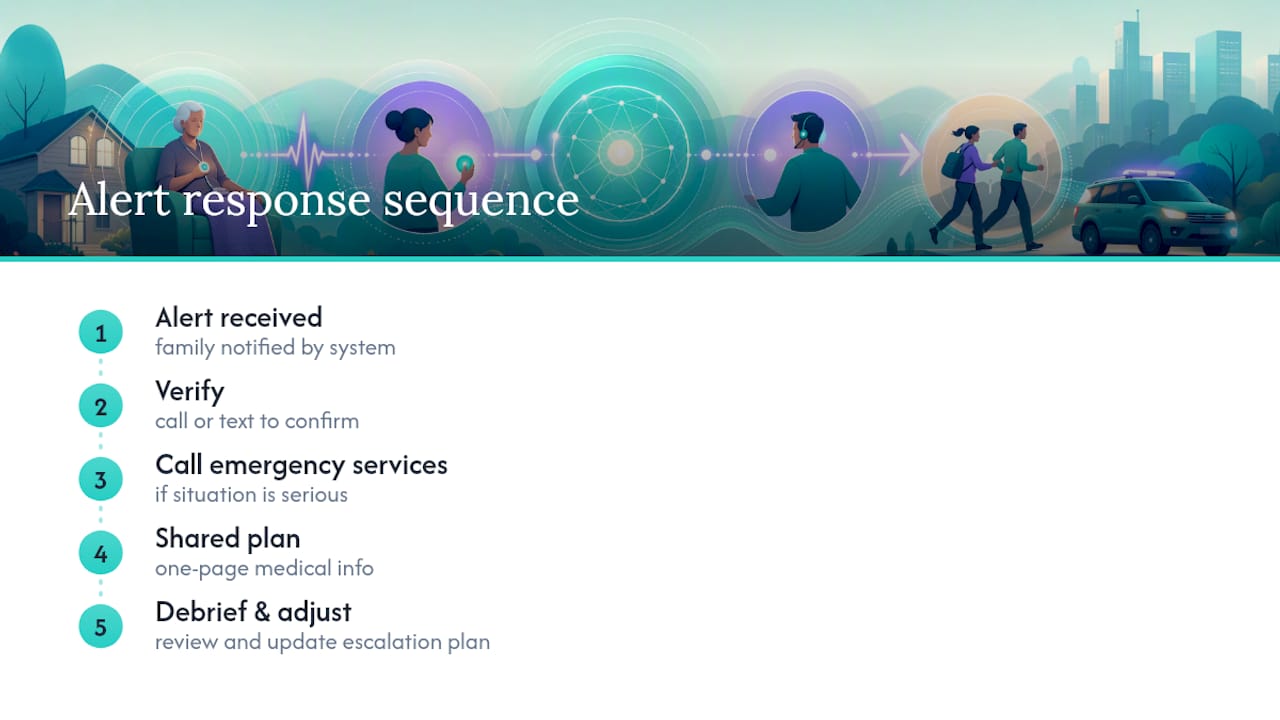
Write it down. A one-page document, shared with every contact on the escalation list, prevents the chaos of three people calling 911 at once or, worse, everyone assuming someone else already did. Include basic medical information (conditions, medications, allergies) in that document so whoever responds first isn’t starting from zero.
When an alert does go off, the first move should almost always be a quick verification, a call or text confirming whether it’s a real emergency or a false trigger, before anyone escalates further. This single step prevents the “boy who cried wolf” fatigue that leads families to eventually ignore alerts altogether. After a real incident, hold a short family debrief. What worked? What took too long? Adjust the escalation order or check-in timing based on what actually happened, not just what seemed reasonable on paper.
How Do These Systems Connect to Emergency Services?
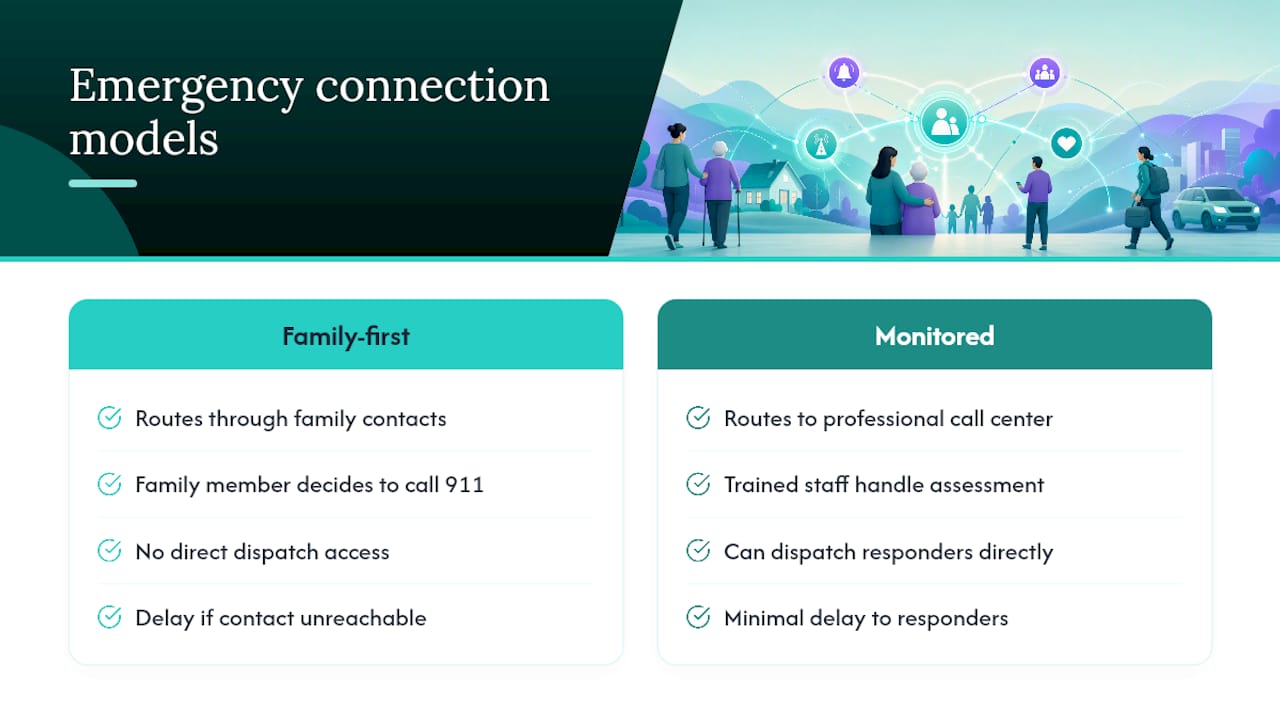
Most family alert apps route through family contacts first, not directly to 911 or local dispatch. That’s an important distinction: a missed check-in or a fall alert typically notifies a family member, who then decides whether the situation warrants a call to emergency services. This differs from professionally monitored medical alert systems, which include a live call center trained to dispatch responders directly.
The gap between these two models matters when choosing a system. A family-first model works well for situations where a human relative can quickly assess and respond, but it introduces a delay if that relative is unreachable, asleep, or unsure what to do. For someone with a serious fall history or a condition that can escalate fast, a monitored service with direct dispatch access closes that gap, even though it costs more.
Whichever model you choose, response time depends heavily on accurate location data reaching whoever calls for help. Location-based safety features and SOS alerts are a core part of coordinating a fast response during any kind of incident, but that coordination only works if the location shared is current and the caller can relay it clearly to a dispatcher. Practicing that hand off, literally rehearsing what a family member would say to a 911 operator, is worth doing once so it’s not improvised during a real emergency.
Customizing Alerts for Different Risk Profiles
A newly retired 68-year-old and an 89-year-old with early-stage dementia should not have identical alert settings. Risk profile should drive every setting choice, not a default configuration left untouched.
For a lower-risk, independent older adult, a once-daily check-in with a generous missed-check-in window (say, two to three hours of delay before escalating) respects their autonomy while still catching genuine problems. For someone with a recent fall, a chronic condition, or early cognitive decline, tighten that window and add a second daily check-in, morning and evening, so a problem doesn’t go unnoticed for half a day.
Medication reminders should scale with complexity. Someone on a single daily prescription needs a simple nudge; someone managing five medications on different schedules benefits from multiple, specifically timed reminders tied to each dose. Location tracking settings deserve the same individual attention. Some families want continuous tracking for a parent prone to wandering, while others only want location visible at the moment an SOS fires, preserving privacy the rest of the time.
Revisit these settings after any health event. A hospital stay, a new diagnosis, or even a bad fall that didn’t result in injury is a signal to tighten check-in frequency and escalation speed, not a one-time setup you configure once and forget.
Author Perspective: Practical Priorities and Dignity-First Tips
Most families overbuy on features and underinvest in reliability. A pendant with twelve functions nobody tests is worse than a check-in app that works every single time. What actually protects someone is simplicity paired with a plan everyone follows.
Involve the older adult in setup, not as a formality but as a real conversation about what they’re comfortable sharing. Consent preserves the relationship. Test monthly, and again after every update. A system nobody checks is just an app icon.
— Brian
Getting Started With Well-Check
Well-Check gives you the two things that matter most in this category: check-ins that actually get noticed when missed, and an SOS button simple enough for a parent to use without a second thought. If the setup steps above sound right for your family, Well-Check’s landing page walks through the core features, and the how-it-works page breaks down exactly how missed-check-in escalation and caregiver analysis function together.
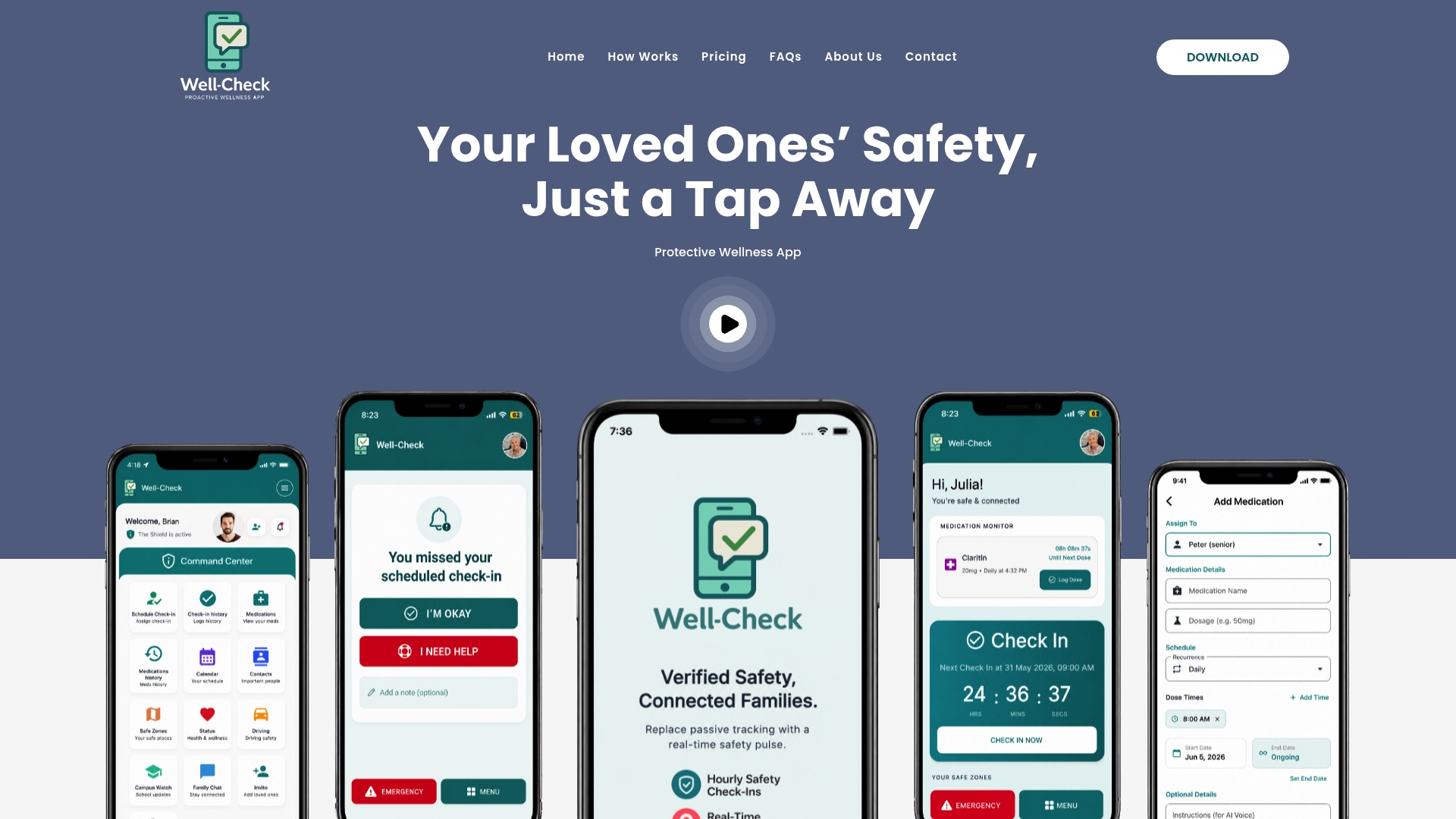
For your first session, keep it simple: install the app, invite one or two trusted contacts, set a daily check-in time that fits your parent’s routine, and run two mock alerts together so everyone knows what to expect before it matters. Before subscribing past any trial period, review the current pricing plans so there are no surprises once the trial ends.