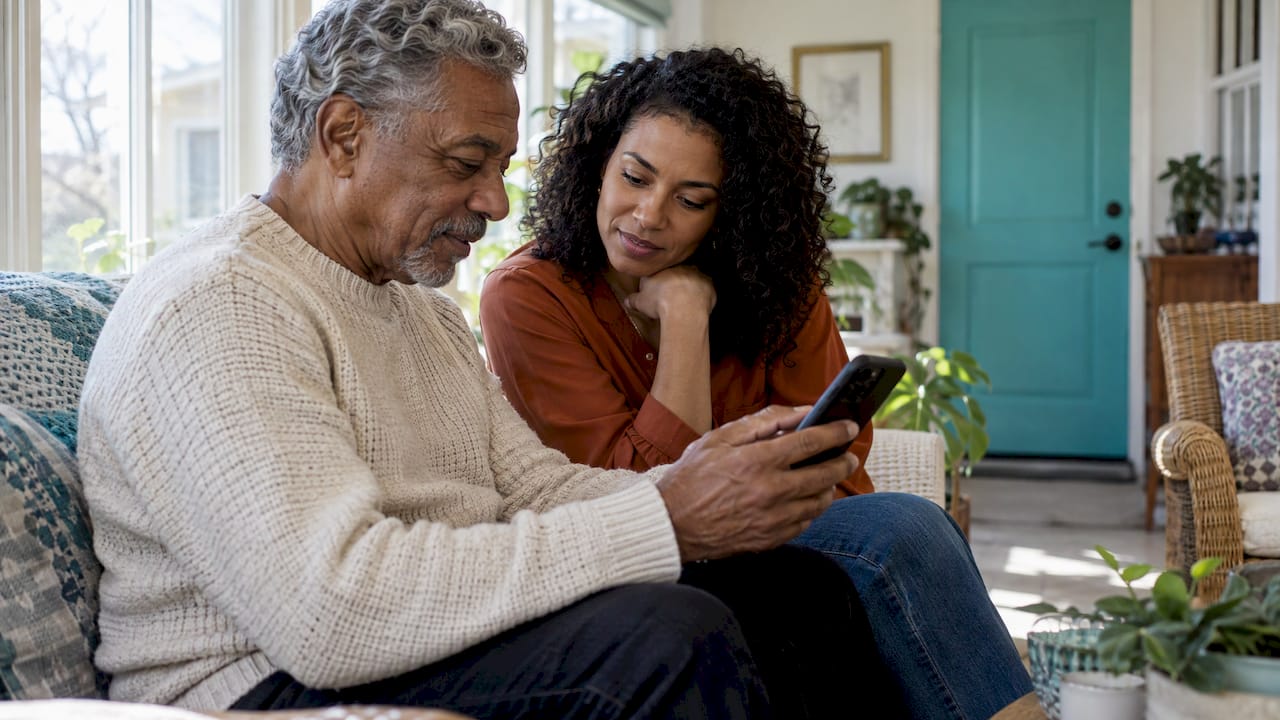
The right safety app is the one that does a few things reliably: it makes asking for help or saying “I’m okay” take one tap, it reaches real people when you can’t, it treats your data with care, and it keeps working on your actual phone and network. Fit matters more than the length of the feature list. This guide walks through seven checks you can use whether you are choosing for an aging parent, for yourself as someone who lives alone, or for a student heading to campus.
TL;DR
- Start with the situation: who needs help, what could go wrong, and who will respond. Then pick the feature type that fits.
- Look for simple, large controls and a daily check-in that works without effort, because stress and age both make complicated screens harder to use.
- Read the privacy policy and the location controls before you install anything, and choose an app that explains what it collects.
- Check what your phone needs (SIM, internet, location settings, battery mode) and set up a contact network of three to five people.
- Run a test alert with your contacts during setup, in the places you actually spend time, before you rely on the app.
Table of Contents
- Start with the situation, not the feature list
- Know the four kinds of safety features
- Check 1: Is it simple enough to use on a bad day?
- Check 2: Does it reach people, and does it reach the right people?
- Check 3: How does it handle location?
- Check 4: What does the privacy policy say?
- Check 5: Will it work on your phone and your network?
- Check 6: Does it support the daily routine, not just emergencies?
- Check 7: Set it up with your contacts and run a test
- Where Well-Check fits
- Our perspective
- FAQ
- Sources
Start with the situation, not the feature list
Most “best safety apps” lists mix very different tools: apps for walking home at night, apps for natural disasters, first aid guides and apps for daily wellness. They solve different problems. Before you compare anything, write down three answers:
- Who is the app for? An 82-year-old who lives alone needs something different from a 20-year-old walking back from the library.
- What is the realistic risk? For an older adult living alone, it is often a fall, a medical event or a missed medication that nobody notices for hours. For a student or a busy professional, it is more often an uncomfortable commute or a late night alone.
- Who will respond, and how fast? An alert is only as good as the person who receives it.
A safety app is meant to add to a safety plan, not stand in for one. TechSafety Australia advises treating emergency apps as a supplement and looking at what extra they provide, such as automatically contacting pre-set emergency contacts when you cannot speak. That extra is the real test of any app: does it do something useful when you are unable to act?
Know the four kinds of safety features
Researchers who reviewed 50 safety apps in India sorted their features into four types: tracking after an alert (your location is sent, sometimes with audio or video), constant real-time tracking, geofencing (an alert when someone leaves a set area), and heatmaps of areas other users flagged as unsafe. Add the daily check-in and medication reminder, which suit people living alone, and you have the main menu.
Here is how those map to the readers most likely to be reading this:
| Who | What usually matters most | Feature to look for |
|---|---|---|
| Older adult living alone | Being noticed if something goes wrong, without feeling watched | Daily check-in, missed check-in alert, medication reminders, one-tap help |
| Family caregiver | Knowing a parent is fine without calling every hour | Alerts to a contact network, a clear view of check-in history, scheduling |
| Busy professional living alone | Someone notices if you go quiet | Scheduled check-ins, emergency contacts |
| College student | Getting home safely, reaching a friend fast | Quick-access contacts, commute check-ins |
| Assisted living or retirement community | Consistent routines across many residents | Organization-level plans, reliable alerts |
If you are choosing for a parent, resist the urge to buy the app with the most features. A parent who finds it confusing will stop opening it, and an app that is never opened protects no one.
Check 1: Is it simple enough to use on a bad day?
The moment you need a safety app is the moment you are least able to work through menus. Look for:
- One-tap actions. An “I’m okay” confirmation and a help button should be visible on the first screen, not inside a menu.
- Large, readable controls. Small buttons are hard for older hands and for anyone with low vision or tremor.
- Few daily steps. If the routine takes more than a tap or two, it will be skipped within a month.
Accessibility deserves a closer look than it usually gets. The 50-app review found that none was fully usable with a screen reader: some elements had no labels, color contrast fell short of standards for partially sighted users, and alert buttons were too small for some users to hit. If you or your parent use VoiceOver, TalkBack, larger text or high contrast, switch those on while you try the app. For background on how design choices shape screen-reader support and usable buttons, that article is a good companion read. Our own guides cover phone settings that help with low vision and iPhone accessibility setup for caregivers.
Simplicity is also about dignity. An app that makes an older person feel monitored will meet resistance, and the family ends up with a tool that sits unused. Ask whether your parent would be comfortable with it on their own phone every day. Involve them in the choice.
Check 2: Does it reach people, and does it reach the right people?
The value of an alert depends on who gets it. A good safety app lets you build a contact network rather than a single name, because one person will eventually be in a meeting, asleep or out of signal.
A workable network looks like this:
- Three to five people, mixing nearby neighbors or relatives who can arrive quickly with distant family who can make phone calls.
- Clear roles. Who is called first? Who checks in person? Who calls the doctor?
- Verified contacts. Each person should know they are on the list and agree to it.
We lay this out step by step in how to build a verified emergency contact list and in our guide on who to list as emergency contacts. If you also want the phone itself to ring someone automatically, see how to set up emergency auto dial contacts.
Then ask what the app does when a check-in is missed. The most useful behavior for someone living alone is an automatic alert to the contact network when the daily check-in does not arrive, since a person who has fallen cannot press a button. Also ask how the app avoids crying wolf: a forgotten check-in on a busy morning should not trigger a family panic. Our page on reducing false alarms with smart caregiver analysis explains how we approach that.
Check 3: How does it handle location?
Location features can be reassuring, particularly for a parent who sometimes gets disoriented or a student walking at night. They also involve sensitive information, so it pays to understand what you are switching on.
Be clear on what each kind of location sharing does:
- Location sent when an alert is raised shares where you are at the moment you ask for help.
- Continuous tracking shares movement over time.
- Geofencing alerts someone when a person enters or leaves a set area.
Then look at the controls. The Safety Net Project at the National Network to End Domestic Violence suggests keeping location on only during the times you need an app to share it, rather than leaving it on at all times by default. Good apps make that choice easy and visible, so the person being located always knows what is shared and when.
Two practical notes. Accuracy depends on where you are, your phone settings and your network, according to TechSafety Australia. Indoors, or in a basement or a rural area, a position can be off. Our explainers on how GPS tracking works, reading GPS fixes by radius and timestamp and update frequency will help you interpret what you see on the map.
Consent matters as much as accuracy. Location sharing with an older parent works best as a conversation, with an agreement about when family looks and when they don’t. Our guide to privacy, security and consent for GPS tracking and the three nonnegotiables for senior GPS apps give you a starting framework.
Check 4: What does the privacy policy say?
A safety app holds your name, your phone number, your contacts and often your location and daily routine. That is exactly the kind of data you want handled carefully.
Before you install, find the privacy policy and read the parts that answer these questions:
- What does the app collect, and is any of it optional?
- Is data shared with or sold to other companies?
- How long is it kept, and can you delete it?
- Who among your contacts sees what?
Tech Safety Canada advises reading the policy to understand collection and sharing, sharing only what you are comfortable with, and remembering that details such as postal code, demographics and location can identify you. The scale of the gap is real: in the 50-app review, 32 apps had no privacy policy linked on their Play Store page, and those that did often said little about what is collected, stored or sold.
A missing or vague policy is a clear signal to choose a different app. For a wider primer on reviewing an app’s privacy policy and permissions, that guide walks through the habit, and our own checklist, what to check before you trust a safety app with your data, applies it to safety tools.
Also consider how alerts are sent. The Safety Net Project notes that if an app sends messages through the phone’s default text system, they will appear in the phone’s sent messages. If anyone else might look at the device, decide whether that suits the person using it.
Check 5: Will it work on your phone and your network?
A feature list says nothing about whether the app will function on the phone in your pocket. Check the requirements first.
For built-in Android emergency features, Google’s help page says emergency sharing needs at least one emergency contact plus an internet connection with Location Services on. A phone without a SIM or eSIM may still call emergency services but cannot call its emergency contacts. Car crash detection needs a SIM, and Emergency SOS does not work in airplane mode or when Battery Saver is on. Some of these features are only available on certain Android versions and in certain regions, according to the Android safety pages.
Whatever app you choose, run through this short list:
- Is the phone’s operating system recent enough for the app?
- Are notifications, location and background activity allowed for it?
- Is the phone often in low-power mode or airplane mode? If so, plan around that.
- Does the person have a data plan or reliable Wi-Fi at home?
If you are setting up built-in phone features alongside an app, we have walkthroughs for Android Emergency SOS on Pixel and Samsung and emergency contacts on iPhone.
Cost belongs on this list too. Safety apps are almost always subscriptions, so find the monthly price, what the trial includes and how to cancel before you enter payment details.
Check 6: Does it support the daily routine, not just emergencies?
For an older adult living alone, the most valuable days are ordinary ones. An app that fits into a morning routine does more good than one that only matters in a crisis. Features that support the routine include:
- A daily check-in at a set time, with a gentle reminder if it is forgotten.
- Medication reminders that match the real schedule. See our guides to scheduling medication reminders and medication adherence strategies that work at home.
- Flexible scheduling, so a check-in time can change on travel days or appointment days.
For students and professionals the same thinking applies on a different rhythm: a check-in tied to a commute or late shift. Our guide to commute safety check-ins and the one-page college student safety plan show what that looks like.
For families weighing the whole picture, our senior safety checklist lists what to set up in a single sitting.
Check 7: Set it up with your contacts and run a test
This is the step most people skip and the one that tells you the most. During setup, run the alert path end to end with the people who will receive it.
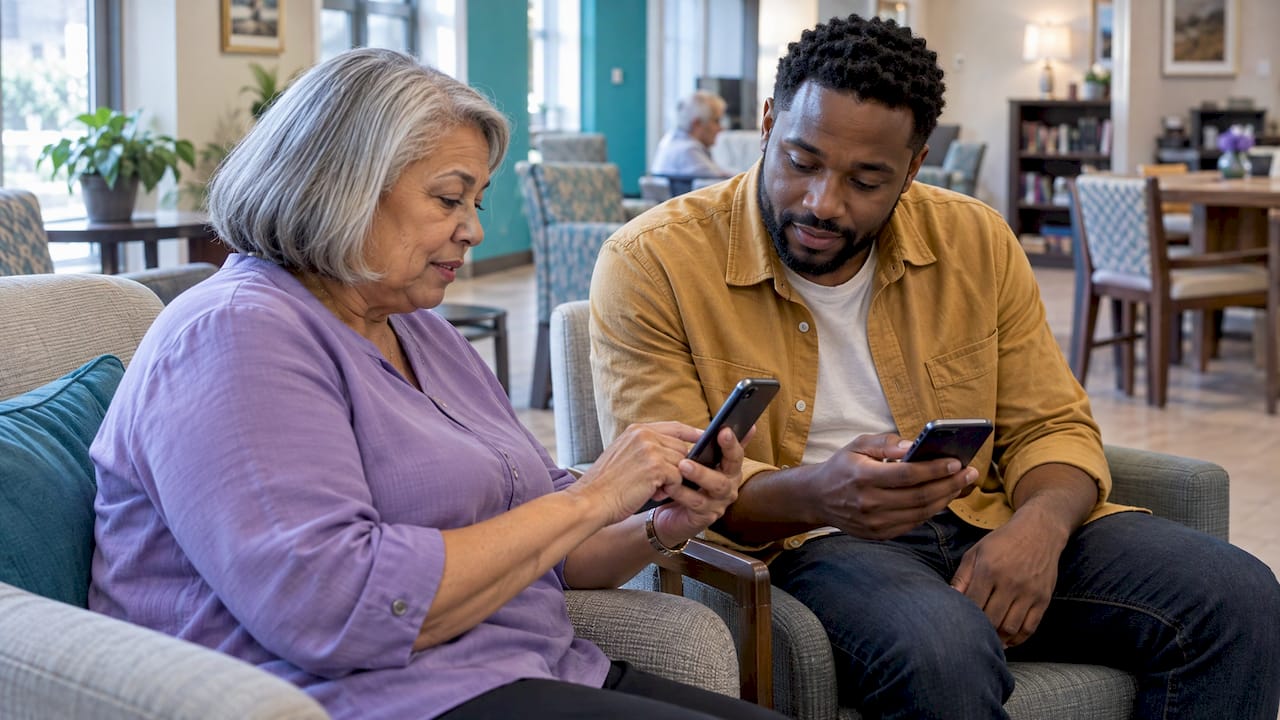
TechSafety Australia advises going through the app’s settings and features, trying it in the places you would actually need it, and sending test alerts to contacts after telling them it is a test. Tell contacts when the test is over, so they keep taking real alerts seriously. A Canadian toolkit adds that when the National Network to End Domestic Violence tested many personal safety apps, several failed to send the correct location or any information at all, which is why a test before reliance is worth the half hour. It also recommends having another way to reach help where internet is unreliable.
A simple one-hour routine:
- Tell your contacts a test is coming and what the alert will look like.
- Send a help alert from the home, then from a second place such as the garden, a car or a campus building.
- Miss a check-in on purpose and confirm that contacts are notified and know what to do.
- Check the location that arrives and compare it with where you actually were.
- Confirm the medication reminder sounds at the right time and is readable.
- Tell contacts the test is finished and agree who calls whom first in a real alert.
Our guide to family emergency alerts caregivers can test in under an hour covers this in more detail, and six onboarding tests for senior isolation solutions goes deeper for families supporting a parent. Repeat a short version every few months, and after any phone upgrade or operating system update.
Where Well-Check fits
Well-Check is a wellness and safety app for people who live alone. It offers daily check-ins with one-tap “I’m okay” confirmations, one-tap help, medication reminders, GPS tracking, alerts to emergency contacts when a check-in is missed, smart caregiver analysis and the ability to build an emergency contact network, plus advanced scheduling and unlimited check-ins.
There are two plans on our pricing page: Essential at $5.99 per month and Complete at $7.99 per month. We built it around simplicity and dignity, so an older adult can stay independent and the family gets peace of mind without constant intrusion.
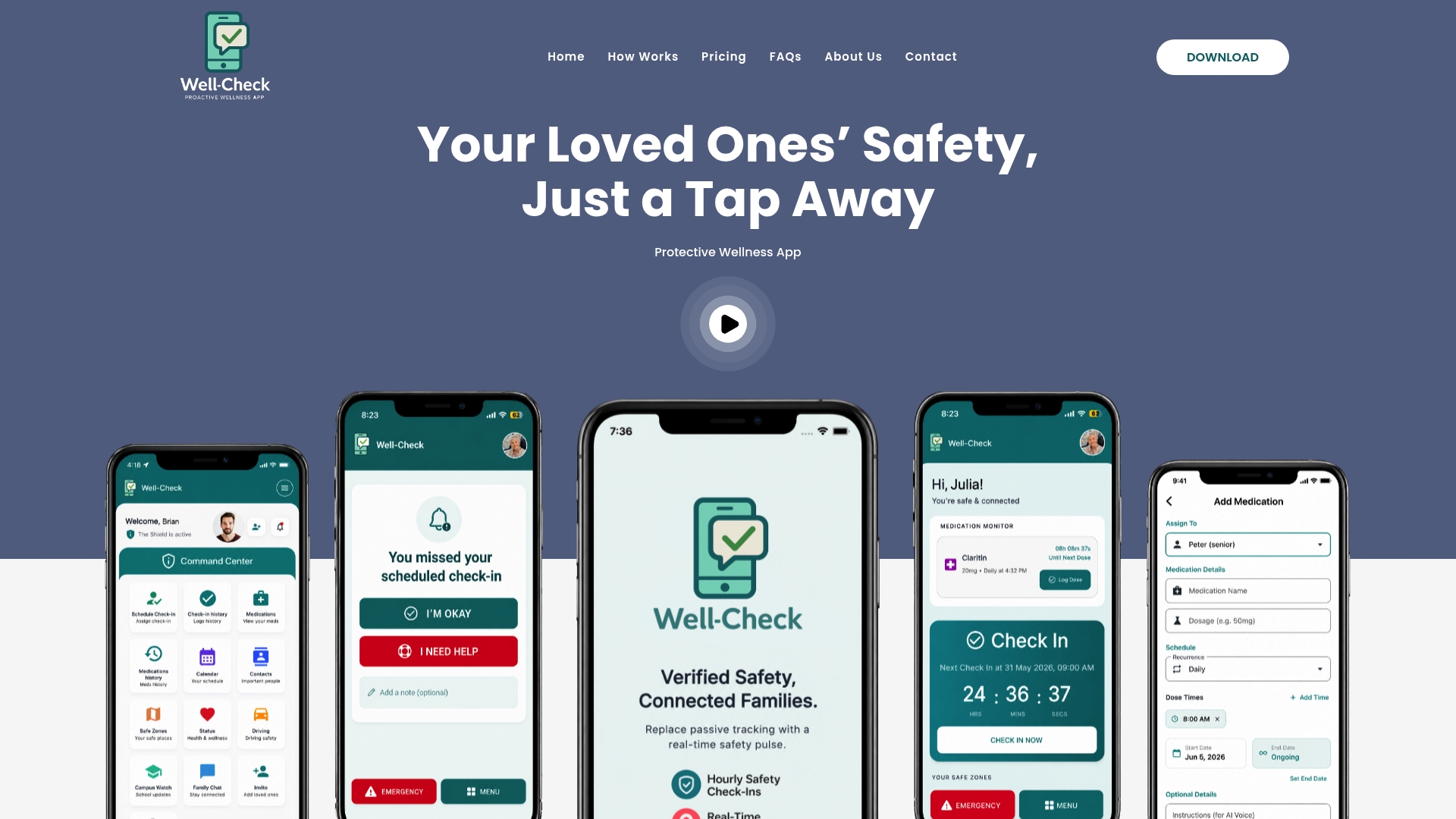
If you are ready to set it up with your family, start with the plans and the senior safety checklist.
Our perspective
Families usually come to us after a scare, a call that went unanswered or a parent who fell and was not found until the next day. What they want is not a gadget. They want to stop wondering.
That is why we think the best safety app is the one a person uses without thinking about it. A daily “I’m okay” that takes one tap becomes a habit. A missed check-in that quietly tells the right people becomes a safety net. Medication reminders and a contact network turn a phone into something that looks out for you.
We designed Well-Check for independence without surveillance. The person living alone stays in charge of their day, and the people who love them are notified when something may be wrong. Smart caregiver analysis and GPS tracking are there to support that, not to replace trust.
Whichever app you pick, choose it together, set up the contacts together and test it together. An app your family understands is an app that works.
Brian
FAQ
What is the most important feature in a safety app for an older adult living alone?
A daily check-in with automatic alerts when it is missed. A person who has fallen or become ill may not be able to press a help button, so the app should notify the contact network on their behalf. Pair it with one-tap help and a simple screen.
Are safety apps free?
Some offer limited free features or a trial, but ongoing access to the full set of features is generally a paid subscription. Check the monthly price, what the trial covers and how to cancel before you enter payment details. Well-Check’s plans are $5.99 per month for Essential and $7.99 per month for Complete.
How many emergency contacts should I add?
Three to five is a practical range. That gives you someone nearby, someone who can phone around and a backup when one person is unavailable. Tell each person they are on the list and what you expect them to do.
Do I need a data plan or SIM for a safety app to work?
Usually yes. Google’s Android Help says emergency sharing needs an internet connection with Location Services on, and a phone without a SIM or eSIM cannot call its emergency contacts. Wi-Fi at home may cover daily check-ins, but a mobile connection matters when you are out.
How do I know the app is working before I need it?
Tell your contacts, send a test alert from the places you spend time, miss a check-in on purpose and check the location that arrives. Then tell contacts the test is over. Repeat after phone updates.
Sources
- TechSafety Australia: Emergency safety apps, which one is right for me?
- Gendering Surveillance: A handy guide to decide how safe that safety app will be
- Tech Safety Canada: Choosing and using safety apps
- Safety Net Project: Choosing and using apps
- Google Android Help: Get help during an emergency with your Android phone
- Android Safety Center: Emergency help