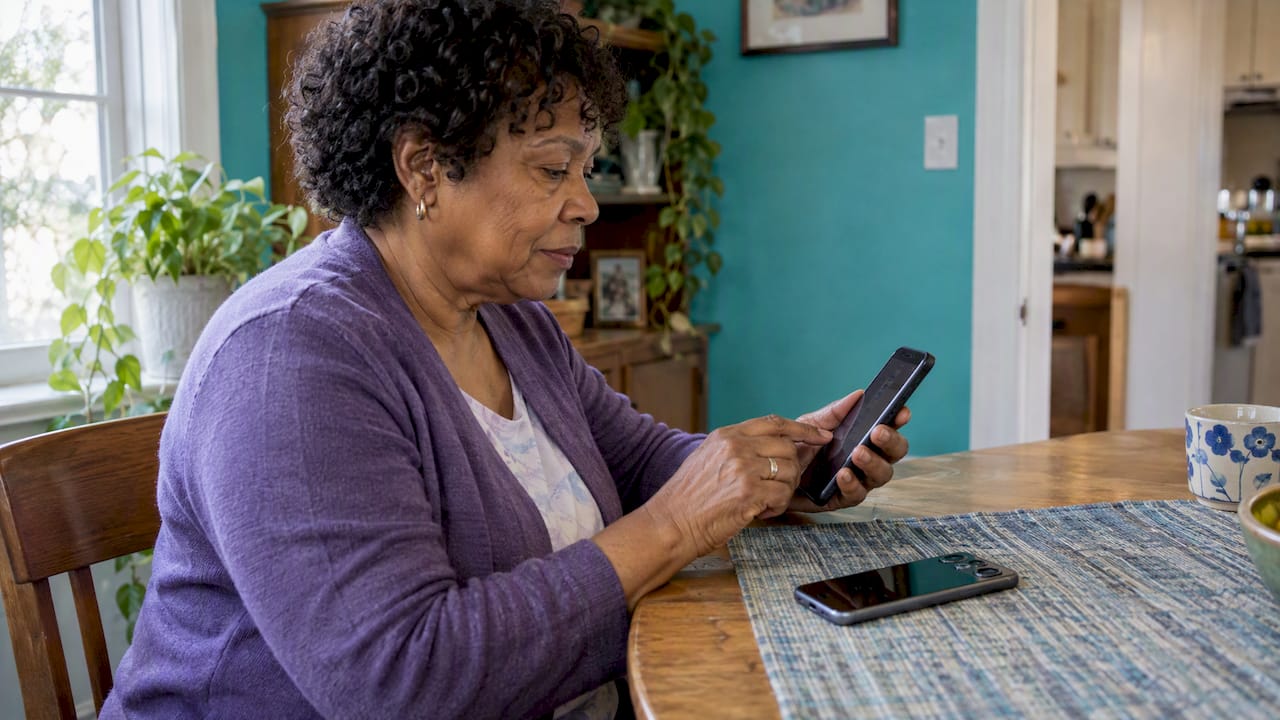
To set up Emergency SOS on Android, open Settings, tap Safety & emergency, turn on Emergency SOS, then add emergency contacts and medical info. On most phones you trigger it by pressing the power key quickly several times. The exact menu names and press count differ between Google Pixel, Samsung Galaxy and other brands, so this guide walks through each, shows how to check your setup without calling anyone, and covers what to do when the feature is missing.
If you are setting this up for a parent or another older adult, do it together, in person, with the phone in your hands. It takes about 15 minutes, and it is far easier to do once than to explain over the phone during a bad moment.
TL;DR
- Go to Settings > Safety & emergency. Turn on Emergency SOS, then add emergency contacts and fill in Medical info.
- Pixel phones use five quick power-button presses. Samsung Galaxy phones use three or four presses of the side key, depending on the model and settings.
- Turn on the confirmation option (swipe or press and hold) so a pocket press does not dial 911.
- Test the setup by reading the settings screens and, if you want, a practice mode or a cancelled countdown. Never place a real call as a test.
- An SOS press only helps if someone answers. Pair it with a daily check-in so family notices when nothing is pressed at all.
Table of Contents
- What Emergency SOS does on an Android phone
- Before you start: three quick checks
- Step 1: Turn on Emergency SOS
- Step 2: Add emergency contacts
- Step 3: Fill in Medical info
- Step 4: Choose what Emergency SOS shares
- Step 5: Prevent accidental calls
- How to test your setup without calling 911
- If Emergency SOS is missing or not working
- Perspective: the gap between a button and a person
- Make the SOS setup part of a routine
- Add a daily check-in on top of SOS
- FAQ
- Sources
What Emergency SOS does on an Android phone
Emergency SOS is a shortcut. Instead of unlocking the phone, finding the dialer and typing 911, you press the power key a set number of times and the phone starts an emergency call. Depending on your settings, it can also message your emergency contacts and send them your location.
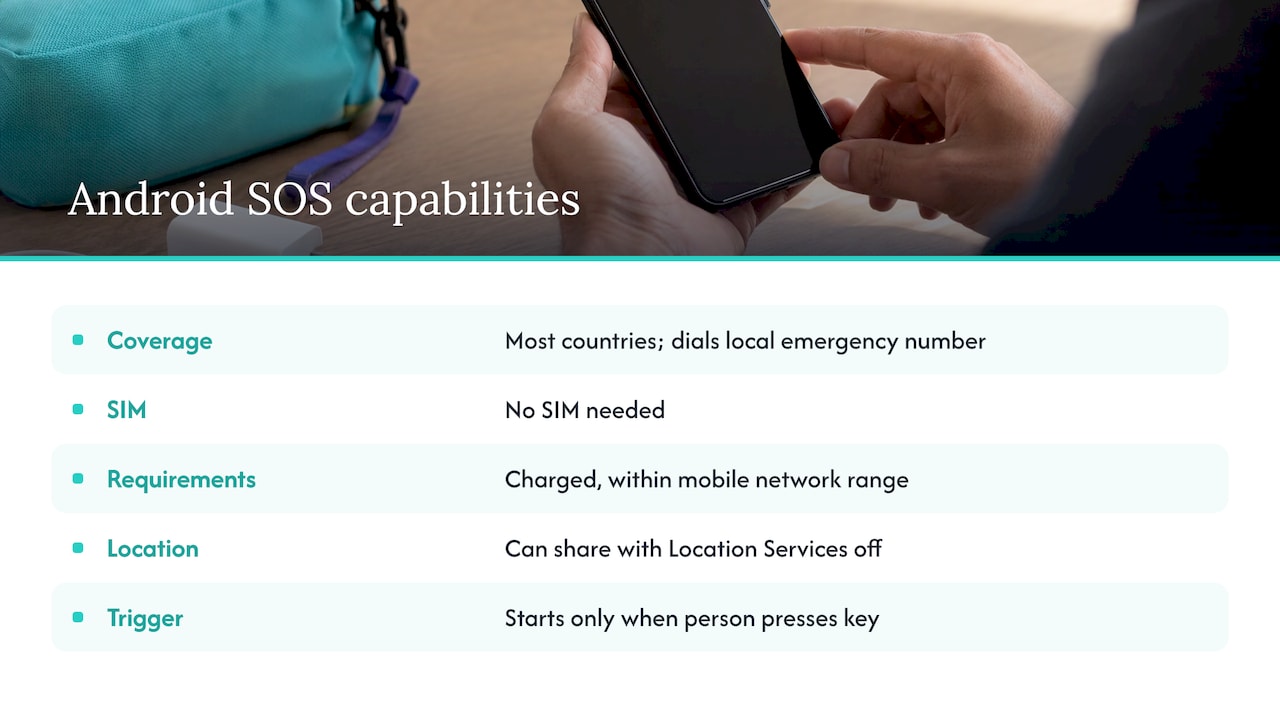
The feature works in most countries and automatically dials the correct local emergency number for wherever you are, according to Be Connected, the Australian government’s digital skills guidance. The same guidance says no SIM is needed, though the phone must be charged and within mobile network range, and that it can share location even when Location Services is off.
That last point matters for seniors: the feature is built to work when the person cannot navigate the phone. But it is a phone feature, not a monitoring service. It only starts when a person presses the key. We come back to that gap in the perspective section below.
Before you start: three quick checks
A few minutes of preparation saves frustration.
- Update the phone. Menu names and features change with Android and One UI updates. Open Settings > System > Software update (on Samsung, Settings > Software update) and install anything pending.
- Have contacts ready. Contacts you want to use should already exist in the Contacts app. Android Police notes that people not already in your address book must be added through Contacts first.
- Decide who goes on the list. Pick people who are likely to pick up their phone and who live close enough to act. Our guide to building a verified emergency contact list with 3 to 5 people explains how to choose and confirm them.
Step 1: Turn on Emergency SOS
On a Google Pixel
On Pixel phones, Emergency SOS lives in the Safety app and in Settings under Safety & emergency. According to a Tom’s Guide walkthrough of Pixel Emergency SOS, you open the Safety app, find Emergency SOS, tap Manage settings, and then tap the button to turn it on. Until you do that, the other options on that screen are grayed out.
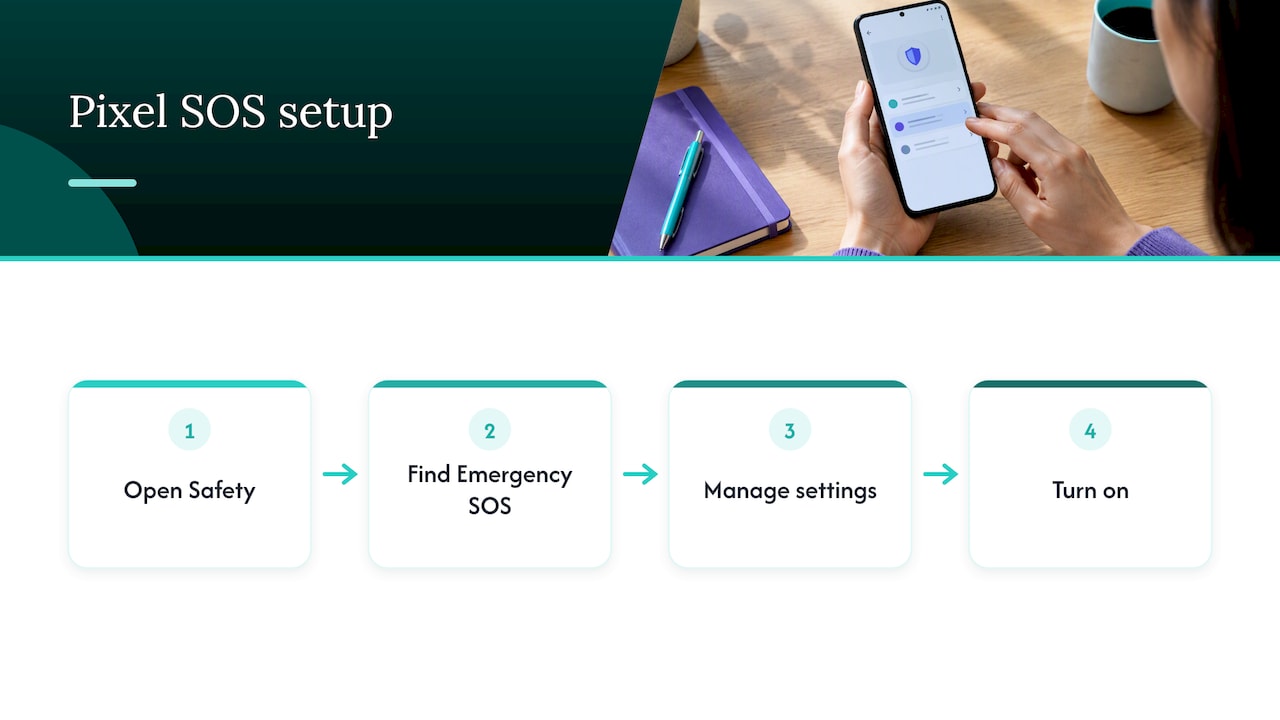
Once on, you start it by pressing the power button five times in a row. The same guide points out that many Android phones also use a double-press of the power button to open the camera. Ignore that during an SOS: keep pressing until the emergency screen appears.
The same screen offers two ways to confirm intent. One asks you to press and hold the screen for at least three seconds, and the other runs a five-second countdown you can cancel. We recommend turning one of them on for anyone who carries the phone in a pocket or purse (more on that below).
On a Samsung Galaxy
On a Samsung phone, go to Settings, then Safety and emergency, and turn on Emergency SOS. Android Police reports that Samsung’s version is triggered by pressing the power key three or four times. Which number applies depends on your model and software version, so read the line on the Emergency SOS screen itself before you rely on it. Samsung calls the power key the side key on many models.
On other Android phones
Motorola, OnePlus, Nothing and other brands ship their own versions, and some older or budget models have no press-to-call shortcut at all. Open Settings and type “emergency” in the search bar. If you see Emergency SOS, Emergency Call shortcut or Safety & emergency, open it and look for a toggle. If nothing appears, see the troubleshooting section below.
| Google Pixel | Samsung Galaxy | |
|---|---|---|
| Where to find it | Settings > Safety & emergency, or the Safety app | Settings > Safety and emergency |
| How to trigger | Five quick power-button presses | Three or four power (side) key presses, depending on model |
| Accident protection | Press-and-hold or 5-second countdown | Confirmation options on the same screen |
| Contacts and medical info | Safety & emergency menu | Safety and emergency menu |
Step 2: Add emergency contacts
This is the step most people stop at, and it is worth doing properly.
- Open Settings > Safety & emergency > Emergency contacts.
- Tap Add contact.
- Choose people from your address book.
The path is the one Android Police describes. If you want a longer walkthrough for seniors with role suggestions, we cover it in setting Android emergency contacts for seniors.
A few practical habits help:
- Use a full name and a label people recognize, such as “Maria (daughter)”, so a paramedic reading the lock screen knows who to call.
- List a mix of people: one who lives nearby, one who is usually reachable during work hours, one outside the household.
- Tell each person they are on the list. A contact who does not recognize the number or does not expect the message may ignore it.
- Review the list twice a year, and after any move, phone-number change or falling out.
If you worry about who actually answers when a call comes in, read how to set up emergency auto dial contacts so someone answers.
Step 3: Fill in Medical info
Medical info is a card that responders can view from the lock screen, so they can learn about allergies or medications even if the person cannot speak or unlock the phone.
Go to Settings > Safety & emergency > Medical info. According to Android Police’s guide to medical information on Android, you can enter fields such as name, weight, blood type, allergies, medications, address, medical notes and organ-donor status. Then turn on the option to show the info when the phone is locked if you want responders to see it without unlocking the phone.
What to include:
- Allergies, especially to medications and latex.
- Current medications, with dose if you can fit it. For an older adult on blood thinners, insulin or heart medication, this is the most useful line on the card.
- Conditions such as diabetes, epilepsy, dementia, pacemaker or implanted devices.
- Blood type, if known.
- A home address, which helps if someone else uses the phone to call for help.
Keep it short and current. Anything you list is visible on a locked phone to whoever picks it up, so include what a responder needs and leave out what they do not, such as insurance numbers or detailed history. If you also keep a paper copy, our caregiver emergency binder guide covers what belongs in the first five minutes.
Step 4: Choose what Emergency SOS shares
When an SOS call starts, the phone can also notify your contacts. Android Police explains that this is set under Emergency SOS > Share info with emergency contacts. Shared information can include your location, battery status, and the start and end of the call. For location sharing to work well, Google Maps location permission should be set to Allow all the time.
That last permission is the one people miss. If location is set to “only while using the app,” the phone may not have a current position to send when the screen is dark. Check it in Settings > Location > App permissions.
Some readers feel uneasy about “all the time” permissions, and that is reasonable. If you are weighing it for a parent, talk about it openly: what is shared, with whom, and only during an emergency. Our pieces on whether GPS tracking is safe and privacy basics for senior GPS apps can help frame that conversation.
Step 5: Prevent accidental calls
False alarms are the most common complaint about press-to-call features, and they tie up emergency lines. Two settings reduce them.
- Require confirmation. Be Connected explains that on its example phone, five quick side-key presses lead to a screen where you must swipe to start the call, otherwise it cancels automatically. The setup screen may offer this as Require swipe to call. On a Pixel, the equivalent options are press-and-hold or the 5-second countdown.
- Practice the press. Have the person rehearse the rhythm with the confirmation turned on, but without finishing the call.
If the phone sits in a back pocket, or the person has tremor or arthritis that makes fast presses hard, a confirmation step is even more important, and you may want a phone case with a firm grip around the key.
If an accidental call does happen, do not hang up. Stay on the line and tell the dispatcher it was a mistake, so they do not send a crew to check.
How to test your setup without calling 911
You can verify nearly everything without placing a call.
- Read the settings screen. Be Connected notes that the Emergency SOS setup screen shows the emergency number that will be dialed, so you can confirm it is correct for your country.
- Open Medical info and Emergency contacts from the lock screen using the Emergency option on the PIN screen. Confirm a stranger would see what you intended.
- Check the permissions. Confirm location is set as described above and that the phone is not in a battery mode that restricts background functions.
- Ask a contact to confirm. Tell your contacts a practice may happen and ask whether they could see the person’s name and number.
- Use a cancel window. If your phone offers a countdown or swipe, you can trigger the sequence and cancel before the call connects. Do this only if your model clearly lets you cancel, and keep your finger on the cancel control.
For a more thorough drill that covers the family side, see family emergency alerts caregivers can test in under an hour.
If Emergency SOS is missing or not working
Several things can explain a missing or silent feature. Work through them in order.
- Search Settings. Type “SOS” or “emergency” into the search bar. Brands rename the menu.
- Update the software. Newer features arrive with updates, and older phones may never get them. Android Police’s setup guide is from 2023, and menus have moved since, so trust what your own screen says over any article.
- Check that it is turned on. On Pixel, the options are grayed out until you tap the button to turn Emergency SOS on.
- Mind the press speed. The presses must be quick and consecutive. If the camera opens first, the camera shortcut is catching the double press; keep pressing or turn the camera shortcut off in the system gestures settings.
- Try a different shortcut. If your phone has no press-to-call option, the lock screen’s Emergency button still lets anyone dial 911 without a PIN. Add the phone’s emergency screen to your routine, and consider a dedicated safety app.
- Check the carrier and signal. The phone must be within network range. In a basement or rural area with no signal, no phone feature will connect the call.
- Restart. A reboot clears many stuck states.
- Contact the manufacturer. If the toggle is present but nothing happens after updates, the maker’s support can check for model-specific issues.
Also, if you see “SOS” or “Emergency calls only” in the status bar, that usually means the phone has no connection to your carrier. Emergency calls may still go through other networks, but regular calls and texts will not. Check the SIM, airplane mode and your plan, and restart.
Perspective: the gap between a button and a person
We build Well-Check for people who live alone and the families who think about them, so here is how we see Emergency SOS.
It is a very good feature, and everyone with an Android phone should have it set up. But it has one built-in limit: it needs the person to press it. A fall that knocks someone unconscious, a stroke, or a confusing episode can leave a phone untouched on the counter. In those cases nobody gets an alert, and nobody knows to look.
That is why we pair the emergency button with a daily rhythm. In Well-Check, a one-tap “I’m okay” confirms the day. If it does not come, family members on the emergency contact network are alerted. We designed it for simplicity and dignity, so there is no camera, no constant interrogation, and the person stays in charge of their own routine. Medication reminders and GPS tracking are there when the family wants them, and smart caregiver analysis helps cut down false alarms.
Think of it as two layers. Emergency SOS is what the person does when they can. Daily check-ins are what the family notices when they cannot. Set up both, and a quiet day tells you something too.
Brian
Make the SOS setup part of a routine
A one-time setup drifts out of date. Phone numbers change, contacts move away, and medications are adjusted. A short routine keeps the setup working:
- Monthly: confirm the phone is charged, updated and has signal where the person spends most of the day.
- Every six months: review the contact list and Medical info, and replay the press rhythm with confirmation on.
- After any hospital stay or new medication: update Medical info the same day.
- Whenever a contact changes: tell the new person what the role involves. Our overview of caregiver roles and responsibilities can help split the tasks fairly.
If your parent also uses an iPhone at times or you are supporting a mixed household, we have matching guides for enabling Emergency SOS on iPhone and setting up Medical ID on iPhone.
Add a daily check-in on top of SOS
Well-Check adds the part a phone setting cannot: someone noticing silence. The app gives older adults a one-tap way to say they are fine, sends medication reminders, and alerts the emergency contact network when a check-in is missed. Plans are published on our site: Essential is $5.99 per month and Complete is $7.99 per month. You can compare what each includes on the Well-Check pricing page.
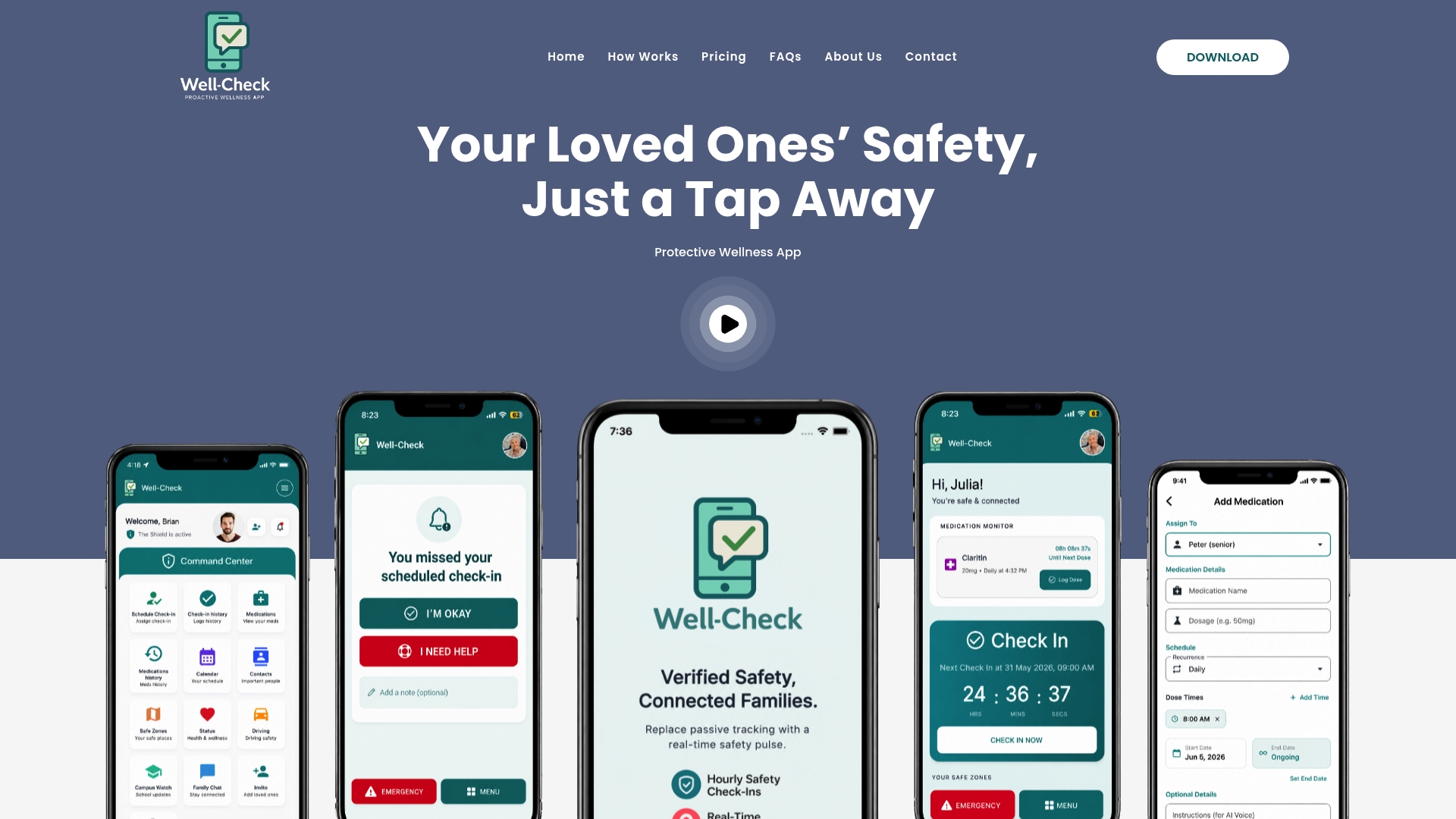
If you are not sure how often a check-in should happen, read our advice on check-in frequency for seniors, and what to do when one is skipped in our missed check-in protocol.
FAQ
How do I activate Emergency SOS on Android?
Open Settings, tap Safety & emergency, then Emergency SOS, and turn it on. After that, press the power key quickly: five times on a Pixel, and three or four times on most Samsung Galaxy phones depending on the model. Check the instruction on your own screen, since it can vary.
Why is my phone showing SOS?
SOS in the status bar usually means the phone cannot reach your carrier’s network, although emergency calls may still work through another network. Check airplane mode, the SIM card and your coverage, then restart the phone. If it persists, contact your carrier.
Can you just dial 911 on a cell phone?
Yes. Emergency SOS works in most countries and dials the local emergency number automatically, according to Be Connected. No SIM is needed, but the phone must be charged and within mobile network range.
How do I set up emergency contacts on Android?
Go to Settings > Safety & emergency > Emergency contacts > Add contact, and pick people from your address book. Anyone not in Contacts has to be added there first. Tell each person they are on your list.
Does Emergency SOS replace a daily check-in?
No. SOS only starts when the person presses the key, so it cannot help if they are unable to reach the phone. A daily check-in alerts family when nothing arrives, which covers the situation SOS cannot.
Sources
- How to set up Emergency SOS on your Android phone, Android Police
- How to add your medical information to your Android phone, Android Police
- How to call emergency services from your Android phone, Be Connected (eSafety, Australian Government)
- How to enable and use Google Pixel Emergency SOS, Tom’s Guide


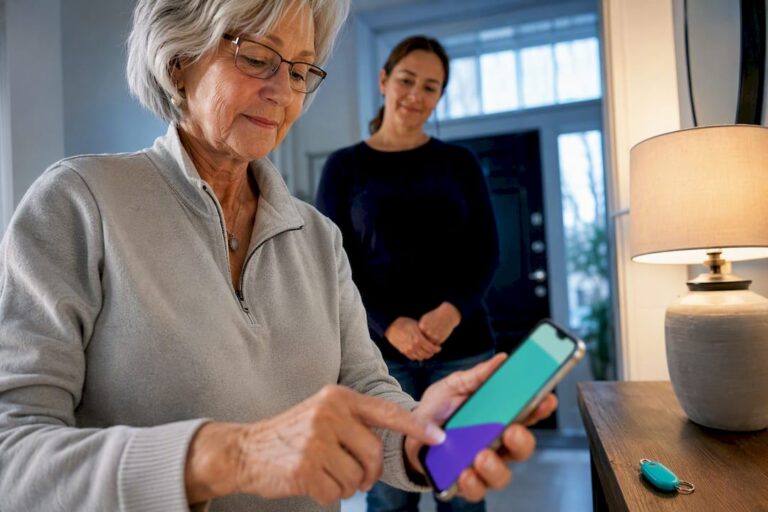
[…] and practice the press once, then confirm that their emergency contacts are saved. Our guide to Android Emergency SOS setup for Pixel and Samsung walks through the steps, and the guide to setting up emergency auto dial contacts so someone […]