
Background App Refresh lets apps fetch or pre-load content while you’re not using them, so the information is already current when you open them. The trade-off is simple: fresher content can mean more battery use and, on cellular, more data use. You control it globally or app by app under Settings, General, Background App Refresh.
TL;DR:
- Background App Refresh grants brief, unpredictable update windows, not continuous access; iOS decides timing based on usage, battery level, and network conditions.
- Notifications work independently, so disabling refresh stops background content updates but does not block alerts delivered through Apple’s notification servers.
- Choose wireless only instead of wireless and cellular to avoid background refresh using cellular data, then allow cellular access only for apps that need it.
- Low Power Mode disables refresh globally; Low Data Mode pauses automatic updates away from wireless networks, and Low Power Mode turns off at 80% charge.
- For caregiving apps, enable refresh and cellular access selectively, then verify notifications separately; force quitting can delay the next background update.
Table of Contents
- What background app refresh actually controls
- How iOS decides when apps get background time
- How to turn background app refresh on or off
- Managing battery and data with Low Power Mode and Low Data Mode
- Why an app still isn’t updating
- [Balancing convenience and safety for seniors and caregivers can be enhanced with a mobile medical alert smartwatch that ensures reliable background updates and monitoring.](#balancing-convenience-and-safety-for-seniors-and-caregivers-can-be-enhanced-with-a-mobile-medical-alert-smartwatchhttpscbahplanocommobile-medical-alert-smartwatch-that-ensures-reliable-background-updates-and-monitoring)
- Getting the most out of Well-Check on your iPhone
- FAQ
- Sources
What background app refresh actually controls
Background App Refresh permits an app to check for new content and update itself while it sits in the background, so Mail shows new messages without a manual refresh, for example, according to Apple’s own explanation of the feature. It does not mean the app keeps running continuously in the background. iOS grants it short windows of activity, not an open connection.
A few distinctions matter here:
- Background App Refresh updates content; it does not keep an app fully active or “always on.”
- Background execution modes like audio playback, location tracking, or background fetch are separate capabilities an app must specifically request.
- Push notifications are a different system entirely: they arrive through Apple’s notification servers and work even when Background App Refresh is off for that app.
That last point trips up a lot of people. Turning off Background App Refresh will not stop notifications from a messaging app or a check-in app. It only limits how that app updates its own content when you’re not looking at it.
How iOS decides when apps get background time
iOS typically suspends apps the moment you switch away from them, then wakes them for brief, unpredictable windows based on your usage patterns, battery level, and network connection. You don’t set a schedule, and neither does the app developer in any precise sense. Apple’s developer documentation on background execution describes a system where apps must declare which background modes they actually need, such as audio, location updates, or background fetch, and iOS decides how and when to honor those requests.
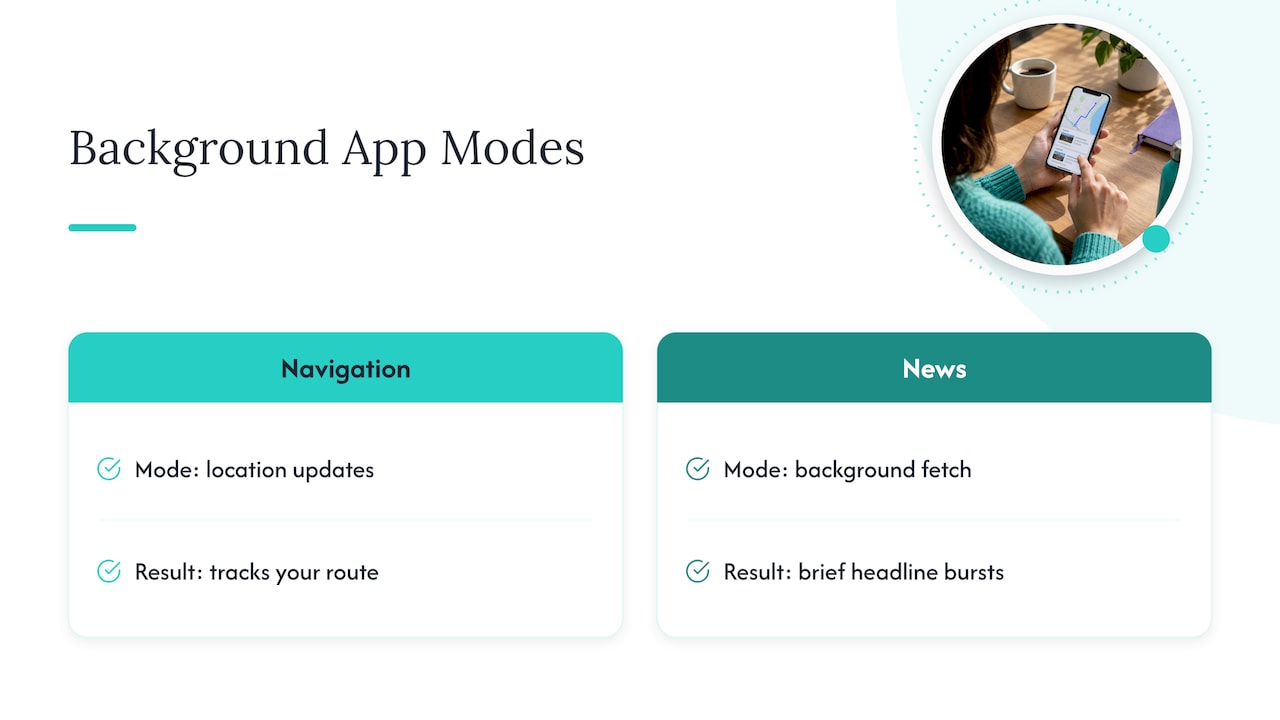
This is why two apps with Background App Refresh turned on can behave differently. A navigation app that declares a location background mode can keep tracking your route. A news app with only background fetch enabled gets occasional, short bursts to pull new headlines. Apple’s own guidance also warns developers against overusing background modes, since it drains battery faster than the benefit usually justifies.
The upshot: enabling Background App Refresh is not a guarantee of instant or continuous updates. It’s permission for iOS to update the app when conditions allow, nothing more.
Pro Tip: Judge the feature by whether content looks fresh when you open an app, not by whether it updates on a fixed timer.
How to turn background app refresh on or off
You can manage this setting for every app at once or fine-tune it app by app.
- Open Settings, then tap General, then Background App Refresh.
- At the top, choose Off, Wi-Fi, or Wi-Fi & Cellular to set the global behavior.
- Scroll down to see every app with the feature available, and flip individual switches on or off as needed.
- For cellular-specific control, go to Settings, then Cellular, scroll to the app list, and turn off cellular data for apps you only want refreshing on Wi-Fi.
- If you want to limit background activity more broadly without losing it entirely, turn on Low Data Mode from the same Cellular settings screen.
Choosing Wi-Fi instead of Wi-Fi & Cellular keeps content reasonably fresh at home without eating into your data plan when you’re out. The per-app toggles are worth a few minutes of attention, especially for anything you depend on for timely information.
Managing battery and data with Low Power Mode and Low Data Mode
Two system-level modes interact directly with Background App Refresh, and it helps to know which one is active before you troubleshoot a setting.
- Low Power Mode disables Background App Refresh across the board while it’s on, and it automatically switches off once your iPhone charges back up to 80%, according to Apple Support’s guidance on the feature.
- Low Data Mode pauses automatic updates and background tasks whenever your iPhone isn’t connected to Wi-Fi, per Apple’s cellular settings guide.
- Setting Background App Refresh to Wi-Fi only, rather than Wi-Fi & Cellular, keeps your cellular data free for the apps that truly need a live connection.
- Combining a Wi-Fi only refresh setting with per-app cellular toggles under Settings, Cellular gives you the tightest control without disabling refresh entirely.
Low Power Mode temporarily shuts off Background App Refresh for every app, which explains why an app that normally updates reliably might suddenly feel stale when your battery is low. That’s expected behavior, not a bug.
Why an app still isn’t updating
A handful of quick checks usually solve this before you consider reinstalling anything.
- Check whether Low Power Mode or Low Data Mode is active, since either one can quietly pause background updates.
- Confirm the specific app has Background App Refresh turned on and has cellular access if you’re off Wi-Fi.
- Check notification permissions separately, since an app can refresh content fine but still fail to alert you if notifications are disabled.
- Avoid force-quitting the app as a fix. It rarely helps and can actually delay the next background cycle.
- Update the app, check its in-app settings for a refresh toggle, and reinstall only if the problem persists.
- If an app seems to drain battery far more than expected, report it to the developer rather than repeatedly force-quitting, since unusual background behavior usually points to something the developer needs to address.
Balancing convenience and safety for seniors and caregivers can be enhanced with a mobile medical alert smartwatch that ensures reliable background updates and monitoring.
Caregivers often want trusted monitoring or check-in apps to refresh reliably in the background, since a delayed update can mean a missed sign of trouble. Turning on Background App Refresh selectively, just for the one or two apps that matter most, tends to be the safer compromise instead of leaving it on for everything or off entirely. It’s also worth checking notification permissions separately from refresh settings, since a caregiving app that refreshes perfectly but can’t notify you defeats the purpose.
— Brian
Getting the most out of Well-Check on your iPhone
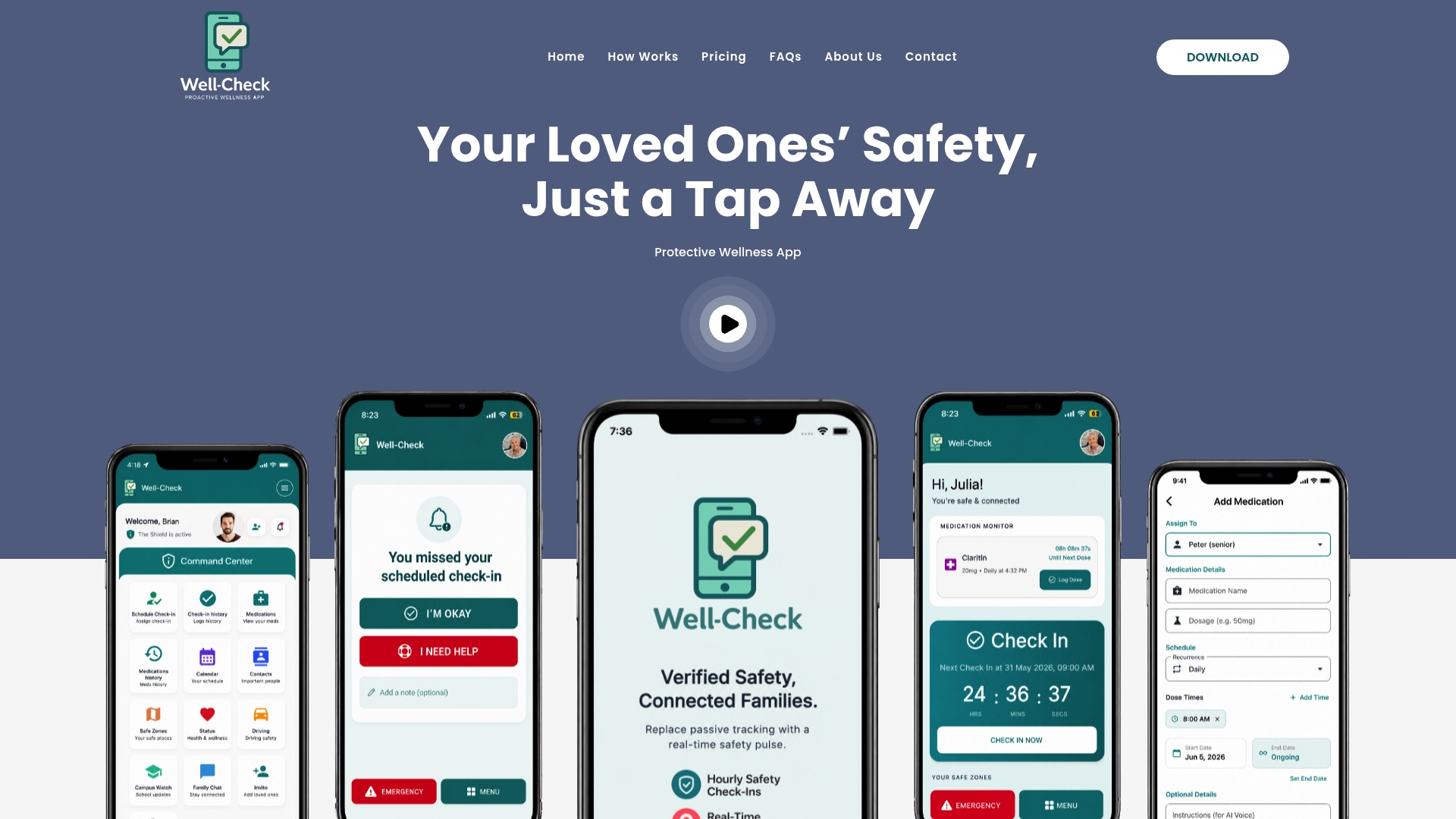
We built Well-Check around the idea that a check-in app only works if it actually runs when it needs to, so we design it to rely on the same iPhone settings covered above rather than fighting against them. When Background App Refresh and cellular permissions are allowed, daily check-ins, medication reminders, and missed check-in alerts can reach you and your family without a lag.
A quick settings check makes a real difference:
- Confirm Background App Refresh is on for Well-Check under Settings, General, Background App Refresh.
- Allow cellular data for Well-Check under Settings, Cellular, so check-ins still reach family away from Wi-Fi.
- Check that notifications are separately enabled, since that’s how missed check-in alerts actually reach caregivers.
| Plan | Price | Good for |
|---|---|---|
| Essential | $5.99 per month | Daily check-ins and core safety features |
| Complete | $7.99 per month | Advanced scheduling, unlimited check-ins, and full caregiver analysis |
If you’re setting up a loved one’s phone for the first time, our guide on senior safety checklist walks through the rest of the setup in one sitting, and you can compare Essential and Complete plans to find the right fit for your family.
FAQ
What happens when you turn off Background App Refresh on iPhone?
The app stops fetching new content while you’re not using it, so you’ll see older information until you open it and it refreshes manually. Notifications still work separately, so you won’t necessarily lose alerts, just fresh content on open.
How do I enable background apps on iPhone?
Go to Settings, then General, then Background App Refresh, and choose Wi-Fi or Wi-Fi & Cellular at the top for the global setting, then scroll down to turn it on for individual apps. You can also require Wi-Fi only to limit cellular data use while keeping refresh active.
What happens if background refresh is off for all apps?
No app will fetch or pre-load content while in the background, so every app shows whatever it last loaded until you open it again. This can extend battery life somewhat, though Apple does not publish a fixed savings figure since the effect depends on which apps and how often you use them, based on discussion in Apple’s own support community.
How do I enable Background App Refresh on iPhone for a specific app?
Open Settings, General, Background App Refresh, then scroll past the global toggle to the full app list and switch on the one you want. If that app needs cellular data to refresh away from Wi-Fi, check Settings, Cellular, and allow it there as well.
Does Low Power Mode turn off Background App Refresh?
Yes, Low Power Mode disables Background App Refresh for every app while it’s active, according to Apple Support.
Sources
- Refresh content in apps you’re not actively using on Apple Vision Pro
- Configuring background execution modes