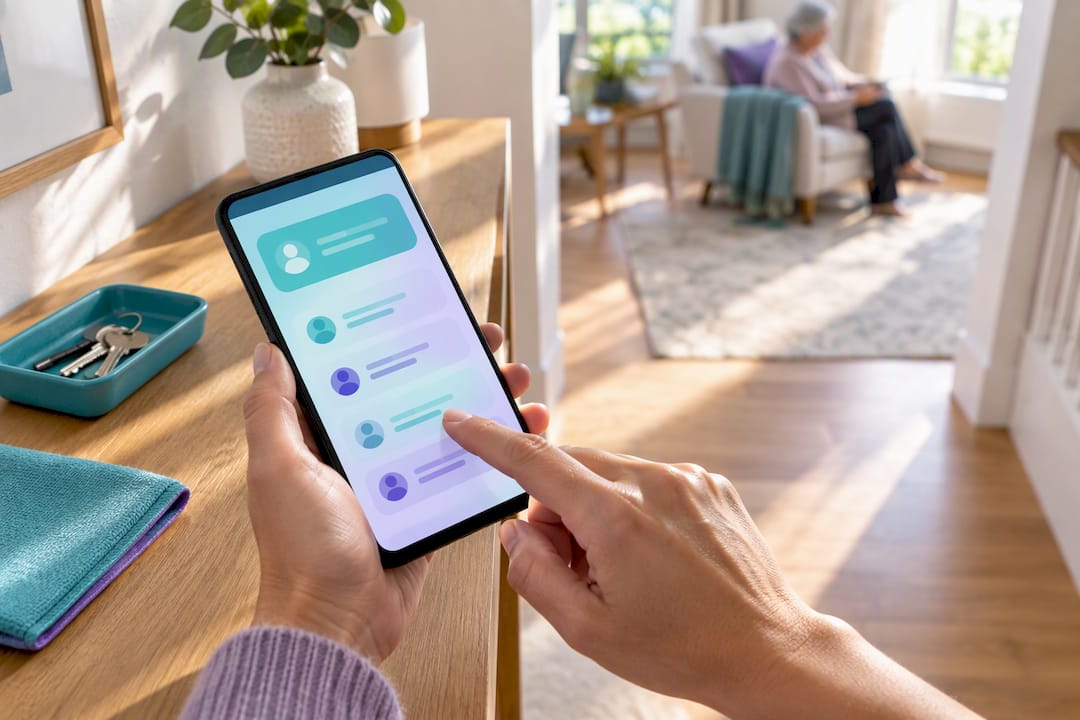
An emergency contact network on Android turns a list of names into a working safety chain: the people you choose get missed-check-in alerts, one-tap help requests, medication reminders, and location sharing if you allow it. It’s built for families and caregivers who want reliable, familiar responders, not a call center. Open the app, tap into contacts, and start building that chain today.
TL;DR:
- The emergency contact network prioritizes local responders with clear roles, such as on-site responder and remote coordinator, based on proximity and availability.
- Permissions for contacts should be carefully assigned, starting with notification-only access and expanding to location or health data as necessary, with ongoing consent.
- Regular testing of the system, including sending test alerts and verifying response actions, is essential every two to three months or after significant life changes.
- Troubleshooting common issues involves checking app permissions, GPS settings, and role assignments, while false alarms can be minimized by adjusting alert thresholds.
Table of Contents
- 1. Add and organize contacts in the Well-Check app
- 2. Who to include and how to assign clear roles
- 3. Privacy, consent, and permissions inside the app
- 4. Test and maintain the emergency-contact network
- 5. Troubleshooting common issues
- 6. A caregiver’s missed check-in, resolved fast
- 7. Well-Check: how to get started
- Sources
- FAQ
1. Add and organize contacts in the Well-Check app
The emergency contacts screen sits inside profile settings, usually one tap from the main dashboard. From there, adding a contact takes a few minutes if you have the details ready.
- Tap “Add Contact” and enter the person’s name, relationship, phone number, and email.
- Mark whether they live out of the area, since that flag matters for backup coverage.
- Note if they hold a spare house key, which Well-Check’s workflow uses to flag on-site responders.
- Set their priority order: primary contacts get notified first, backups follow if there’s no response.
- Choose what each person receives: missed-check-in alerts, GPS location, medication reminders, or a combination.
- Save the entry, then review the full list to confirm the order makes sense.
You can reorder contacts anytime by dragging them in the list, and editing permissions later doesn’t require deleting and re-adding anyone. If a caregiver is a paid helper rather than family, add them the same way but consider limiting their access to check-in status only, skipping medication or location details unless consent is given.
Pro Tip: Add your out-of-area contact last so they land at the bottom of the priority list, exactly where they belong as a backup rather than a first responder.
2. Who to include and how to assign clear roles
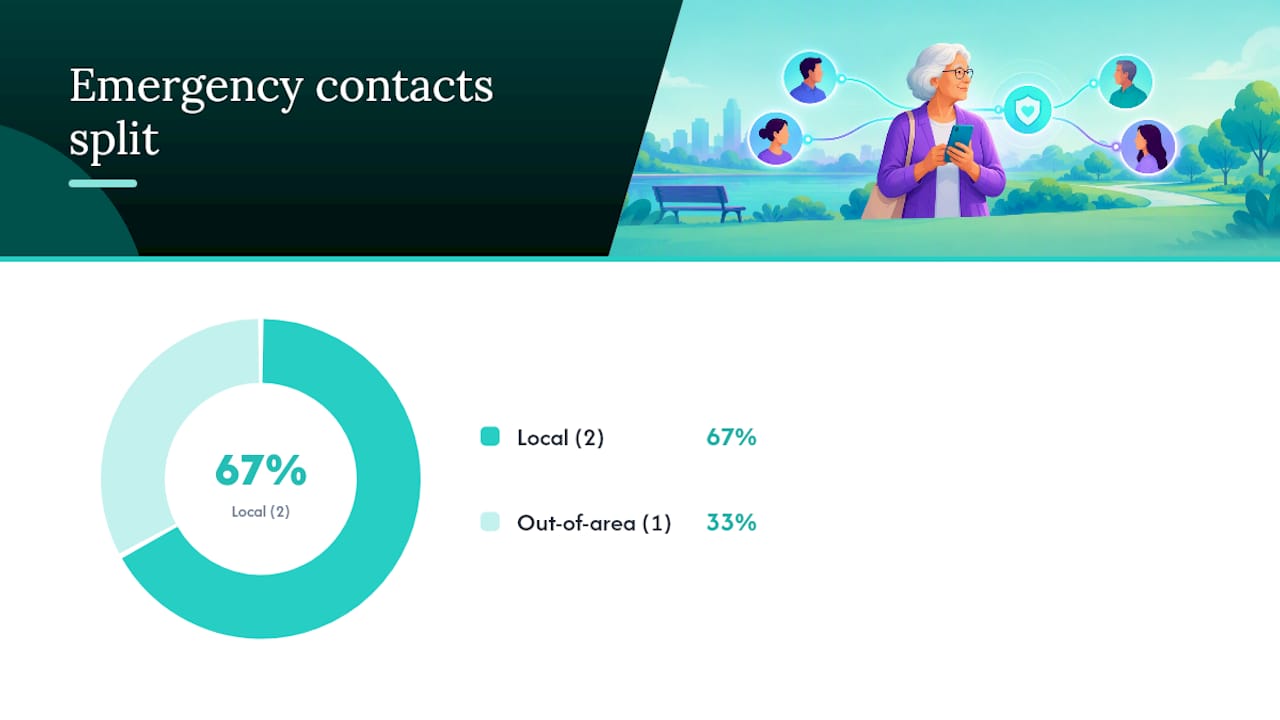
The National Institute on Aging recommends an emergency plan built around at least two trusted local contacts plus one out-of-area contact, a structure that works just as well inside an app as it does on paper. Each person should know their one job in an emergency, not a vague sense that they should “help somehow.”
Roles worth assigning explicitly:
- 911 caller: usually whoever is notified first and closest to a phone.
- On-site responder: the contact with a spare key who can physically check on the person.
- Remote coordinator: someone who calls around and keeps family updated, often the out-of-area contact.
- Medication manager: the person who tracks prescriptions and refill schedules.
Pick contacts based on proximity, availability during the day, and familiarity with the home and any medical equipment. A neighbor who’s home most mornings might make a better on-site responder than a sibling who works long shifts across town. Once roles are set, write them down somewhere everyone can see, and confirm each person agrees to their assignment before you save it in the app.
3. Privacy, consent, and permissions inside the app
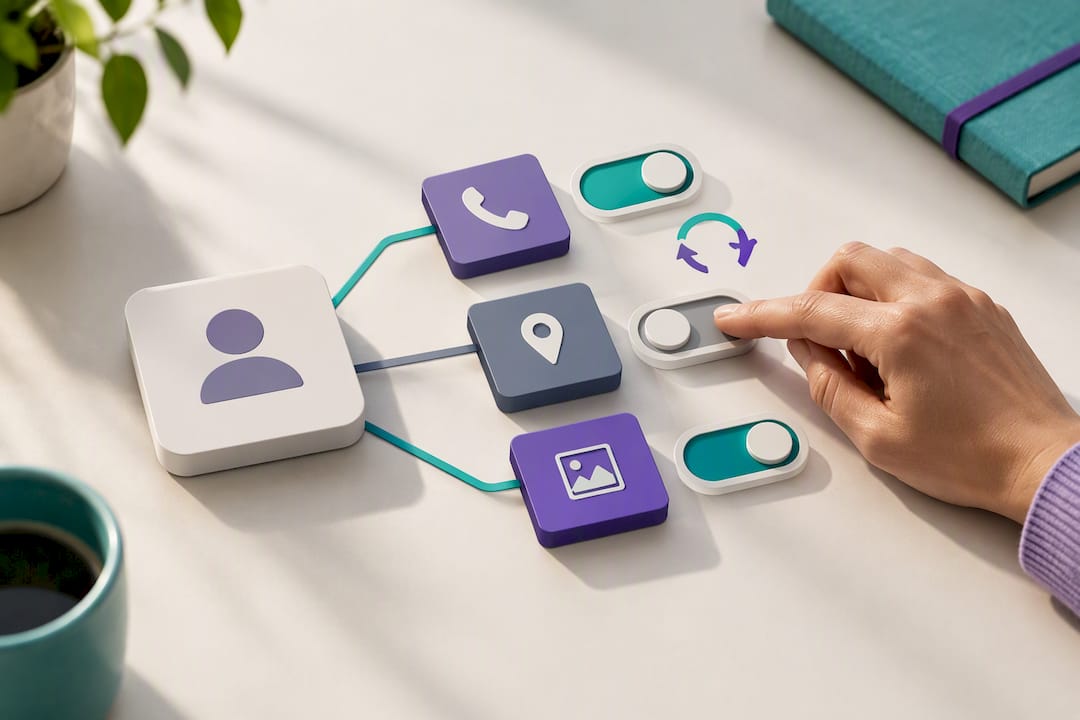
The app lets you set boundaries on exactly what each contact can see, and it’s worth thinking through before you add anyone. Notification-only access means a contact gets alerted when a check-in is missed, nothing more. Location access adds GPS sharing during an active alert. Health and medication visibility is a separate layer entirely, meant for the people actually managing prescriptions.
- Start with the minimum: notification-only for most contacts, then add location or health data only where it’s genuinely needed.
- Ask each contact directly whether they’re comfortable receiving location or medication details, and treat that as ongoing consent rather than a one-time checkbox.
- Revisit permissions whenever a relationship or living situation changes, since a caregiver’s role today might not fit in six months.
Pro Tip: If a contact’s role changes, from say a caregiver to someone stepping back, you can lower their permissions in a few taps without removing them from the network entirely.
Withdrawing consent works the same way in reverse: open the contact’s profile and toggle off whatever access they no longer need.
4. Test and maintain the emergency-contact network
A network only works if it’s tested before it’s needed. Tell contacts ahead of time that a test alert is coming so nobody panics when their phone buzzes.
- Send a test alert and confirm each contact actually received it.
- Check that GPS location, if enabled, showed up accurately on their end.
- Ask what action they’d take in response, and make sure it matches their assigned role.
- Note any contact who didn’t respond and follow up directly.
Ready recommends practicing an emergency plan regularly and keeping contact and medication lists current, both digitally and on paper. A quick monthly check on notifications is enough most months, but a full review every two to three months, or right after a move, a health change, or a new caregiver, keeps the whole system accurate. If someone consistently misses tests, it may be time to move them to backup status and promote a more responsive contact to primary.
5. Troubleshooting common issues
Most problems trace back to a handful of causes, and they’re usually quick to fix.
- No notifications arriving: check Android notification settings for Well-Check, disable aggressive battery optimizers, and confirm app permissions are still active.
- Wrong role showing: edit the contact’s profile directly, or remove and re-invite them if the change won’t save.
- Missing location: confirm GPS permission is granted and location services are on, then test outdoors if indoor signal seems weak.
- Too many false alarms: widen the check-in window or adjust the missed-check-in threshold in settings.
If there’s an actual emergency in progress, call emergency services first and let the alerts handle notifying the family after.
6. A caregiver’s missed check-in, resolved fast
A daughter once told us her father’s check-in came in late one afternoon. Because roles were already set, her brother, the designated on-site responder with a spare key, went straight over while she coordinated by phone. He’d left his phone charging in another room. Nothing dramatic, but the one-tap alert to people he already trusted meant nobody hesitated, and that’s the whole point of setting roles before you need them.
— Brian
7. Well-Check: how to get started
The app brings daily check-ins, missed-check-in alerts, an emergency contact network, optional GPS, and medication reminders into one app built for exactly the setup described above. Users get a one-tap interface designed to preserve privacy, and families get role-based permissions that route alerts to the right person instead of a stranger.
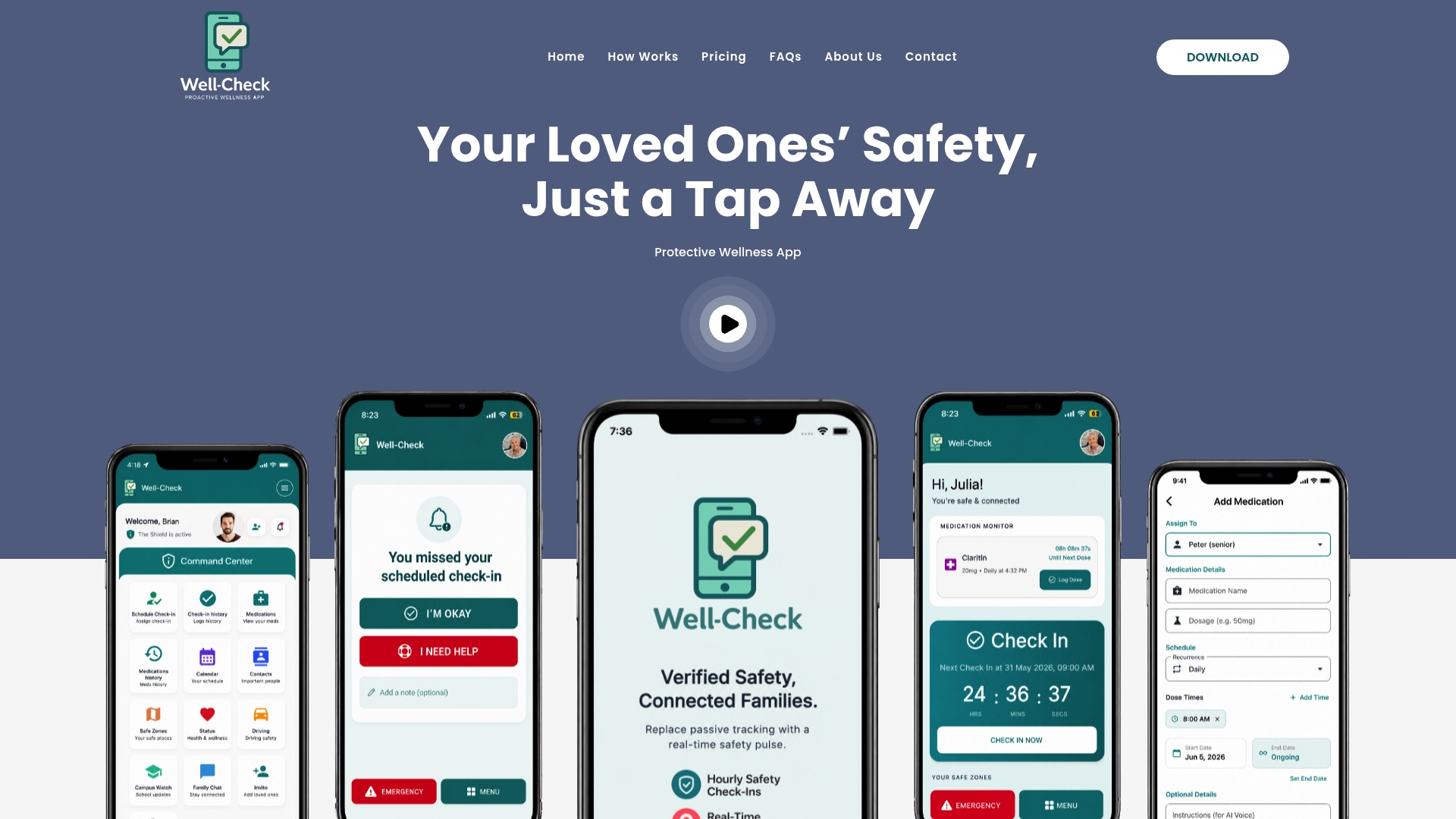
- Daily “I’m okay” check-ins that take a single tap.
- Missed-check-in alerts routed to the contacts you’ve prioritized.
- Optional GPS and medication reminders layered in only where they are needed.
If you want to see the workflow before signing up, how Well-Check works walks through the setup in more detail. When you’re ready, the Essential and Complete plans start at $5.99 per month and $7.99 per month, giving families a straightforward way to put this entire system in place today.
Sources
Guidance from the National Institute on Aging and Ready.gov shapes the contact structure and testing cadence recommended here. A study on telemergency services informs how caregiver-routed alerts perform in practice.
FAQ
How long does it take to set up emergency contacts?
Adding a single contact takes just a few minutes once you have their name, phone number, and role in mind. Setting up a full network of three or four contacts with assigned roles typically takes fifteen to twenty minutes.
Who should I include in my emergency contact network?
The National Institute on Aging recommends at least two trusted local contacts plus one out-of-area contact who can coordinate if local communication is disrupted. At least one local contact should hold a spare key and know where medical equipment and supplies are kept.
How do I withdraw a contact’s consent or change their access?
Open that contact’s profile in Well-Check and toggle off whichever permissions, like location or medication visibility, they no longer need. You can also lower them to notification-only access without removing them from the network entirely.
How often should I test the emergency alert system?
A quick monthly check on notifications is usually enough, with a fuller review every two to three months or after any major change, like a move or a new health diagnosis. Ready.gov recommends practicing the plan regularly and keeping contact information current at all times.



[…] Set Android Emergency Contacts for Seniors in 15–20 Minutes […]