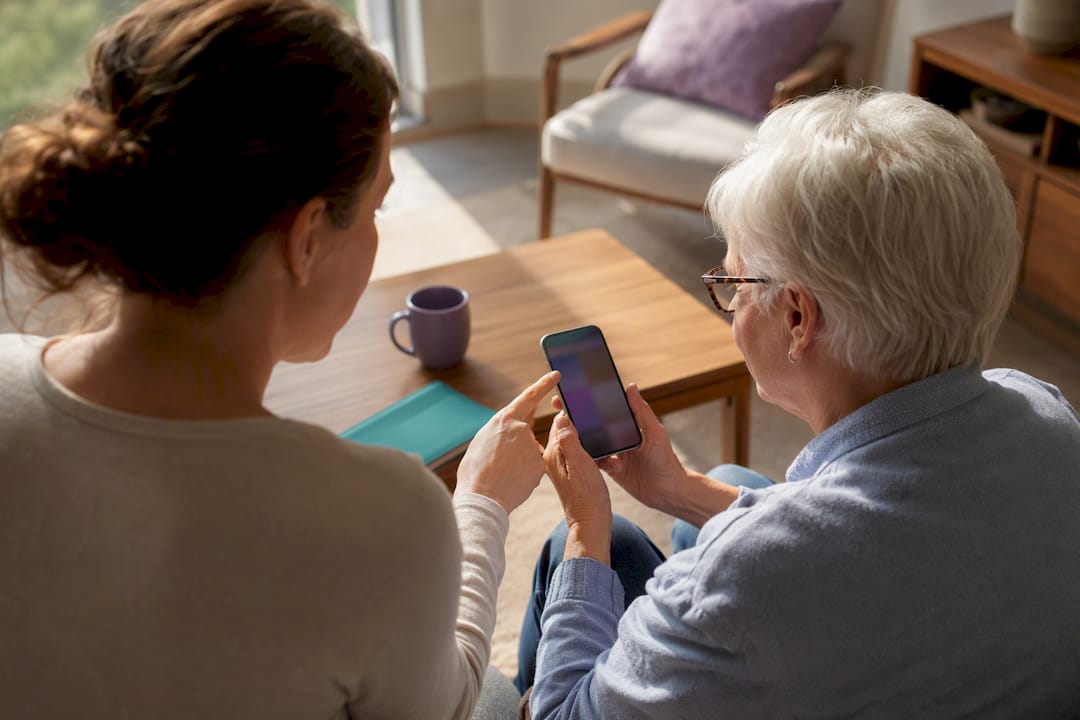
Start with Assistive Access if the person struggles with a full-featured phone, or Larger Accessibility Sizes if they just need bigger text. Layer on Magnifier, Live Listen, and Medical ID. The result is a phone with bigger text and icons, easier calls, and one-tap access to help in an emergency. Caregivers should do this setup together with the senior, not for them, and test every feature before walking away.
TL;DR:
- Larger accessibility sizes and Display Zoom significantly improve visibility for seniors but can increase battery drain when used continuously.
- Pairing hearing aids for Live Listen and enabling visual alerts like LED Flash can help users with hearing impairments, but these features require proper setup and testing.
- Assistive Access offers a simplified interface that minimizes confusion and accidental taps, but caregivers must carefully set up and secure a separate passcode and recovery options.
- Creating shortcuts, customizing Control Center, and consolidating essential apps streamline daily routines and reduce the risk of missed tasks or accidental navigation.
- Regular testing of emergency features, passcodes, and caregiver controls during setup ensures familiarity and reliability in real situations.
Table of Contents
- Vision quick wins: bigger text, Magnifier, and Speak Screen
- Hearing supports: Live Listen, captions, and visual alerts
- Motor and touch aids for limited dexterity
- Assistive Access deep dive: setup, passcodes, and caregiver control
- Simplify daily use: fewer icons, one-tap contacts, and Control Center
- Safety and emergency features worth setting up first
- Caregiver checklist for setup day and weekly follow-ups
- Voice Control setup for hands-free phone use
- Guided Access keeps the phone focused on one task
- Setting up Siri for hands-free reminders and calls
- Reminders and Calendar features that reduce missed tasks
- Quick accessibility shortcuts worth setting up now
- Managing battery life with accessibility features running
- Why device settings alone aren’t the full safety picture
- Rounding out safety with daily check-ins
- Authoritative setup guides worth bookmarking
- Sources
- FAQ
Vision quick wins: bigger text, Magnifier, and Speak Screen
Small text is the single biggest reason older adults avoid their phones, and it’s also the easiest thing to fix. Start at Settings > Display & Brightness > Text Size and drag the slider up. If that’s still not enough, go to Settings > Accessibility > Display & Text Size > Larger Accessibility Sizes, which pushes font size well beyond the standard range for people who need maximum legibility. Settings > Display & Brightness > Display Zoom takes a different approach: it enlarges the whole interface, including buttons and icons, not just text, which the Apple Support display guide covers in detail.
Magnifier turns the camera into a digital magnifying glass for reading pill bottles, mail, or restaurant menus. Add it to Control Center so it’s one swipe away instead of buried in an app folder.
Speak Screen reads any on-screen text aloud with a two-finger swipe down from the top, which is different from VoiceOver, a full screen-reader mode that changes how every gesture works and suits someone who is mostly or fully blind.
- Enable Magnifier: Settings > Accessibility > Magnifier, then toggle it on.
- Add Speak Screen: Settings > Accessibility > Spoken Content > Speak Screen.
- Test both by opening a text message and enlarging the text, then swiping down with two fingers to hear it read aloud.
Pro Tip: Set text size first, then Display Zoom. Doing it in the reverse order often means redoing the text size adjustment.
Hearing supports: Live Listen, captions, and visual alerts
Pairing MFi hearing aids happens at Settings > Accessibility > Hearing Devices, where the iPhone can route call and media audio directly to compatible aids. Live Listen turns the iPhone into a remote microphone: place it near whoever is speaking, and the audio streams straight to the hearing aids, which helps in noisy rooms or across a dinner table.
For anyone who misses calls or texts because of sound alone, turn on captions and visual alerts at Settings > Accessibility > Audio/Visual, including LED Flash for Alerts.
- Pair hearing aids: Settings > Accessibility > Hearing Devices.
- Turn on Live Listen from Control Center once hearing aids are paired.
- Enable LED Flash for Alerts and vibration patterns at Settings > Accessibility > Audio/Visual.
Test the setup with a real call: dial the senior, toggle Live Listen mid-conversation, and confirm a text message triggers a visible alert.
Motor and touch aids for limited dexterity
Shaky hands or arthritis make small buttons and quick taps frustrating, but a few settings changes can fix most of that. AssistiveTouch adds an on-screen button for actions that would otherwise need a physical gesture, and it can be customized to open Siri, Notifications, or the Home Screen with one tap, as Apple’s AssistiveTouch guide explains.
- Turn on AssistiveTouch at Settings > Accessibility > Touch > AssistiveTouch, then assign a single-tap action.
- Adjust Touch Accommodations (same Touch menu) to set Hold Duration, Ignore Repeat, and Tap Assistance for people who tap too long or too often by accident.
- Register several fingerprints, or set up Face ID, so a shaky or damp finger still unlocks the phone, and turn on Back Tap for a double-tap shortcut to the Home Screen or Control Center.
- For anyone who cannot reliably touch the screen at all, look into external switches or Bluetooth keyboards, which iOS supports through Switch Control.
Assistive Access deep dive: setup, passcodes, and caregiver control
Assistive Access is often the single most useful change for a senior dealing with cognitive decline or significant dexterity limits, because it replaces the full iOS interface with a simplified, high-contrast grid focused on a handful of chosen apps. Setup happens at Settings > Accessibility > Assistive Access > Set Up Assistive Access, following the Apple Support setup guide.
- Choose which apps appear, since Assistive Access limits the phone to essential functions rather than the full app library.
- Set an Assistive Access passcode that differs from the regular device passcode, and write it down somewhere secure.
- Consider linking a recovery Apple Account before enabling the mode, so a caregiver can regain access if something goes wrong.
- Confirm who owns the Apple Account tied to the phone before making changes, since account ownership affects what a caregiver can reset later.
Inside Assistive Access, apps like Phone, Messages, and Camera get larger buttons and a stripped-down layout, and some third-party app features are unavailable by design. That trade-off is the point: less to navigate, fewer accidental taps, and a much shorter learning curve.
Pro Tip: Exit and re-enter Assistive Access together during setup so the senior sees exactly how to get back in if the phone locks.
Simplify daily use: fewer icons, one-tap contacts, and Control Center
A cluttered Home Screen is often the real barrier, not the phone itself. Move rarely used apps into a folder labeled “Extra” or hide them entirely, and leave only five or six large icons for calls, messages, camera, and whatever the senior actually uses daily.
Shortcuts can turn a multi-step task into one tap. Build a Shortcut that calls a specific family member or sends a preset “I need help” text, then add it to the Home Screen as its own icon.
- Remove unused apps from the Home Screen or move them into Assistive Access instead.
- Create a Shortcut for direct calls or a help message, and place it front and center.
- Add a Contacts widget so favorite people are visible without opening an app.
- Customize Control Center to include Text Size and Magnifier for one-swipe access.
Reminders can also handle medication timing and routine tasks like taking a walk or drinking water, which reduces the number of separate apps a senior has to remember to check.
Safety and emergency features worth setting up first
Medical ID lives inside the Health app and should list allergies, medications, and emergency contacts, since first responders can view it directly from the Lock Screen without unlocking the phone.
Emergency SOS can be configured two ways: Call with Hold and Release, or Call with 5 Presses of the side button. Once triggered, the Apple Support emergency guide confirms the iPhone shares location with emergency contacts after the call ends and can notify them automatically, though some features, including satellite-based SOS, vary by region and device model.
- Fill out Medical ID in the Health app, including at least one emergency contact.
- Choose and test an Emergency SOS trigger method with the senior present.
- Check whether satellite or carrier-based SOS features apply to the specific device and region.
One caregiver-tested habit matters more than any single feature: testing emergency routines together in a calm moment means the senior already knows what happens when the feature actually triggers.
Caregiver checklist for setup day and weekly follow-ups
Doing this setup together, rather than handing back a finished phone, is what makes it stick according to caregiver setup guidance from WIRED.
- Sit down together and narrate every change as you make it, asking the senior to repeat back what a new button does.
- Record every passcode somewhere secure, and set up a recovery Apple Account if Assistive Access or Screen Time restrictions are in place.
- Test the core flows in one sitting: make a call, trigger Speak Screen, set off Emergency SOS in a safe way, and confirm Magnifier and Live Listen both work.
- Leave a printed one-page guide by the phone and schedule a follow-up visit or call within two weeks.
Pro Tip: Print the passcodes and emergency steps in large type and tape them inside a kitchen drawer, not just in a notes app the senior may never open.
Voice Control setup for hands-free phone use
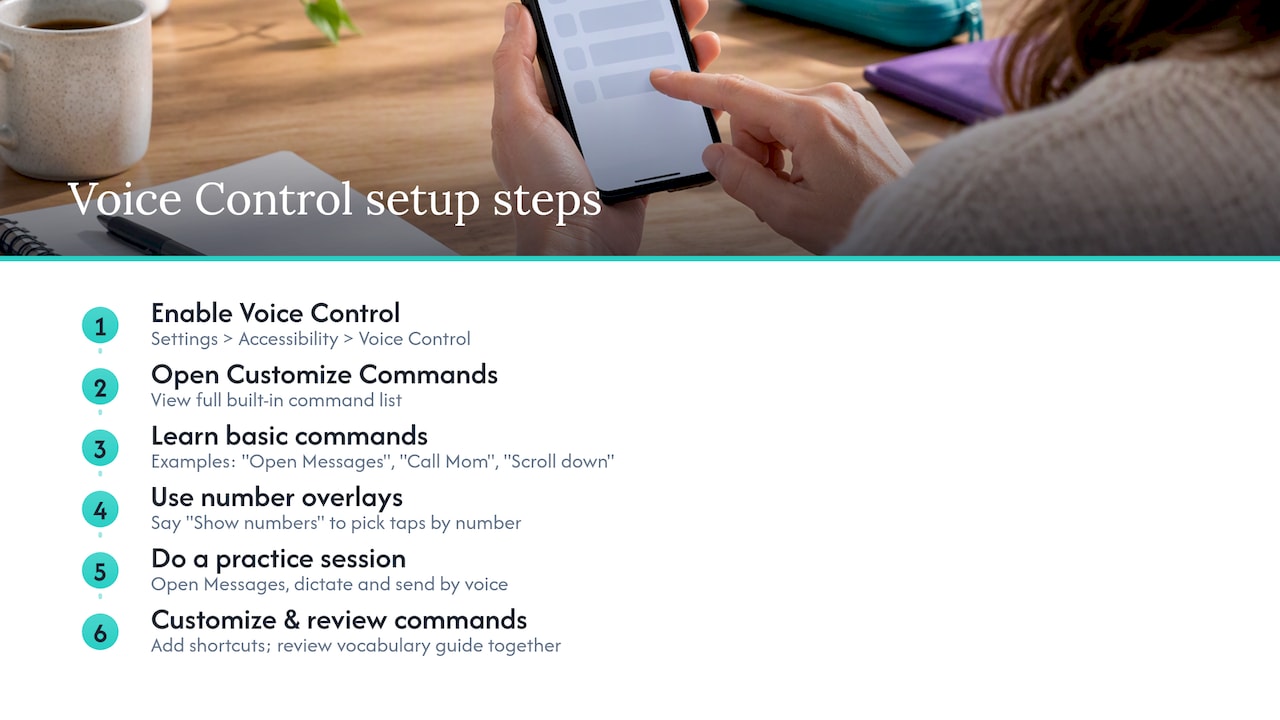
Voice Control lets someone operate the entire iPhone by speaking commands instead of touching the screen, which helps when arthritis, tremors, or recovery from an injury make tapping difficult. Turn it on at Settings > Accessibility > Voice Control, then tap Customize Commands to see the full list of what the phone can do by voice.
Basic commands cover the essentials: “Open Messages,” “Call Mom,” “Scroll down,” and “Go home” all work without touching the screen. For text entry, saying “Show numbers” overlays a number on every tappable item, so a person can just say the number instead of hunting for a precise tap target.
Voice Control takes more setup time than most accessibility features because it changes how the whole phone responds to input, so it works best for someone who has lost fine motor control rather than someone who simply prefers bigger buttons. Start with a short practice session: open Messages, dictate a text, and send it using only voice commands. If that goes smoothly, add a custom command or two, like a shortcut phrase for calling a specific emergency contact.
Voice Control runs alongside other accessibility features rather than replacing them, so a senior can still use AssistiveTouch or Switch Control for tasks that are easier with a physical gesture. The setup screen also includes a vocabulary guide that shows every built-in command, which caregivers should review together with the senior so neither party is guessing what phrases the phone recognizes.
Guided Access keeps the phone focused on one task
Guided Access locks the iPhone into a single app and can even restrict which parts of the screen respond to touch, which helps a senior who gets confused navigating between apps or who tends to accidentally back out of whatever they were doing.
Turn it on at Settings > Accessibility > Guided Access, then set a passcode separate from the device passcode. To start a session, open the app you want to lock the phone into (Camera or Messages, for example), triple-click the side button, and tap Start. The senior can now use that one app without accidentally tapping the Home button or opening something else.
Guided Access differs from Assistive Access in scope: Assistive Access reshapes the whole interface permanently, while Guided Access temporarily locks the phone into whatever single app a caregiver chooses, then releases back to normal use once ended with the same triple-click and passcode. That makes it a good fit for a specific moment, like handing over the phone during a video call with grandchildren, without worrying about the senior wandering into settings or deleting something by accident.
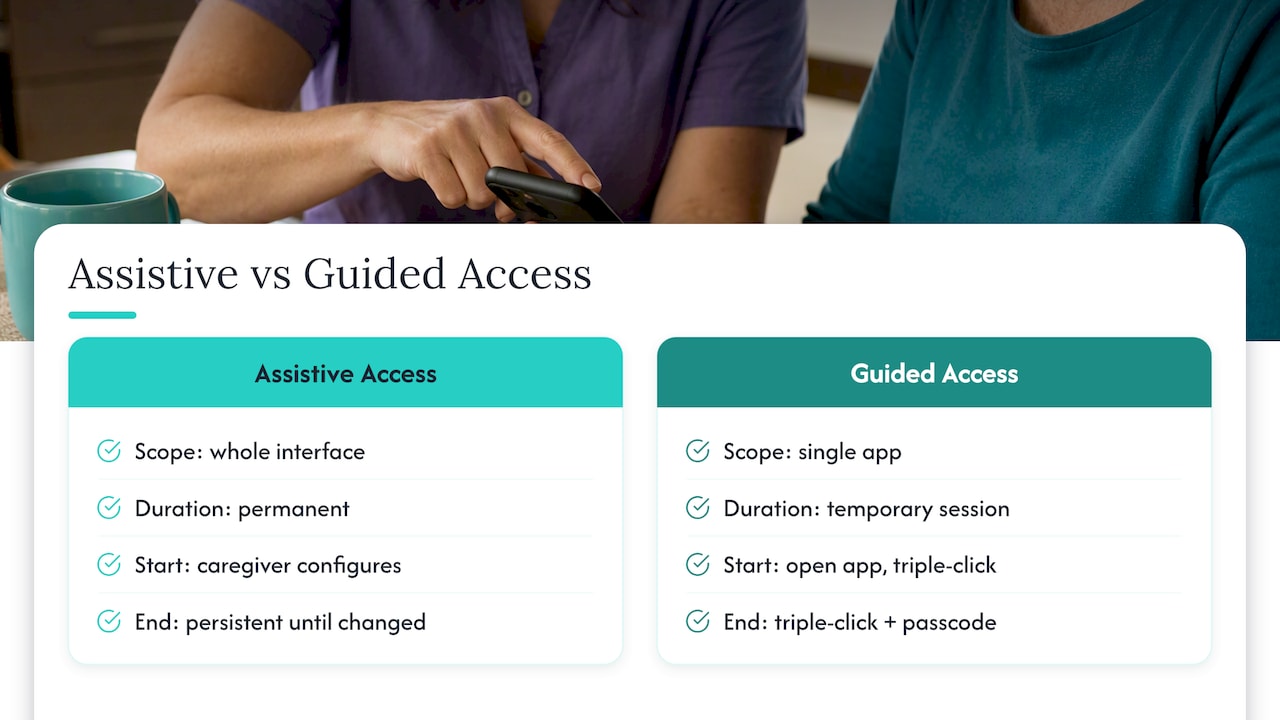
Caregivers can also disable specific screen regions within Guided Access, which is useful if an app has a button, like a “delete” or “logout” option, that shouldn’t be touched. Circle that area with a finger during the Guided Access setup screen and it stops responding to taps entirely.
Setting up Siri for hands-free reminders and calls
Siri gives a senior a way to place calls, send texts, and set reminders without navigating any menus at all, which matters most for someone who struggles with small icons or multi-step taps. Turn it on at Settings > Siri & Search, and enable “Listen for Hey Siri” so it activates by voice alone.
Practice a short list of commands together: “Call [name],” “Text [name] I’m okay,” “Set a reminder to take medicine at 8 AM,” and “What’s the weather today.” Keeping the list short and specific matters more than covering every possible command, since a senior is more likely to remember four reliable phrases than a long list of options.
Siri also reads incoming messages aloud and can send a reply by voice, which helps someone who finds typing difficult but can still speak clearly. For recurring needs, like a daily medication reminder or a weekly call to a grandchild, set those up once during the initial setup session so the senior never has to build a new reminder from scratch.
One caution: Siri needs an internet or cellular connection for most requests, so it will not work as expected in a dead zone or with the phone in airplane mode. Walk through what a failed Siri request looks and sounds like, so the senior isn’t confused if it happens once they’re using the phone alone.
Reminders and Calendar features that reduce missed tasks
The built-in Reminders app can handle far more than shopping lists. Set up recurring reminders for medication times, doctor appointments, or a daily check-in call, and use location-based reminders that trigger when the senior arrives somewhere, like reminding them to take a pill once they get home.
Accessibility settings make Reminders and Calendar easier to read and use. Larger Accessibility Sizes and Display Zoom, covered earlier for general text size, apply here too, so a reminder banner shows up in large, legible type rather than a tiny notification. Bold Text, found at Settings > Accessibility > Display & Text Size, adds extra contrast to every list item.
For calendar events, keep entries simple and avoid overlapping reminders that might confuse someone managing several routines. A single daily reminder that says “Take morning pills” is more useful than three separate entries for different medications at slightly different times, unless the senior specifically wants that level of detail.
Caregivers can also add themselves as collaborators on a shared Reminders list, so a missed grocery item or forgotten appointment shows up on both phones at once. That shared visibility, paired with the reminder’s own alert sound and banner, catches problems before they become a bigger issue.
Quick accessibility shortcuts worth setting up now
The Accessibility Shortcut turns a triple-click of the side button (or Home button on older models) into a fast way to toggle a chosen feature on or off, which matters when a senior needs to turn on Magnifier or VoiceOver without digging through Settings.
Set it up at Settings > Accessibility > Accessibility Shortcut, scroll to the bottom, and choose which features respond to the triple-click. Picking just one or two, like Magnifier or AssistiveTouch, keeps the shortcut simple and predictable rather than opening a confusing menu of options every time.
Control Center offers a second layer of fast access. Add Text Size, Magnifier, and Hearing controls directly to Control Center at Settings > Control Center, so a swipe down from the top-right corner reaches them without opening the Settings app at all.
Between the Accessibility Shortcut and a customized Control Center, most seniors never need to open the Settings app during daily use, which matters because Settings menus are often the most confusing part of the phone for someone unfamiliar with iOS. Caregivers should pick the two or three features their loved one uses most and build the shortcuts around those, rather than trying to make every accessibility feature instantly available.
Managing battery life with accessibility features running
Live Listen, Magnifier, Voice Control, and always-on display settings all draw more power than standard phone use, so battery management deserves attention during setup, not as an afterthought once the phone starts dying by mid-afternoon.
Larger Accessibility Sizes and Display Zoom have minimal battery impact on their own, but features that use the camera or microphone continuously, like Magnifier or Live Listen, drain the battery faster during active use. Turning off Live Listen when it’s not actively needed, rather than leaving it running in the background, helps stretch the battery through the day.
For a senior who might not notice a low battery warning, a caregiver can set up a Shortcut or reminder that prompts charging at a consistent time each evening.
A simple habit solves most battery problems: charge the phone overnight on a nightstand charger, and keep a second charging cable somewhere the senior spends daytime hours, like a kitchen counter, so a low battery in the afternoon doesn’t mean the phone goes dark before evening.
Why device settings alone aren’t the full safety picture
Accessibility settings solve the phone’s usability problem, but they don’t tell a family whether their parent got out of bed today or took their medication. That gap is what got me interested in wellness technology for aging adults in the first place. Daily check-ins and missed-check alerts, the kind Well-Check builds around, catch problems a perfectly configured iPhone simply isn’t designed to notice.
— Brian
Rounding out safety with daily check-ins
A well-set-up iPhone handles calls, texts, and one-tap emergency access, but it depends on someone remembering to use those features in the moment. Well-Check fills the gap between those moments with a daily check-in system: the senior taps “I’m okay” once a day, and if that check-in gets missed, family members get an alert automatically.
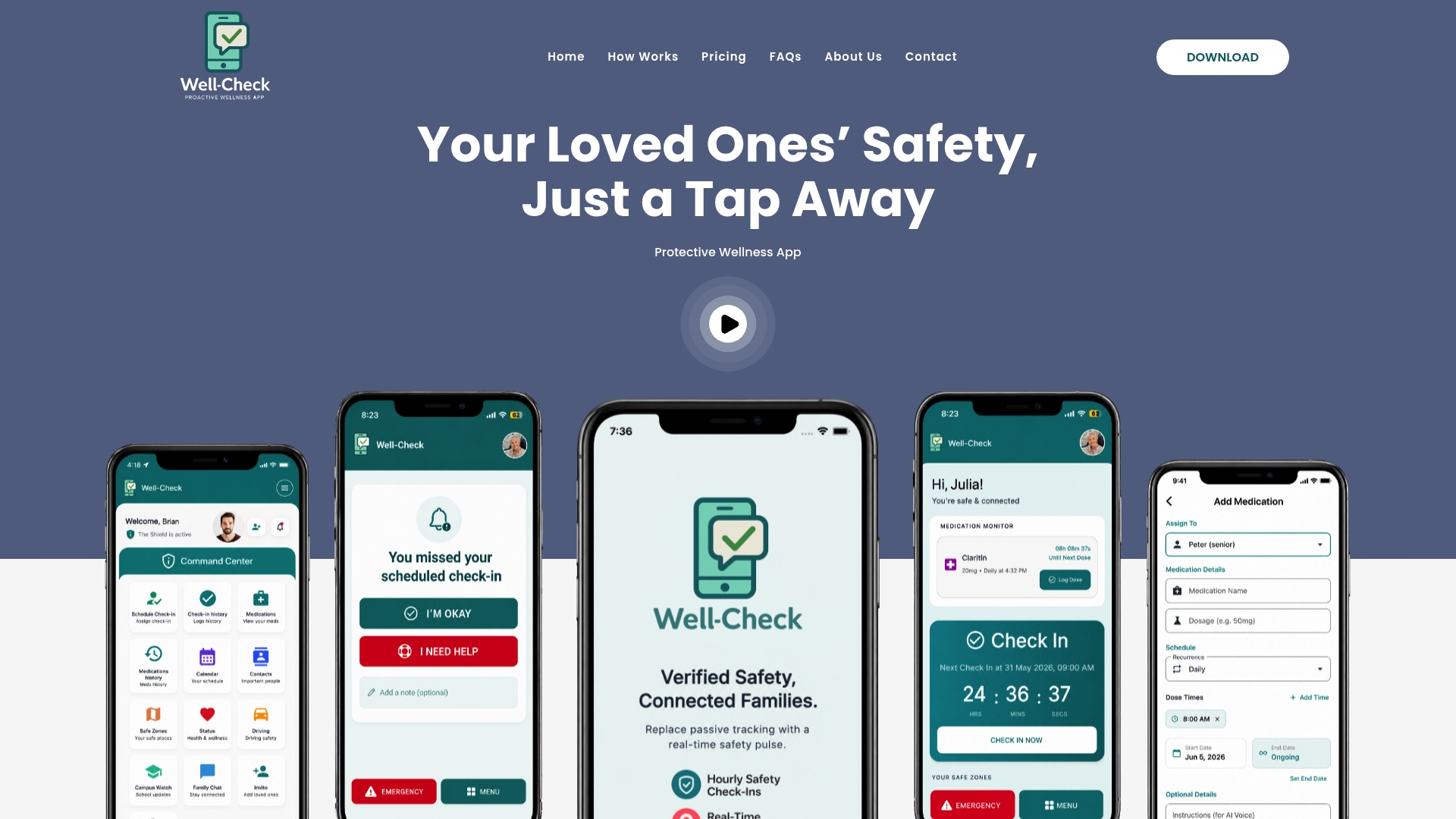
The app also offers features like medication reminders, GPS tracking, and a caregiver contact network, providing families with an additional layer of daily reassurance alongside the phone’s built-in accessibility tools. Plans include Essential and Complete pricing options, both detailed on the Well-Check pricing page.
| Feature | Essential | Complete |
|---|---|---|
| Daily check-ins | Included | Included |
| Medication reminders | Included | Included |
| Monthly price | $5.99 | $7.99 |
Families weighing broader care options, including how a monitoring app fits alongside in-home care and Medicare coverage, can also review this Medicare and home care resource for additional context. For anyone ready to see how the check-in flow works in practice, the how it works page walks through setup step by step.
Authoritative setup guides worth bookmarking
- Adjust iPhone display and text settings covers every text size and zoom option in detail.
- Set up Assistive Access walks through the simplified mode step by step.
- Contact emergency services on iPhone explains Emergency SOS setup and limits.
- Personalize accessibility features for older adults rounds out Apple’s own senior-focused guidance.
- WIRED’s smartphone setup guide offers caregiver-tested setup practices.
Sources
- Adjust iPhone display and text settings – Apple Support
- Set up Assistive Access on iPhone – Apple Support
- Personalize Apple Accessibility, Health, and Safety features to empower older adults – Apple Support
- Contact emergency services on iPhone – Apple Support
FAQ
Does the iPhone have a simple mode for seniors?
Yes, it’s called Assistive Access, found at Settings > Accessibility > Assistive Access, and it replaces the standard interface with a simplified, larger grid focused on a handful of chosen apps. It works best for seniors dealing with cognitive changes or significant difficulty navigating the full version of iOS.
How do I dumb down my iPhone for a senior citizen?
Start with Assistive Access for a full simplified mode, or combine Larger Accessibility Sizes, a decluttered Home Screen, and Shortcuts for one-tap calling if the person just needs bigger text and fewer icons. Both approaches reduce the number of decisions the phone asks someone to make in a given moment.
What are the best iPhone accessibility options for older adults?
The most useful combination usually includes Assistive Access or Larger Accessibility Sizes, Magnifier, Live Listen, and Medical ID since together they address vision, hearing, and emergency needs at once. Which specific settings matter most depends on whether the person struggles more with sight, hearing, or navigating a full-featured phone.
How do I simplify an iPhone for a senior citizen quickly?
The fastest path is enabling Assistive Access for an instantly simplified interface, then adding a Home Screen Shortcut for direct calling and turning on Larger Accessibility Sizes for bigger text everywhere. Testing each change together with the senior during setup catches confusion before it becomes a daily frustration.


[…] Caregiver Setup for iPhone Accessibility: Assistive Access and Daily Check‑Ins […]