Android battery optimization comes down to two jobs. First, cut the drain you don’t need: a bright screen, long timeouts, a runaway app. Second, leave alone the background activity you do need, like reminders, location and alerts. Most guides cover only the first job. If you or a parent relies on a phone for safety, the second job matters more.
This guide walks through the settings that save the most battery, explains what Android’s “Optimized” and “Restricted” choices actually do, and ends with a short live test. The test tells you whether a missed check-in would still reach a caregiver after you’ve changed anything.
TL;DR
- The biggest everyday savings come from the screen: shorter timeout, lower or automatic brightness, and dark theme on screens where it helps.
- Leave Adaptive Battery on for general use, but check app-specific battery settings if a safety or messaging app’s alerts arrive late.
- Battery Saver is an emergency extension, not an everyday setting. It can delay background work, syncing and location.
- Menu names differ by manufacturer and Android version, and Samsung’s paths differ from Google’s.
- After any change, test: send a check-in, miss one on purpose, and confirm the caregiver gets the alert.
Table of Contents
- Why Android limits background activity in the first place
- Step 1: Find out what is actually draining the battery
- Step 2: Reduce what the display demands
- Step 3: Clean up accounts and rarely used apps
- Step 4: Understand Optimized, Restricted and Unrestricted
- Step 5: Use Battery Saver on purpose, not by default
- Step 6: Check the environment, not just the settings
- Why reliability comes first for seniors and caregivers
- The live test: four minutes to know your alerts work
- Where Well-Check fits
- Our perspective: simplicity beats a perfect settings menu
- Quick reference: where to find each setting
- FAQ
- Sources
Why Android limits background activity in the first place
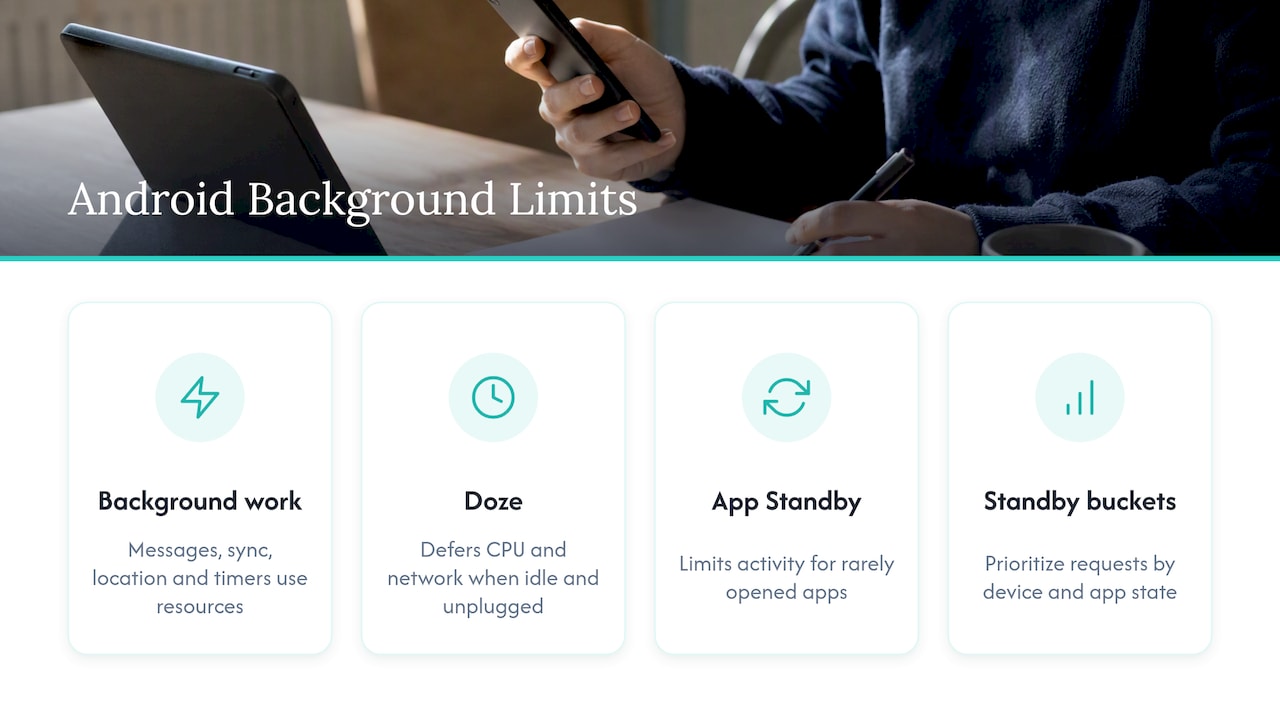
Your phone does a lot when you aren’t looking at it. Apps check for messages, sync data, fetch location and run timers. Each of those uses CPU, network and wake time, and all of it costs battery. Android’s own developer documentation says background processes can be memory- and battery-intensive, which is why the system restricts them.
Two of the main mechanisms are Doze and App Standby. Per Android’s documentation on Doze and App Standby, Doze reduces battery use by deferring background CPU and network activity when the device sits idle and unplugged. App Standby does something similar for apps you rarely open. On top of that, the system assigns apps to standby buckets and prioritizes resource requests by device state, app state and bucket.
That is good design for a game or a shopping app. It is a real consideration for an app whose whole job is to notice that something did not happen, such as a check-in that never came. Everything below balances those two needs.
Step 1: Find out what is actually draining the battery
Don’t change settings blindly. Look at the data first.
- Open Settings > Battery (on Samsung Galaxy: Settings > Battery and device care > Battery).
- Open the usage graph or View details.
- Note the top three consumers, and whether the screen is among them.
Samsung’s troubleshooting guide for fast battery drain starts exactly here: check the battery graph and View details for the app doing the consuming. It then suggests running Device Care’s optimize function and reviewing background usage limits.
Keep one point in mind. A sudden drain is not automatically one broken app. Samsung’s guidance on battery optimization for Galaxy devices says battery life depends on device settings, environment and usage patterns. Weak or overlapping signal, 5G, bright sunlight, high-resolution streaming, location services and long screen-on time all add up.
If the screen tops the list, that is normal. Go to Step 2. If one app you rarely use sits near the top, update it, and uninstall it if it keeps misbehaving.
Step 2: Reduce what the display demands
The screen is usually the largest single consumer, and trimming it carries almost no risk to alerts or reminders. Google’s Android Help guidance lists these display-side settings:
- Let the screen turn off sooner.
- Reduce screen brightness, or use automatic brightness.
- Turn off keyboard sounds and vibration you don’t need.
- Turn on dark theme.
On dark theme, keep expectations modest. Google notes that it can save battery on some screens. The saving depends on the display, so treat it as a small bonus and not a cure for rapid drain. It’s also easier on the eyes for many people, which counts for something.
For older adults there is a practical wrinkle. Very low brightness and tiny text make a phone harder to use, and a phone that is hard to read gets used less. If a parent struggles with a dim screen, choose automatic brightness and a shorter timeout over a permanently dark display.
Step 3: Clean up accounts and rarely used apps
Google’s guidance also points to removing accounts you no longer use. Each synced account wakes the phone periodically. On a Galaxy, Samsung recommends putting rarely used apps to sleep and reviewing Battery usage, which is a safe way to quiet apps nobody needs.
A simple rule for an older relative’s phone: if nobody has opened an app in a month, remove it. Fewer apps means fewer background tasks, fewer notifications and fewer places for something to go wrong.
Step 4: Understand Optimized, Restricted and Unrestricted
This is the setting most people misunderstand. Per Android’s documentation, an app’s background behavior generally falls into three choices:
| Setting | What it means | Battery effect | Risk for a safety app |
|---|---|---|---|
| Optimized | Default. Android balances background work against battery. | Balanced | Low for most apps |
| Unrestricted | App may do more background work. | Potentially higher use | Lowest risk of delayed alerts |
| Restricted | Background work may be prevented. | Lowest use | High: reminders, sync and notifications can fail |
The goal is not to disable every background process. Optimized is the default for good reason. Restricted is the one to avoid for anything you depend on, because it can stop background operation and make notifications, reminders or synchronization fail.
You’ll often see advice online to “restrict every app that uses battery in the background.” Apply that to games, shopping and social apps. Don’t apply it to the apps that carry your safety: your messaging app, the phone dialer, location services, your notification system and any check-in or alert app.
Adaptive Battery: leave it on, with one caveat
Adaptive Battery learns which apps you use and limits the ones you don’t. Samsung explains that it can extend battery life, but optimized apps may have background functions restricted. Our advice: leave it on for general use. If a reminder or alert from a safety or messaging app comes late, look at that app’s battery setting before you turn Adaptive Battery off for the whole phone.
On a Galaxy the path is usually Settings > Battery and device care > Battery > More battery settings > Adaptive battery. It varies by model, so search “Adaptive battery” in Settings if you don’t see it.
Step 5: Use Battery Saver on purpose, not by default
Battery Saver is for stretching a low battery to the end of the day. Google describes it as a way to extend a low charge. When it’s on, it limits or disables background activity and may delay network connections, syncing and visual features. It can also switch on dark theme automatically. Google notes that if you see a dark color scheme you didn’t choose, Battery Saver may be on.
On Samsung phones the equivalent is Power saving. Samsung warns that power-saving restrictions can apply to every app’s background data and may limit location services.
That has a direct consequence for anyone living alone. If the phone sits at 12% overnight with Battery Saver on, a missed-check-in alert or a location update may arrive late. The fix is not to avoid Battery Saver at all costs. The fix is to know that it changes behavior, and to charge the phone every night as a habit. Put the charger where the phone sleeps, and consider a second charger in the living room.
Step 6: Check the environment, not just the settings
Some drain has nothing to do with menus. Samsung lists weak signal, 5G, high brightness, many installed apps and operating system errors among the contributing factors. A phone searching for signal in a basement apartment or rural home can drain surprisingly fast. If that’s the case:
- Turn on Wi-Fi calling and connect to home Wi-Fi where possible.
- Update the operating system and apps, since errors can cause drain.
- Restart the phone occasionally. Samsung recommends at least 5% charge before a reboot.
- If the battery is fully drained, charge for at least 15 minutes with an appropriate charger before expecting it to turn on, per the same Samsung guide.
No source gives a universal “you’ll gain X%” figure for any of these tips. Results depend on the device, network, display, apps and usage. Be skeptical of any article that promises a precise number.
Why reliability comes first for seniors and caregivers
A typical battery guide aims at the longest possible runtime. For an older adult who lives alone, the target is different: the phone must be on, charged, connected and able to deliver alerts. A phone that lasts two extra hours but silences a missed-check-in alert has gotten worse at its most important job.
So the reliability-first profile looks like this:
- Do: lower brightness, shorten screen timeout, remove unused apps and accounts, keep Adaptive Battery on, charge nightly.
- Don’t: put your safety, messaging, phone or location apps in Restricted mode, or leave Battery Saver on all day without testing.
This connects to other settings caregivers manage. If you’re setting up location access, our 2-minute Android location permissions check covers the permission side. For the broader plan, the app-ready senior safety checklist puts the battery habit alongside contacts, reminders and testing. iPhone households have their own version of this problem, covered in our guide to iPhone Background App Refresh.
The live test: four minutes to know your alerts work
Settings screens tell you what’s configured. Only a live test tells you what’s delivered. Do this after any battery change, after a major Android update, and once a month.
- Send a check-in. Tap the check-in button and confirm the caregiver sees it.
- Miss one on purpose. Let a scheduled check-in pass without responding, and wait through the grace period.
- Confirm the alert arrives. The caregiver should receive the missed-check-in notification on their own phone.
- Repeat with Battery Saver on. Switch it on, leave the screen off for a while, and run steps 1 to 3 again.
- Check the medication reminder. Schedule one a few minutes ahead and confirm it sounds with the screen locked.
Why the screen-off wait matters: Doze and App Standby defer background work when the phone is idle, so an alert that works with the screen on can behave differently after an hour in a drawer. Verify real-world delivery, not just that the app is installed. For a fuller walk-through, see our guide to family emergency alerts caregivers can test in under an hour and our explanation of the 30-minute grace period.
If an alert is late, do these in order:
- Open the app’s battery setting and move it from Restricted to Optimized, or to Unrestricted if Optimized still delays alerts.
- Check that notifications are allowed and not silenced for the app.
- Check location permission if GPS features are involved.
- Turn off Battery Saver or Power saving and retest.
- Update the app and the operating system.
Where Well-Check fits
We built Well-Check around a daily check-in: one tap on “I’m okay,” and if a check-in is missed, emergency contacts are alerted. It also sends medication reminders and includes GPS features and smart caregiver analysis. Because it depends on timely delivery, we recommend the live test above whenever battery settings change.
The Essential plan costs $5.99 per month and the Complete plan costs $7.99 per month. You can compare them on our pricing plans page.
Our perspective: simplicity beats a perfect settings menu
We talk with a lot of families, and the pattern is consistent. Nobody wants their mother to troubleshoot Android power modes. The more settings a senior must manage, the likelier it is that one gets switched at the wrong moment and nobody notices.
So we favor a simple normal-use profile that a caregiver sets once: sensible brightness, Adaptive Battery on, safety apps left on Optimized or Unrestricted, and a nightly charging habit. Battery Saver stays an emergency tool. Then the caregiver runs the live test and repeats it monthly. That puts the effort on the person who can handle it and keeps the daily routine for the senior as light as one tap.
This also fits how we think about dignity. A check-in app should reassure a family without watching every move. If your parent’s phone is set up to last the day and deliver the one alert that matters, you don’t need to ask how the battery is doing every evening. You can ask how their day was.
— Brian
Quick reference: where to find each setting
| Goal | Typical path (varies by model) |
|---|---|
| See what’s using battery | Settings > Battery > Battery usage (Samsung: Battery and device care > Battery) |
| Shorter screen timeout | Settings > Display > Screen timeout |
| Dark theme | Settings > Display > Dark theme |
| Battery Saver | Settings > Battery > Battery Saver |
| Adaptive Battery | Settings > Battery > Adaptive Battery (Samsung: More battery settings) |
| Per-app background limits | Settings > Apps > [app] > Battery |
Menu names differ by manufacturer, Android version and, on Galaxy phones, One UI version, carrier and region. A common mistake is applying generic Android instructions to a Samsung phone. If a path doesn’t match, use the search bar at the top of Settings.
FAQ
How can I optimize battery usage on my Android phone?
Start with the battery usage screen to see the top consumers. Then shorten screen timeout, lower brightness or use automatic brightness, remove unused accounts and apps, and leave Adaptive Battery on. Use Battery Saver only when the charge is low.
Should I turn Adaptive Battery on or off?
Leave it on for general use. It learns your habits and limits background activity for apps you rarely open. If a safety or messaging app’s reminders arrive late, check that app’s own battery setting before you disable Adaptive Battery for everything.
Does dark theme really save battery?
On some screens, yes. Google says dark theme can save battery on some displays, but the effect depends on the screen. Treat it as a modest help and not a fix for fast drain.
Is it safe to restrict background activity for all apps?
No. Restricting every app can stop notifications, reminders, sync and location updates from working. Restrict apps you don’t depend on, and keep the ones that carry your safety on Optimized or Unrestricted. Then run a live test to confirm alerts still arrive.
Why is my Samsung phone battery draining so fast?
Check Battery usage and View details first, since the cause may be the screen, a weak signal, 5G or one app and not a defect. Run Device Care’s optimize function, review background usage limits and update the software. If the drain stays abnormal after that, contact Samsung support or your carrier.
Sources
- Get the most life from your Android device’s battery, Android Help
- Change to dark theme or adjust the color scheme, Android Help
- Battery draining fast on Galaxy phones and tablets, Samsung US
- Galaxy Battery Optimization, Samsung US
- What to do if the battery of my new phone seems to be draining faster, Samsung UK
- Background optimization, Android Developers
- Optimize for Doze and App Standby, Android Developers
- Power management resource limits, Android Developers