A phone can be set up for low vision in about twenty minutes. Turn on larger bold text, raise the contrast, add magnification, and use your voice for the tasks that are hardest to do by touch. Both iPhone and Android include these tools. Most of them are off until someone switches them on, so the setup is the real work. This guide walks through the settings in the order that helps most, and shows how to keep them working for the long run.
TL;DR
- Start with the Accessibility Shortcut, so any setting can be switched on or off with three presses of a button.
- Combine larger text, Bold Text, Button Shapes and Increase Contrast. Together they help more than any single change.
- Invert Colors suits some people and not others. Try Smart Invert before Classic Invert, and keep an easy way to switch it off.
- Android has Easy mode on Samsung phones and Simple View on Pixel phones, plus voice control for hands-free use.
- Check the settings after every major system update, and pair them with a daily check-in routine so someone knows all is well.
Table of Contents
- Set up the Accessibility Shortcut first
- Make text bigger and bolder
- Contrast, color filters and color inversion
- Android: high contrast and Easy mode
- Use your voice instead of the screen
- Arthritis-friendly settings for the same phone
- Keep the settings working
- A simple daily check-in on top of an accessible phone
- FAQ
- Sources
Set up the Accessibility Shortcut first
Before changing anything else, set up a way to undo it. A Race Against Blindness advises starting with the Accessibility Shortcut on iPhone, which you trigger by triple-clicking the side button or the Home button. From there you can reach VoiceOver and Zoom without digging through menus.
This matters for low vision in a practical way. If a setting makes the screen hard to read, you need to turn it off without being able to read the menu that turned it on. A triple-click solves that.
Two cautions before you start:
- These features are usually not on by default. RNIB notes that larger text, bold text, magnification and speech are not normally switched on, and that people with sight loss may need some help changing them. Setting up together with a family member, caregiver or vision rehabilitation specialist is a good idea.
- Make one change at a time and use the phone for a day. That way you know which change helped.
Make text bigger and bolder
Text size is the change most people notice first.
iPhone text size
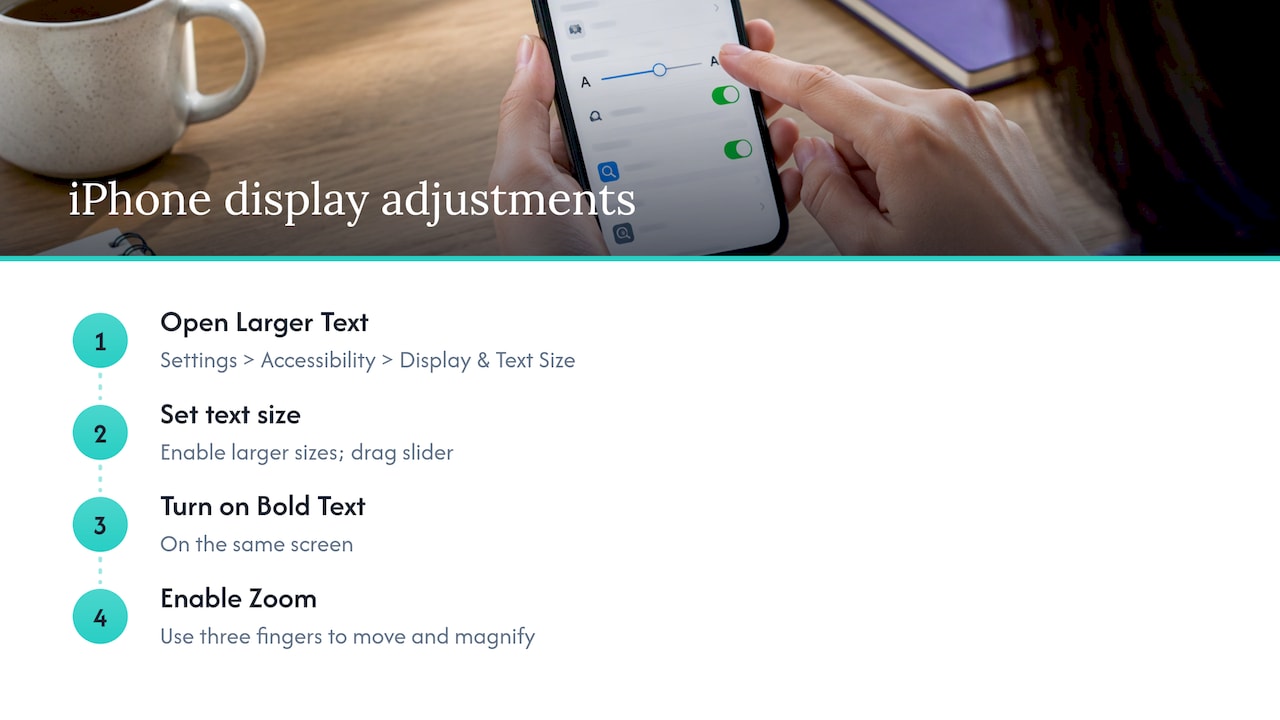
Per RNIB, go to Settings > Accessibility > Display & Text Size > Larger Text, turn on Larger Accessibility Sizes, and drag the slider until the sample text is comfortable. Turn on Bold Text on the same screen.
For magnifying the whole display, RNIB says to open Settings > Zoom, switch it on, and then use three-finger gestures to move around and change the magnification. A Race Against Blindness adds that Zoom offers Full Screen or Window Zoom, with filters such as Inverted, Grayscale, Grayscale Inverted and Low Light.
Extra readability switches
TechFor60s recommends four smaller settings that add up:
| Setting | What it does |
|---|---|
| Button Shapes | Adds visible borders around things you can tap |
| On/Off Labels | Adds I/O symbols on switches so their state is clear |
| Increase Contrast | Darkens grey text and brightens light buttons |
| Reduce Transparency | Makes menus solid instead of see-through |
The American Foundation for the Blind’s Accessworld points out that Reduce Transparency and Bold Text are especially helpful for making the on-screen keyboard easier to read.
Expect some awkward apps
At the largest sizes, some apps will look broken, with overlapping buttons or cut-off text, and photos and games ignore text-size settings, according to TechFor60s. If an app looks wrong, step the size down one notch rather than abandoning the setting.
Contrast, color filters and color inversion
Low vision is not one condition. Some people need more contrast, others need less glare, and others need a different color balance. That is why the display menu has several options rather than one.
How to turn on color inversion on iPhone
Apple Support gives the path: open Settings, tap Accessibility > Display & Text Size, then enable one of two options:
- Smart Invert reverses colors except in images, media and some apps that already have a dark style.
- Classic Invert reverses every color on the display.
Try Smart Invert first. It leaves photos looking normal, which is the usual complaint about inversion.
When inversion helps and when it does not
Invert Colors works like a photographic negative: light backgrounds go dark and black text turns light, as Accessworld explains. That can cut glare for people who find bright white screens painful. The same article notes that many users end up switching it on and off through the day, because photos and dark-background apps look odd when inverted.
If that sounds like you, put it on the Accessibility Shortcut so the toggle takes a second.
Gentler options than full inversion
If inversion is too strong, try these:
- Reduce White Point tones down the intensity of bright colors, per Apple. Accessworld says it comes with an intensity slider.
- Darken Colors and Reduce Transparency make backgrounds firmer and easier to separate from text, according to Accessworld.
- Color Filters offer four presets: Grayscale, Red/Green, Green/Red and Blue/Yellow, each with an Intensity slider. A Color Tint option changes the hue of the whole screen for color or light sensitivity, as Apple describes.
The home screen matters too. A calmer, higher-contrast layout makes it easier to find the apps you use. Some iPhone users like iPhone color and contrast customization for widgets and tint choices that suit their eyes.
Android: high contrast and Easy mode
Android menus differ by manufacturer, so names and paths vary. The ideas are the same: bigger text, stronger contrast, fewer things on the screen.
Samsung Easy mode
TechFor60s reports that Samsung Galaxy phones have Easy mode under Settings > Display > Easy mode. It gives bigger icons, a simpler layout and bigger tap targets across the system. For someone who is easily overwhelmed by a busy home screen, this is often the single most useful switch.
Pixel Simple View and button navigation
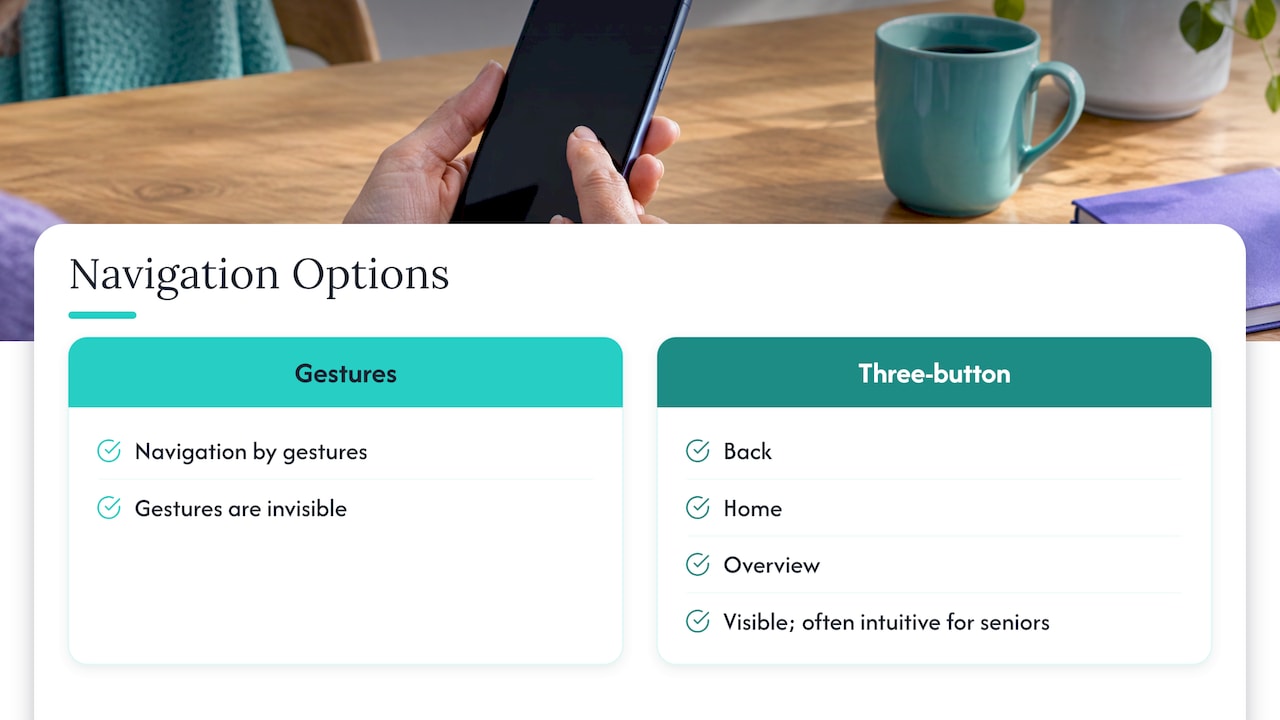
TechTimes says Simple View on Google Pixel phones simplifies the layout and lets a caregiver pin favorite contacts and apps. It also reports that swapping gesture navigation for the three-button bar (Back, Home, Overview) often feels more intuitive for seniors. Gestures are invisible, and buttons are something you can see.
Looking for a high contrast mode
Android’s contrast and color options live in Settings > Accessibility, and the wording differs between Samsung, Pixel and other brands. Use the search box at the top of Settings and type “contrast” or “high contrast text” to find the version on your phone.
Use your voice instead of the screen
When reading small buttons is the problem, speaking can replace tapping.
- Voice Control (iPhone) and Voice Access (Android) let people select on-screen items, open apps and edit text by voice, according to AARP.
- Siri works on a locked phone once enabled, and the voice, language and accent can be changed, AARP also says.
- Useful Siri commands include asking it to call someone on speaker, read new messages, turn on VoiceOver, open Magnifier or set brightness to 100 percent, as listed on MyVision’s large-print Siri card.
- Smart assistants such as Google Assistant and Alexa can place calls, set medication reminders, remind about appointments, and even call 911 hands-free if a person falls and cannot reach the phone, says N.C. Cooperative Extension.
The same extension article flags one trade-off: these systems record conversations and store audio in the cloud. Talk it through with the person using the device, and review the assistant’s privacy settings together.
Voice also pairs well with emergency features. Our guides on setting up Emergency SOS on iPhone and Android Emergency SOS for Pixel and Samsung cover the steps for getting help without hunting for a button.
Arthritis-friendly settings for the same phone
Low vision and arthritis often show up together, and settings that enlarge targets help both.
- Display Zoom. The National Rheumatoid Arthritis Society recommends it to enlarge the keyboard and spread the keys apart. On iPhone the path is Settings > Display & Brightness > Display Zoom, and on Android Settings > Display > Advanced > Zoom. The society notes that it removes the need for a painful claw-style grip.
- AssistiveTouch (iOS) or Assistant Menu (Android). NRAS describes an on-screen button you can customize for double-tap and long-press actions.
- Android Accessibility Menu. MakeUseOf describes a large-icon menu covering Google Assistant, Power, Volume, Recent apps, Brightness, Lock screen and more. It helps people who struggle to press physical volume or power buttons.
If a joint-friendly tweak makes text smaller, balance it with the Larger Text slider. The goal is a screen that is easy to read and easy to hit.
Keep the settings working
A good setup can quietly undo itself.
- Re-check after updates. TechFor60s notes that system updates can occasionally reset accessibility settings, so look them over after a major iOS or Android update.
- Do a daily-task test. Make a call, read a text, open the camera, find the weather. Anything that fails gets a new setting.
- Write the changes down. A short note on the fridge listing what is on makes it easy for a relative to help over the phone.
- Review every few months. Vision changes, and so should the settings.
For caregivers setting up an iPhone for a parent, our guide on caregiver setup for iPhone accessibility covers Assistive Access and daily check-ins. If the person is new to smartphones, this calm guide for grandparents is a good starting point.
Safety apps also need to keep running in the background. These two pages help avoid accidental silencing: iPhone Background App Refresh and Android battery optimization.
What we think about accessible safety
We built Well-Check around a simple belief: a safety tool only works if the person it protects can use it without effort. For someone with low vision, that means fewer steps, large clear targets and nothing that feels like being watched.
Our approach is designed for simplicity and dignity. A one-tap “I’m okay” check-in replaces a phone call that someone has to remember to make. Customizable contact networks let the person decide who gets alerted, and missed check-ins notify those contacts so help can follow.
Good phone settings and a good check-in routine work together. Larger text and voice control make the phone easier to use, and a daily check-in tells the family that everything is fine. We think that combination supports independence without surveillance.
Brian
A simple daily check-in on top of an accessible phone
Once the phone is easy to read, the next question is how family will know the person is well. Well-Check is a wellness app for people who live alone: one-tap check-ins, medication reminders, alerts to emergency contacts when a check-in is missed, and an emergency contact network. Plans are Essential at $5.99 per month and Complete at $7.99 per month. See the details on our pricing plans page.
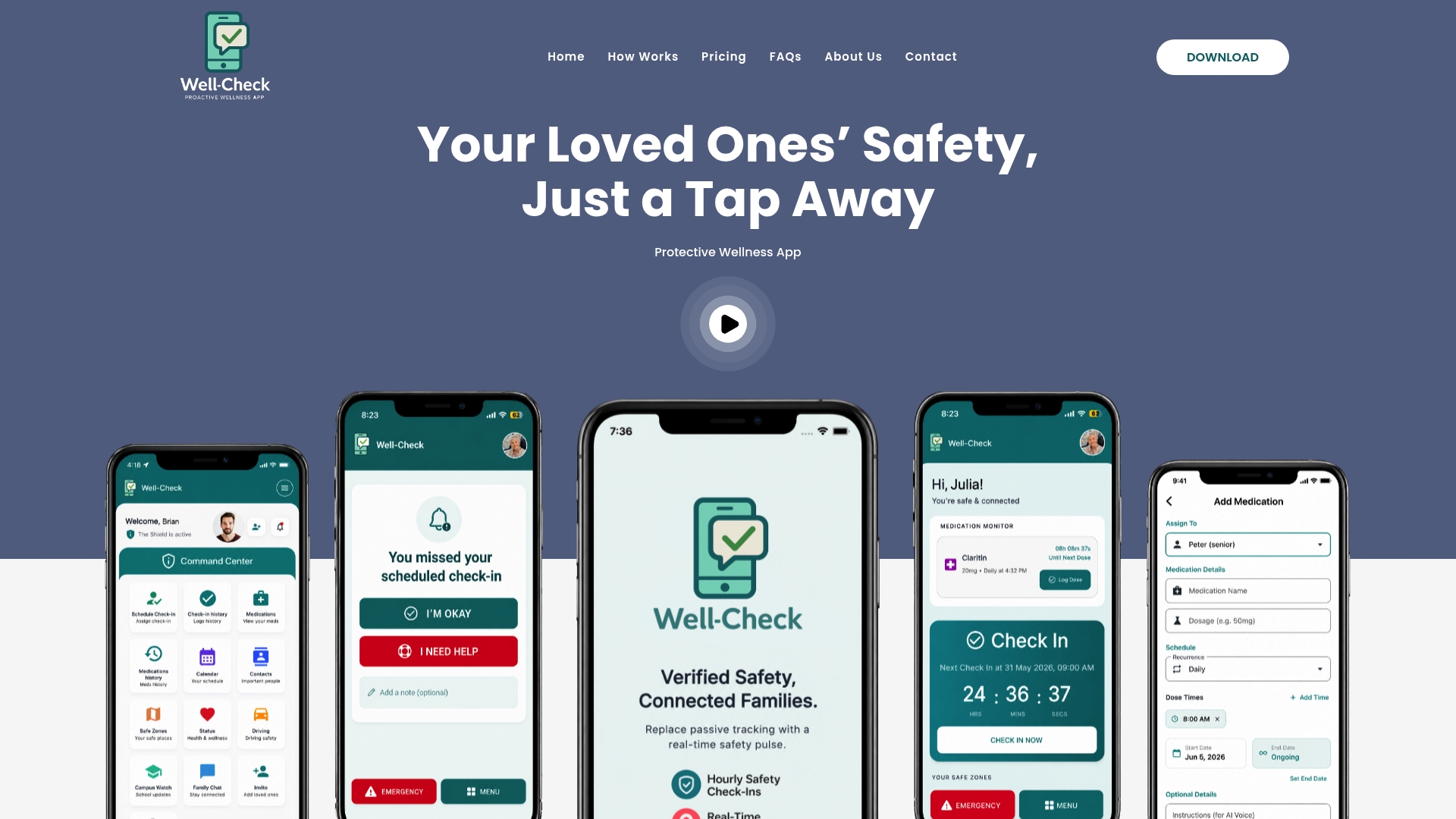
If you are setting up check-ins for a parent, five one-tap check-in categories are a quick way to start, and our missed check-in protocol explains what to do when one comes in late.
FAQ
How do I turn on color inversion on an iPhone?
Open Settings, tap Accessibility, then Display & Text Size, and choose Smart Invert or Classic Invert, as Apple Support describes. Smart Invert keeps images and media looking normal. Classic Invert flips everything.
What is the easiest Android setup for a senior with low vision?
On Samsung, Easy mode gives bigger icons and a simpler layout. On Pixel, Simple View does something similar and lets a caregiver pin favorite contacts and apps. Switching to three-button navigation can also make the phone easier to use.
Can a phone be used without looking at the screen?
Mostly, yes. Voice Control on iPhone and Voice Access on Android let you open apps and select items by speaking, and Siri can answer even when the phone is locked. VoiceOver reads the screen aloud for people who need it.
Which settings help with both low vision and arthritis?
Display Zoom enlarges the keyboard and spreads the keys apart, so you need less precision. AssistiveTouch on iPhone or the Assistant Menu on Android gives you one large on-screen button for common actions.
Why did my settings change after an update?
Major iOS and Android updates can occasionally reset accessibility options. Look through Settings > Accessibility after each one and switch your choices back on.
Sources
- Use display and text size preferences on your iPhone (Apple Support)
- Change display colors on iPhone (Apple Support)
- Using Your Phone’s Low-Vision Features (AFB Accessworld)
- Smartphone accessibility for people with sight loss (RNIB)
- Large Text On iPhone And Android (TechFor60s)
- Make Any iPhone or Android Senior Friendly (TechTimes)
- How to Use Your Voice to Control Your Smartphone (AARP)
- Benefits of AI-Powered Voice Assistant for Aging Adults (N.C. Cooperative Extension)
- iPhone Siri Large Print Cards (MyVision)
- 5 Tech Tips: Optimise your smartphone to assist your RA (NRAS)
- How to Set Up and Use the Accessibility Menu on Android (MakeUseOf)
- Set Up Your Phone and Computer for Low Vision (A Race Against Blindness)
- iOS 18 Tinted Steps Widget & Color Customization (Steps Widget)