Medical ID lets first responders view your allergies, medications, and emergency contacts from your locked iPhone screen, no passcode required. Set it up in the Health app under your profile, then tap Medical ID and Edit. Fill in the essential fields, hit Done, and flip on both Show When Locked and Share During Emergency Call so the information is actually visible when it counts.
TL;DR:
- Medical ID information is only visible on the lock screen if Show When Locked and Share During Emergency Call are both enabled, and sharing is region-dependent.
- Accurate and complete entries, especially for allergies, medications, and medical conditions, are critical since responders rely on brief scans during emergencies.
- Emergency contacts do not automatically receive notifications; it’s essential to inform them manually and verify their contact details regularly.
- Medical ID is a static record that requires ongoing updates to remain useful, with recommended routine reviews after health changes or before travel.
- Active monitoring systems like Well-Check can complement Medical ID by providing real-time alerts and check-ins, especially useful for those living alone.
Table of Contents
- How to Set Up Medical ID on iPhone Step by Step
- Adding Emergency Contacts (and How Notifications Actually Work)
- Show When Locked and Share During Emergency Call, Explained
- What to Put in Your Medical ID (and How to Phrase It)
- How Responders Find and View Your Medical ID
- What Medical ID Actually Does (and Where It Falls Short)
- Keeping Your Medical ID Accurate: A Maintenance Routine
- Medical ID Is a Safety Net, Not the Whole System
- A More Complete Safety Setup for People Living Alone
- Sources
- FAQ
How to Set Up Medical ID on iPhone Step by Step
Setting up your medical ID on iPhone is a quick process, with much of the effort spent carefully entering medication names rather than navigating menus. The whole process lives inside the Health app, which comes preinstalled on every iPhone.
Open Health, tap your profile picture in the top right corner, then select Medical ID from the menu. If this is your first time, you’ll see a Get Started button. If you’re updating an existing profile, tap Edit in the top right instead.
From there, Apple’s own setup guidance walks through the same core fields every iPhone owner should complete:
- Name and basic details. Confirm your name, date of birth, and (optionally) height and weight.
- Medical conditions. List anything a paramedic would need to know in the first sixty seconds, like epilepsy, diabetes, or a pacemaker.
- Medical notes. Use this field for details that don’t fit elsewhere, such as recent surgeries or implanted devices.
- Allergies and reactions. Be specific. “Penicillin, anaphylaxis” tells a responder far more than just “penicillin.”
- Medications. Enter the full name and dosage, not shorthand. “Metformin 500 mg, twice daily” beats “diabetes meds.”
- Blood type. Select it from the dropdown if you know it; leave it blank if you don’t, rather than guessing.
- Organ donor status. Toggle this on if you’re a registered donor; it can matter in the worst-case scenario.
- Emergency contacts. Add at least one, ideally two, from your existing Contacts list.
Tap Done once every field is filled, and the app saves your entries automatically. There’s no confirmation email or account sync to worry about. Your medical ID setup lives locally in Health and syncs across your own devices through iCloud if you have that enabled.
One detail people miss: the Health app won’t stop you from leaving fields blank, and it won’t flag typos in medication names. There’s no autofill dictionary checking your spelling, so a rushed entry of “amoxicilin” instead of “amoxicillin” will sit there uncorrected until you catch it yourself. Read back what you typed before you tap Done.
Adding Emergency Contacts (and How Notifications Actually Work)
Emergency contacts sit near the bottom of your Medical ID screen, and adding one pulls directly from your existing Contacts app. Tap Add Emergency Contact, choose the person, then assign a relationship label like spouse, parent, or friend.
A few things worth knowing before you add anyone:
- Contacts are not automatically notified when you add them to your Medical ID. They won’t get a text or alert just because you typed their name in.
- They only receive a message with your location and situation after you actually trigger Emergency SOS, not simply because a first responder views your Medical ID.
- You can reorder contacts and remove them just as easily as you added them, using the same Edit screen.
Pro Tip: Call or text every emergency contact after you add them. Tell them they’re listed on your Medical ID and confirm their number is current. A contact who moved apartments and changed their number two years ago does you no good in a crisis.
Show When Locked and Share During Emergency Call, Explained
Two toggles determine whether any of this information is actually reachable in an emergency, and skipping them defeats the entire point of filling out your Medical ID.
Show When Locked controls whether your Medical ID appears on the lock screen through the Emergency option, without requiring your passcode or Face ID. Leave this off, and your carefully filled-out profile is invisible to anyone but you.
Share During Emergency Call goes a step further. When enabled, and where regionally supported, it can automatically transmit your Medical ID details to emergency services during a 911 call. Apple notes this works through Enhanced Emergency Data and that availability depends on your carrier and location, largely rolled out across the U.S. and Canada. If you travel internationally, don’t assume this toggle works the same way everywhere.
Both toggles live on the same Medical ID edit screen where you filled in your health details, near the bottom.
- Show When Locked: makes Medical ID viewable from the lock screen via the Emergency button.
- Share During Emergency Call: sends your Medical ID data to dispatch centers automatically during a 911 call, in supported regions.
- Location sharing during SOS: separate from Medical ID sharing, your location gets sent to your chosen emergency contacts once Emergency SOS activates.
The privacy trade-off here is narrower than people assume. Turning on both toggles exposes only the specific fields inside your Medical ID, not your texts, photos, or anything else on the phone. A stranger who taps Emergency on your lock screen sees your allergies and emergency contacts, and nothing more.
What to Put in Your Medical ID (and How to Phrase It)
The fields that matter most in a real emergency are allergies, current medications, life-threatening conditions, blood type, and organ donor status, in roughly that order of urgency for a first responder scanning your phone in seconds, not minutes.
Vague entries cause real problems. “Heart issues” tells a paramedic nothing actionable. “Atrial fibrillation, on Eliquis 5 mg twice daily” tells them exactly what to watch for and what medication might already be in your system.
A few phrasing rules that make a real difference:
- Use full medication names, not abbreviations. Write “aspirin,” not “ASA.” Write “acetaminophen,” not brand slang that varies by region.
- Include dosage and frequency where relevant: “Levothyroxine 75 mcg, once daily” rather than just “Levothyroxine.”
- Note implanted devices or recent procedures in the Medical Notes field, like “Pacemaker implanted 2024” or “Left hip replacement, 2025.”
- List critical dates when they matter, such as a recent surgery date that affects treatment decisions.
Pro Tip: Write your Medical ID entries the way you’d explain them to a stranger who has never met you and has thirty seconds to read. If a term needs a follow-up question, rephrase it.
What doesn’t belong here: sensitive personal history unrelated to emergency care, unnecessary family details, or anything you wouldn’t want a random passerby reading off your lock screen. Medical ID isn’t a diary. It’s a triage sheet, and every extra line of clutter makes the fields that actually matter harder to spot quickly.
How Responders Find and View Your Medical ID
Getting to Medical ID on a locked iPhone follows the same basic path across models, though the exact gesture to reveal it differs slightly depending on your hardware.
- Wake the phone and get to the passcode entry screen.
- Tap Emergency in the bottom left corner.
- Tap Medical ID at the bottom left of the Emergency Call screen.
On iPhones with a Home button, reaching the passcode screen usually means pressing the Home button or the side button. On Face ID models, it’s a swipe up from the bottom. Macworld’s walkthrough confirms the Emergency and Medical ID buttons themselves stay in the same place regardless of which unlock method your model uses.
Apple Watch owners get a parallel path: press and hold the side button until the power menu appears, then slide the Medical ID option, or use the Emergency SOS screen the same way.
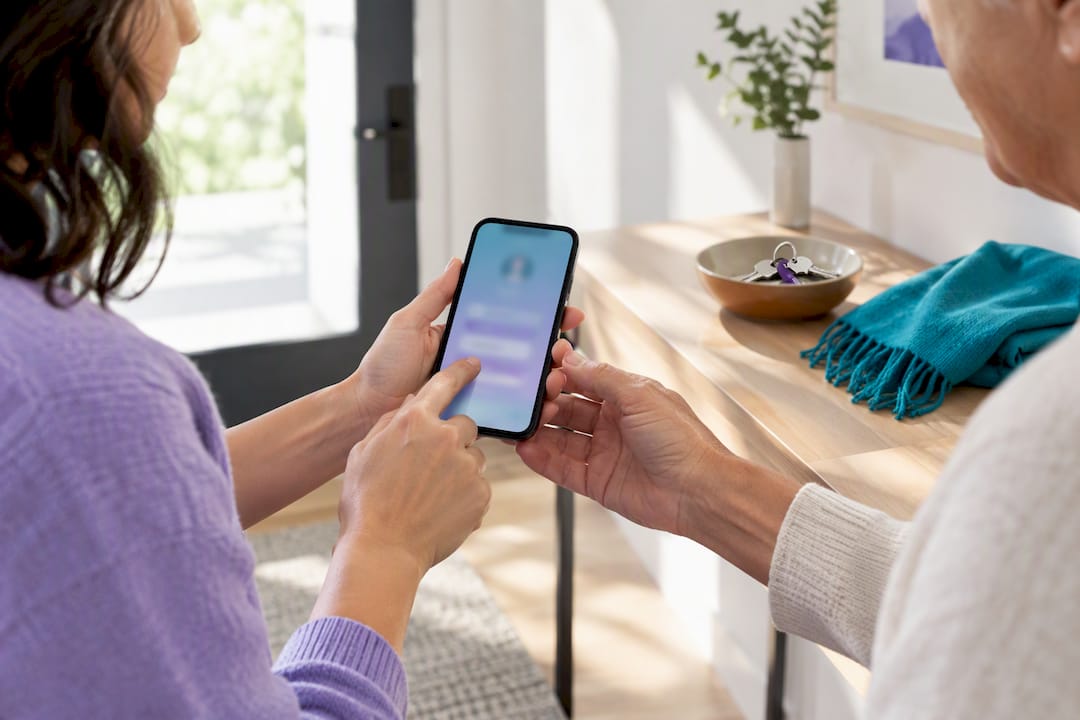
Test this yourself. Lock your phone, hand it to a family member, and walk them through tapping Emergency, then Medical ID, without calling anyone. If your entries display clearly and nothing looks cut off or confusing, you’re set.
What Medical ID Actually Does (and Where It Falls Short)
Medical ID speeds up decisions in the first critical minutes of an emergency. A responder who knows you’re allergic to penicillin before administering anything, or that you take a blood thinner before treating a wound, is making faster and safer calls. That’s the entire value proposition, and it’s a real one.
But Medical ID is a static snapshot, not a living record. It doesn’t update itself, doesn’t sync with your doctor’s office, and doesn’t replace an actual medical chart. If you switch medications and forget to update the app, a responder is working from outdated information, which can be worse than no information in edge cases involving drug interactions.
It’s also entirely passive. Nothing about Medical ID alerts anyone that you need help. It only works once someone else has already found you and thought to check your phone. Emergency communication infrastructure is slowly catching up to this gap. Next Generation 911 (NG911) is expanding what dispatch centers can receive, including richer digital data beyond a voice call, though rollout still varies widely by jurisdiction and isn’t universal yet.
Think of Medical ID as insurance for the moment someone is already standing over you. It does nothing for the moment before that, when nobody yet knows something is wrong.
Keeping Your Medical ID Accurate: A Maintenance Routine
An outdated Medical ID is worse than an honest blank field, because a responder trusts what’s there. Build a habit around three checkpoints.
- Update immediately after any new diagnosis, prescription change, or dosage adjustment.
- Review before international travel, since blood type and allergy information matters more when you’re far from your regular doctor.
- Do a full read-through at least once a year, even if nothing has obviously changed.
Verification takes two minutes. Lock your phone, tap Emergency, tap Medical ID, and read every line as if you were a stranger seeing it for the first time. Confirm Show When Locked and Share During Emergency Call are both still toggled on. iOS updates occasionally reset settings, so a quick check after any major software update is worth the thirty seconds.
Pro Tip: Set a recurring reminder for the same week each year, tied to something memorable like your birthday or an annual physical. Medications and diagnoses shift more often than people expect, and Medical ID only helps if it reflects your actual current health.
On the privacy side, resist the urge to over-share. Skip anything that isn’t clinically relevant to emergency care. Keep a separate, private list of full medical history and insurance details somewhere secure, not inside a field that displays to anyone who taps Emergency on your locked phone.
Medical ID Is a Safety Net, Not the Whole System
Medical ID does one job extremely well: it hands a stranger the facts they need in the first sixty seconds of an emergency. But it says nothing about whether anyone even knows you need help in the first place. That gap matters most for people who live alone, where a fall or a medical event can go unnoticed for hours.
An older adult living independently benefits from Medical ID the same way anyone does, but they benefit more from a system that actively checks in. That’s a different category of tool entirely. Well-Check approaches this from the other direction: daily check-ins that flag a problem the moment someone misses one, medication reminders that catch a skipped dose before it becomes a crisis, and GPS tracking that gives caregivers real information instead of guesswork. Missed check-ins alert a family member automatically, which is the piece Medical ID was never built to handle.
The two aren’t competing solutions. One tells responders what they need once they’re already there. The other tries to make sure someone notices sooner rather than later.
— Brian
A More Complete Safety Setup for People Living Alone
Medical ID answers the question “what do responders need to know once help arrives?” It has no answer for “how does anyone find out help is needed at all?” That second question is where daily monitoring earns its place alongside your medical ID setup, not instead of it.
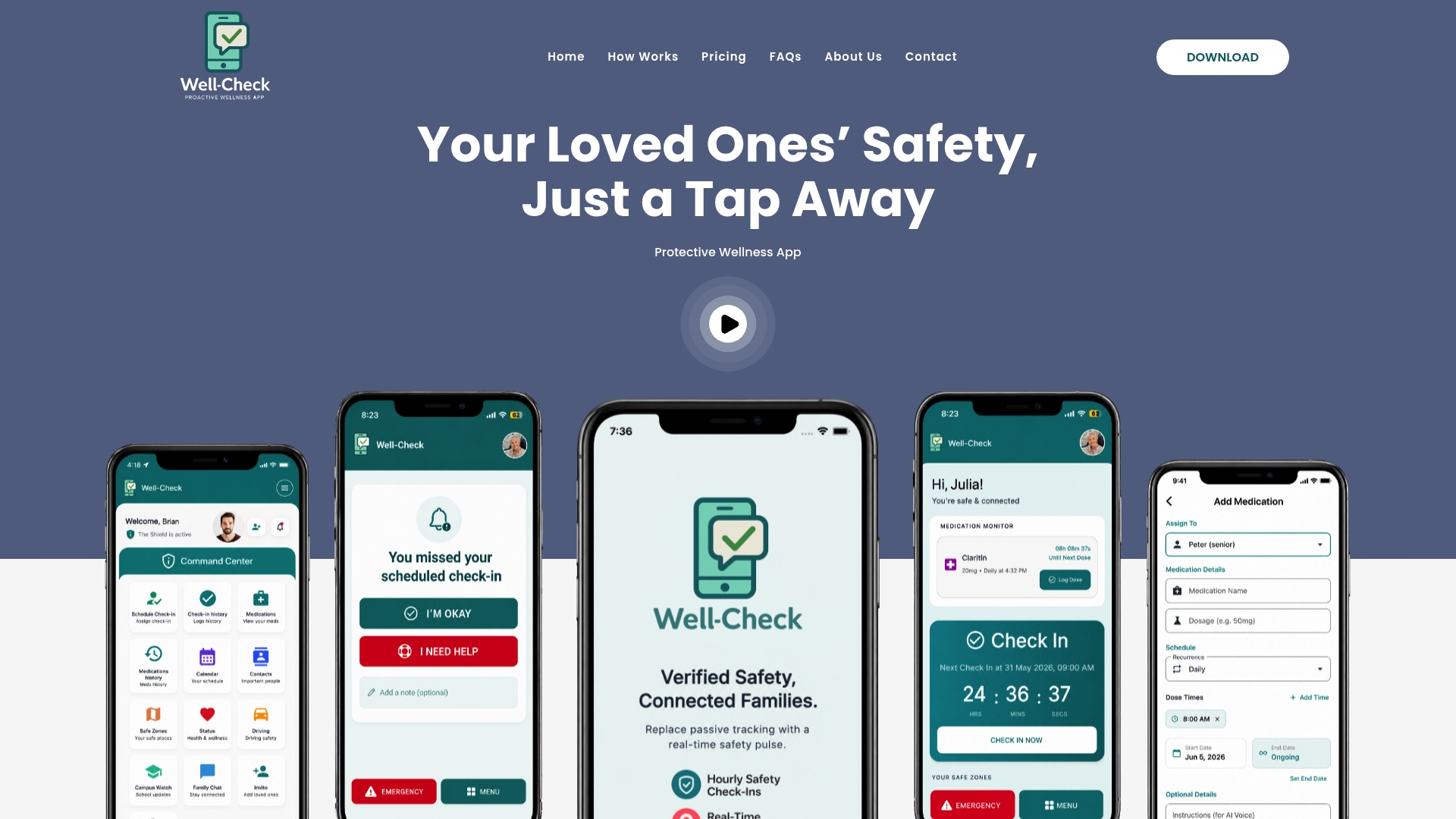
Well-Check fills that gap with a system designed to support people living alone, offering features such as one-tap check-ins, medication reminders, and alerts sent to designated contacts when check-ins are missed. Where Medical ID sits quietly on a locked screen waiting to be found, Well-Check actively notices when a check-in doesn’t happen and lets someone know right away.
The Essential plan runs $5.99 per month, and the Complete plan runs $7.99 per month with fuller features like advanced scheduling and unlimited check-ins, both detailed on the Well-Check pricing page. If your Medical ID setup has you thinking seriously about safety for yourself or an aging parent, take the next step and compare plans to find the one that fits your situation.
Sources
Apple’s own Medical ID setup guide remains the most current reference for toggle names and regional availability of Enhanced Emergency Data. Binghamton University’s emergency management page explains contact-notification behavior in plain terms. For device-specific access steps across iPhone models, Macworld’s guide and Popular Science’s emergency prep walkthrough both offer practical testing tips worth reading before you finalize your entries. For broader digital safety habits on iPhone, SmishAlert’s iPhone security resources cover related ground.
This article is general information, not a substitute for advice from a qualified doctor. Consult a qualified healthcare professional about your own circumstances before acting on anything here.
- Set up your Medical ID in the Health app on your iPhone — Apple Support
- Medical ID — Binghamton University Emergency Management
- How to set up Medical ID in the iPhone Health app for emergencies — Macworld
FAQ
How Do You Access Medical ID on a Locked iPhone?
Wake the screen, tap Emergency at the bottom left of the passcode entry screen, then tap Medical ID. This works without a passcode or Face ID, and the exact gesture to reach the passcode screen varies slightly by iPhone model.
Why Does My iPhone Say Medical ID?
Your iPhone displays a Medical ID prompt because the Health app is inviting you to create or complete one, usually the first time you open the Health app or its profile section. It’s a built-in feature, not a warning, and it’s designed to store health information first responders can view during an emergency.
Do Paramedics Actually Check iPhone Medical ID?
Paramedics and EMTs are trained to check for Medical ID on unresponsive patients, and it’s a recognized first step during emergency assessment for many EMS protocols. That said, it only works if Show When Locked is enabled and the fields are filled in, so an empty or hidden Medical ID gives responders nothing to find.
Can I Add a Medical ID Card to Apple Wallet?
Medical ID itself lives in the Health app and doesn’t get added to Apple Wallet as a standalone card. Some health insurance providers and government agencies issue separate digital ID cards that go into Wallet, but that’s a different feature from the Medical ID discussed here.
What Does Well-Check Cost if I Want Active Monitoring Alongside Medical ID?
Well-Check offers an Essential plan at $5.99 per month and a Complete plan at $7.99 per month, both listed on the Well-Check pricing page. The Complete plan adds features like advanced scheduling and unlimited check-ins for families who want fuller daily coverage.




[…] callback numbers of every family member under clear names, enable emergency info on phones with our Medical ID on iPhone guide, and review the plan every few months. If a relative lives alone, the senior safety plan guide […]