Background app permissions decide whether an app can keep working when you are not looking at it. For most apps that is a convenience. For a safety or check-in app it is the whole point: a missed-check-in alert only helps if the phone is allowed to deliver it while it sits locked on a nightstand. You can allow background activity on Android, iPhone or Windows in a few taps, and you can do it while giving the app only the access it needs.
This guide explains what the different settings mean, where to find them, which ones matter for a daily check-in routine, and what to do about the other thing that quietly breaks alerts: a home internet connection that drops out.
TL;DR
- Background activity lets an app sync, send notifications and stay current while the screen is off. Background location is a separate, more sensitive permission.
- On Windows, set each app to Always or Power optimized under Power & battery. On Android, battery saving features are the usual cause of delayed alerts.
- Allow only what the core feature needs. Foreground location is the most transparent option, and background location should be reserved for features like physical safety.
- Home internet and power outages break alerts too. A cellular backup, a battery for the router and a real outage test close that gap.
Table of Contents
- What background app permissions actually are
- Why a safety app needs background access
- How to allow background activity on Windows
- Allowing background activity on Android
- iPhone: Background App Refresh and alerts
- Keeping alerts reliable without over-granting access
- Home internet for safety devices
- Our perspective
- Set it up once with Well-Check
- FAQ
- Sources
What background app permissions actually are
People search for this topic using several different phrases, and the settings behind them are not the same thing. Mixing them up is the most common reason an alert fails to arrive.
Background activity is the app’s ability to run tasks when it is not on screen. Microsoft describes it as what lets apps send notifications, sync data and stay up to date.
Background data is the app’s ability to use your mobile or Wi-Fi connection while it is in the background. A phone’s data saver mode can switch this off even when the app itself is allowed to run.
Battery optimization is the operating system deciding to put an app to sleep to save power. It is separate from the permission you grant the app, which is why an app can look fully permitted and still stay silent.
Notifications are the permission to show you an alert. Without them, a perfectly working background process has no way to reach you.
Location permission has its own levels. An app can be allowed to see your location only while it is open, or all the time. On Android 10 and higher, an app that wants all-the-time access must declare the background location permission, and on Android 8.0 and higher, background location updates are limited to a few times each hour to preserve battery.
On Windows, Microsoft also splits control across two places: a Background apps page with a master switch and individual app switches, and a Battery usage by app page for finer tuning on devices with a battery.
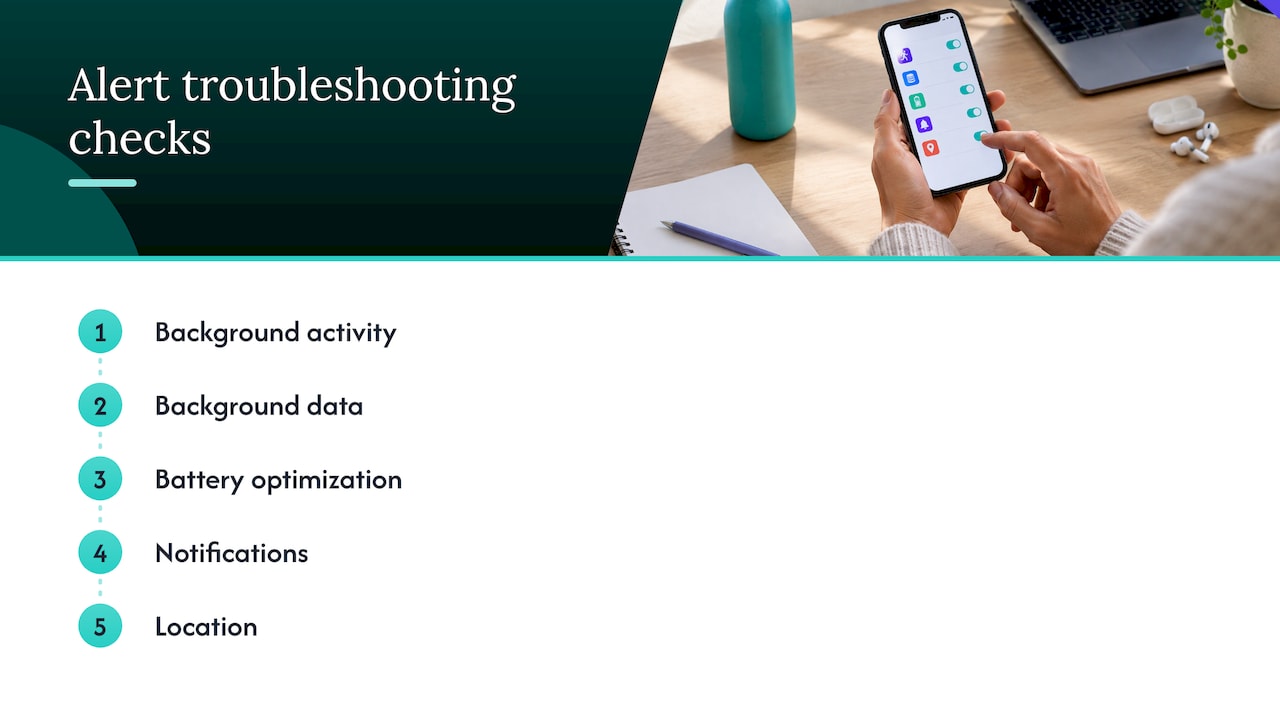
A useful habit: when an alert fails, check these five layers in order. Background activity, background data, battery optimization, notifications, then location.
Why a safety app needs background access
A check-in app has two jobs. One happens when you tap it: you confirm you are okay. The other happens when you do not: the app notices a missed check-in and tells your emergency contacts. The second job is the one that depends on background permissions, because by definition nobody is holding the phone.
The platform owners recognize this. Google Play says background location may be used only when it provides significant user benefit and is relevant to an app’s core functionality, and it lists physical safety and perceived safety among the qualifying benefits. Android’s own personal safety tools work the same way: some features, such as Emergency Sharing and Car Crash Detection, need Location Services and permissions turned on so emergency contacts can find you.
The same sources also set the limit. Google describes foreground location access as the most transparent to users and the preferred approach, and Android’s developer guidance says apps should ask only for the type of location permission that is critical to the feature, with clear benefits and in a way that is obvious to the user. Microsoft makes a similar point for Windows: apps that mishandle background activity risk users denying permission altogether, which serves nobody.
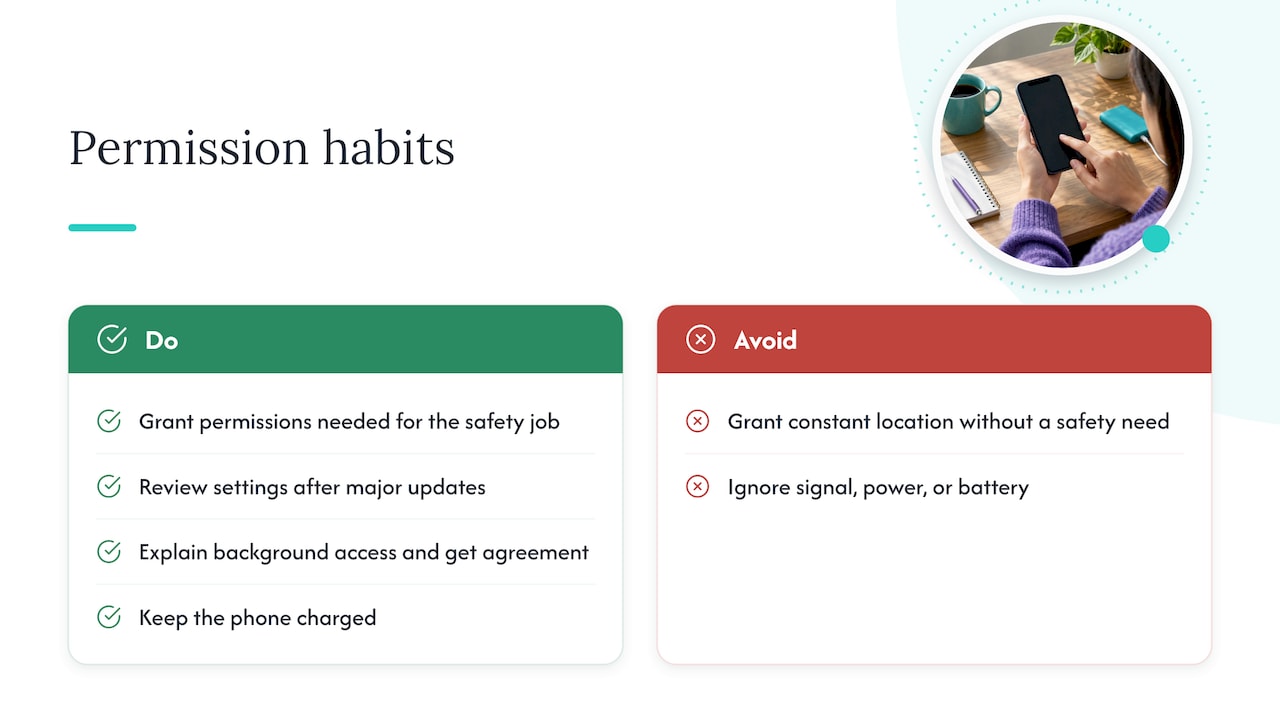
In practice that gives you a simple rule. Allow background activity for the app that has a safety job. Keep everything else on its defaults. If you are setting this up for a parent, explain what each permission does and why, and let them agree to it. Our guide on location sharing etiquette for caregivers covers how to have that conversation.
How to allow background activity on Windows
Windows matters if a caregiver or family member watches alerts or manages the account from a laptop or desktop. The path depends on your version.
Windows 11
Go to Settings > System > Power & battery > Battery usage. Find the app, open More options, then choose Manage background activity. Microsoft lists three choices: Always, Power optimized (recommended), or Never. For an app you rely on for alerts, choose Always.
There is a second route. Huawei’s support page describes going to Settings > Apps > Apps & features, selecting the app, opening Advanced options, and choosing a value under Background app permissions. Either route ends at the same kind of setting.
One limit to know: this option generally appears only for apps installed through the Microsoft Store or shipped with Windows. Other desktop programs will not show it.
Windows 10
On Windows 10 the setting lives in a different place: Settings > Privacy > Background apps, according to Huawei’s support guidance. There you will find the master switch and a list of per-app switches. If the master switch is off, no individual switch can override it.
Managed computers
If the computer belongs to an assisted living community, a retirement home or an employer, an administrator may control the setting. Windows has a Group Policy called ‘Let Windows apps run in the background’ under Computer Configuration > Administrative Templates > Windows Components > App Privacy, with options to force deny, force allow, or leave the user in control. If the toggle is greyed out, ask whoever manages the machine.
Allowing background activity on Android
Android is where most alert problems happen, because phone makers add their own battery savers on top of Android’s. Menu names differ between brands, so use the names below as search terms inside Settings.
A medical-device company’s Android guidance lists four features that can stop an app from running in the background or delay its notifications: Battery Saver, Adaptive Battery, battery optimization and background restrictions for unused apps. Their instructions for reliable operation are to turn those off for the app. The same page notes that Android can require location permission set to ‘Allow all the time’ for Bluetooth-based features to deliver notifications.
For a check-in app, a sensible order is:
- Open Settings, then Apps, then the app, and set battery usage to Unrestricted (the wording varies by phone).
- Make sure notifications are on, including any alert categories the app offers.
- Check that Data saver does not restrict the app’s data use in the background.
- Look at the app’s location setting. Choose ‘Allow all the time’ only if the app has a safety feature that needs location when the app is closed. Otherwise ‘While using the app’ is enough.
- Restart the phone, then confirm the settings stayed in place.
We go deeper on this in Android battery optimization that won’t break safety alerts, and the two-minute Android location permissions check walks through the location step.
iPhone: Background App Refresh and alerts
iPhone handles this differently. The control is called Background App Refresh, found under Settings > General. It decides whether an app can refresh content while you are not using it. Notification settings are separate, and so is location. A caregiver can often turn Background App Refresh off for most apps to save battery while keeping the permissions that safety alerts rely on. The steps are in our guide to iPhone Background App Refresh for caregivers. If an alert prompt seems stuck, see fixing a stuck iPhone critical alerts prompt.
Keeping alerts reliable without over-granting access
Reliable does not have to mean invasive. The aim is to give a trusted app exactly the permissions its safety job needs and nothing more.
Grant by job. If the feature is a daily ‘I’m okay’ tap and a missed-check-in alert, you need notifications and background activity. You do not necessarily need constant location. If the feature is GPS for someone at risk of wandering, background location has a clear safety purpose.
Review after updates. Phone updates and new battery features sometimes reset app-level choices. Add a quick permissions check to the routine you already have after a major update.
Keep the person in the loop. An older adult who understands why the app runs in the background is far more likely to leave it alone. Our pages on location sharing privacy settings and privacy for senior tracking cover the consent side, and how often GPS should update explains the trade-off between precision and battery.
Do not forget the phone itself. A phone that is switched off, out of signal or out of battery cannot send anything. A charging routine matters as much as any toggle.
Home internet for safety devices
Background permissions tell the phone it may work. They cannot make a broken connection work. If the home router goes down in a storm, a Wi-Fi-only phone, speaker or sensor goes quiet whatever its settings say. That is why readers who ask about backup internet are asking the right question.
Backup options by type
| Option | What it does | Worth knowing |
|---|---|---|
| Phone hotspot | Shares your mobile connection with other devices | Needs the phone charged and within signal; suited to short, supervised use |
| Router with hotspot backup | Switches to a nearby mobile hotspot when wired internet fails | One mesh system supports up to eight backup wireless connections and switches back automatically |
| Internet provider’s cellular backup device | Switches to 4G LTE during an outage | One fiber provider’s device includes 130 GB per billing cycle, with speeds around 50/5 Mbps, and the provider says it is not suitable for emergency/911 or medical uses |
| Alarm panel cellular path | Keeps alarm alerts flowing | One manufacturer notes that alarm cellular backup keeps emergency alerts going but does not provide internet |
The last two rows show why reading the fine print matters. A backup built for convenience, such as streaming, is not the same as one built for emergencies, and a backup for one device does not cover your phone.
Check the mobile network and the power
Two failures catch families off guard. The first is network shutdowns. The FCC warns that mobile carriers are retiring 3G, and that devices including home security systems and medical devices, even those using cellular as a backup, may rely on 3G. It advises contacting your mobile provider or monitoring company to confirm how a device connects.
The second is power. A backup connection needs electricity at both ends: the router or gateway and the device you use. If a modem or router has no battery, a cellular backup behind it can go down with the same outage. Size any battery backup from the real connected load and the run time you need, not from a headline claim.
Test it before you need it
A short test beats any spec sheet:
- Note which devices matter most, such as the senior’s phone, a hub or a medical alert button.
- With normal power on, unplug the modem or router’s internet connection, leaving everything else powered.
- Time how long the backup takes to take over, and check whether the important devices actually reconnect.
- Reconnect and confirm everything returns to the main line.
- Test power loss separately, in a controlled way. Never disconnect life-safety equipment to do it.
Write the results on a card next to the router. For a wider run-through, our family emergency alerts test takes under an hour.
Our perspective
We built Well-Check around a simple belief: an older adult should be able to live independently without feeling watched. That is why the app is designed for one-tap check-ins and ‘I’m okay’ confirmations, with contact networks the user helps shape.
Permissions are where that belief gets tested. A check-in app that cannot run in the background cannot alert anyone when a check-in is missed, so we ask families to allow background activity for the safety job and to leave unrelated permissions alone. We would rather you grant a few permissions with understanding than many without it.
Our approach to GPS and smart caregiver analysis follows the same logic: useful for the person it protects, explained in plain words, and never meant as surveillance. When you set the phone up, sit down together, go through each setting, and run one missed-check-in test. Ten minutes at the start saves a lot of worry later.
Brian
Set it up once with Well-Check
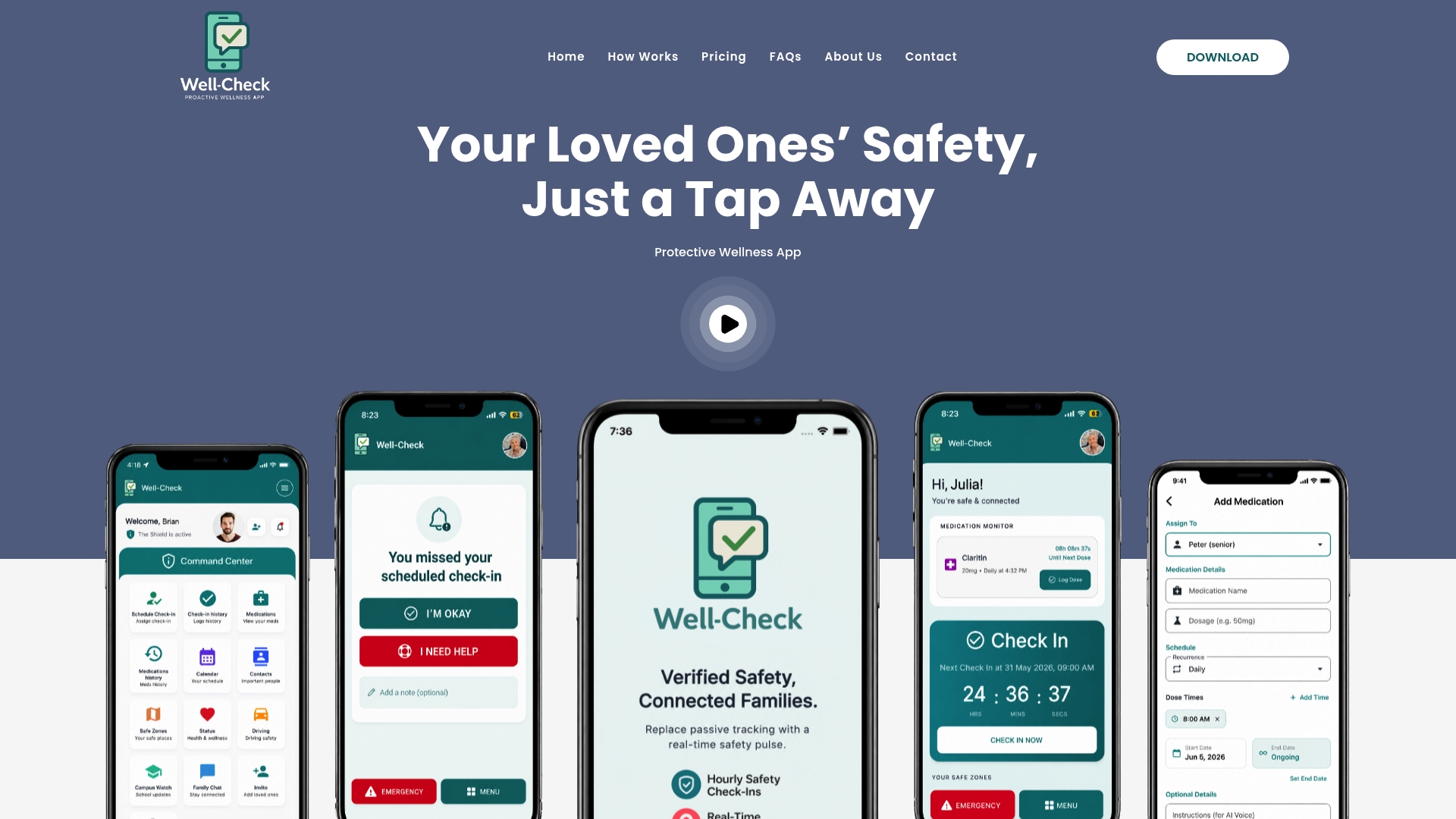
If you are setting up a parent, a relative or yourself, Well-Check puts daily check-ins, medication reminders, missed check-in alerts and an emergency contact network in one app. As published on our pricing page, Essential is $5.99 per month and Complete is $7.99 per month.
See Well-Check plans and pricing to choose one, then work through our senior safety checklist so permissions, contacts and alerts are all set in one sitting.
FAQ
What does ‘allow background activity’ actually do?
It lets an app keep working when it is not on screen, so it can sync, update and send notifications. On Windows 11 you choose Always, Power optimized or Never for each app. On Android, the equivalent is usually found in an app’s battery settings.
Should I give a safety app ‘Allow all the time’ location access?
Only if a feature truly needs location while the app is closed, such as a GPS safety feature. Google’s guidance prefers foreground location where possible and reserves background location for clear benefits such as physical safety. If you are unsure, start with ‘While using the app’ and change it when you turn on a feature that needs more.
Why do alerts still arrive late after I allowed the app?
A battery feature is usually the cause. Battery Saver, Adaptive Battery, battery optimization and background restrictions can each delay notifications or stop an app running. Turn them off for the app, restart the phone and test again.
Do I need backup internet for a check-in app?
It helps if the phone relies on home Wi-Fi. A phone with a mobile signal can send alerts without home internet, but a Wi-Fi-only device cannot. Confirm what your devices use, and test an outage once.
Sources
- Manage background activity for apps in Windows (Microsoft)
- Enterprise background activity controls (Microsoft Learn)
- Optimize background activity (Microsoft Learn)
- Access location in the background (Android Developers)
- Understanding location in the background permissions (Google Play Help)
- Get help during an emergency with your Android phone (Google)
- Enable or disable an app to run in the background (Huawei)
- Background Windows apps are quietly eating your Wi-Fi (HowToGeek)
- Configure Background Apps in Windows 11 (NinjaOne)
- Recommended Android phone settings (Stelo)
- What is eero Hotspot Backup? (eero Support)
- Unbreakable Wi-Fi (Frontier)
- Understanding 24/7 Backup Internet and Extra Data (Ring Support)
- Plan Ahead for Phase Out of 3G Cellular Networks (FCC)