Your phone has two separate location controls: one decides which apps can read your location, the other decides which people can see it. To keep location sharing private, review both. Check each app’s permission, give every person-to-person share an end time, and stop anything you no longer recognize. This guide walks through each step on iPhone and Android, and shows how families can use location sharing without it turning into surveillance.
TL;DR
- App access and person-to-person sharing are different settings. Check both, because turning off one does not turn off the other.
- On iPhone, go to Settings > Privacy & Security > Location Services. On Android, use Settings > Location > App permissions.
- Prefer “While Using” or “Ask every time” over “Always”, and give every shared location an end time.
- For an older parent, agree on what is shared, with whom and for how long before turning anything on.
- Photos, check-ins and posts can reveal your location even when live sharing is off.
Table of Contents
- What location sharing actually reveals
- Check which apps can see your location
- Set up and limit person-to-person sharing
- Stop sharing, and what to do when you are unsure
- Location sharing and an older parent’s independence
- Perspective: independence without surveillance
- A lighter way to keep an eye out
- FAQ
- Sources
What location sharing actually reveals
Location data is more than a dot on a map. Australia’s eSafety Commissioner explains that location sharing can reveal where you are, where you have been or where you are going. It can happen through live sharing, check-ins, account data, photo metadata, ride-share services and wearables, or through information combined across platforms.
The California Attorney General’s office adds that smartphone location services geotag photos and record location history, including the places you visit often. A pattern of visits can say more than any single position: home, a pharmacy, a clinic, a place of worship.
That is why “location sharing privacy settings” is not one switch. It is a handful of them, in different places.
Two different things: app access and sharing with people
App access is whether an app, website or system service can use your device’s location. Apple says Location Services can use cellular, Wi-Fi, GPS and Bluetooth information to work out where you are.
Sharing with people is when you deliberately let a person follow you, such as a family member in Find My or Google Maps. Apple also separates a live share, which updates as you move, from a dropped pin that shares only your current spot.
A parent can have no one watching them and still have a dozen apps reading their location in the background. The reverse also happens: a share set up years ago “until I turn it off” is still running.
Check which apps can see your location
Set aside ten minutes. Most people find at least two or three apps with more access than they need.
On iPhone
Apple says an app must ask permission before it uses Location Services, and you can review or change those choices at Settings > Privacy & Security > Location Services. Open each app and pick one of these:
- Never: the app gets no location.
- Ask Next Time Or When I Share: the app asks each time.
- While Using the App: location only when the app is open.
- Always: location in the background too.
Apple notes that apps with background access can trigger periodic reminders and map displays of the locations they used. Those prompts are useful. If an app you rarely open shows up, change it to “While Using” or “Never”.
If you switch off Location Services at the top of that screen, location access stops for all apps, including Maps. That is a blunt tool, but it can be right for a short time.
Background refresh is a related setting. If you want fewer apps running in the background but still need safety alerts to arrive, our guide on iPhone Background App Refresh for caregivers shows what to switch off and what to leave alone.
On Android
Menus differ a little by maker, but the path is usually Settings > Location > App permissions (some phones say Privacy > Permission manager > Location). The California Attorney General describes turning location off globally, choosing which apps have access and selecting a less precise mode where available, plus disabling or deleting location history.
For each app, the usual choices are:
- Allow all the time: reserve this for apps that truly need it.
- Allow only while using the app: the best default.
- Ask every time: good for apps you use rarely.
- Don’t allow: for anything that has no reason to know where you are.
Where you see a “precise” toggle, an approximate location is enough for weather and news apps. Our two-minute Android location permissions check goes through this screen for caregivers.
A rule for deciding
The California Attorney General advises asking whether location is essential to the app before you consent, denying access when it is not, and disabling background tracking where the system allows it. A weather app can work from a ZIP code. A flashlight app needs nothing. A navigation app needs location only while you are navigating.
Set up and limit person-to-person sharing
Sharing with a trusted person can be a good decision. The aim is to make it deliberate, time-limited and easy to end.
iPhone: Find My and Messages
Apple says you can share a Live Location from Find My or Messages for one hour, until the end of the day, indefinitely or for a custom period. Live Location requires both people to use an iPhone with iOS 15 or later.
Pick “one hour” or “until end of day” as the default when the need is a trip, a late drive or a doctor’s visit. Choose “indefinitely” only after a conversation. We cover this approach in temporary location sharing for caregivers.
Android: Google Maps
This is the question that Google’s results often leave unanswered. In Google Maps on Android, tap your profile picture, then Location sharing, then New share, and choose how long you want to share. Google’s help page says the people you share with can always see your name and photo, your device’s recent location, battery level and whether it is charging, and that this works even when Timeline is off.
To stop, open Location sharing, tap the person’s profile and tap Stop. The same help page notes that a shared link works for up to 24 hours. Before you add anyone, check that the duration you chose is the one you meant.
Share in layers
You rarely need to give one person everything. A sensible layering for an older adult:
- Daily: a simple “I’m okay” signal, with no map at all.
- Trips and appointments: a time-limited location share.
- Emergencies: an alert that goes to a short list of named contacts.
The first layer covers most days, and the others are there when needed.
Stop sharing, and what to do when you are unsure
Stopping location sharing is easy when you know the person. It is harder when you are not sure who is seeing what. The eSafety Commissioner recommends using iPhone Safety Check, checking GPS-tracking apps such as Find My iPhone, Google Find My Device and Samsung Find My Mobile, and limiting sharing in social media, online dating, fitness and travel apps.
A quick checklist for when you are unsure:
- Open Find My (iPhone) or Google Maps location sharing (Android) and list everyone you share with.
- Stop any share you do not recognize or no longer need.
- Review every app set to “Always” and move it to “While Using”.
- Check social media apps for location tags on posts and stories.
- Turn off location in your camera if you do not want photos geotagged.
If you think someone is tracking you without your consent, location settings alone may not be enough. Our article on when location sharing becomes stalking covers documenting what you find and who to consult. For immediate danger, call 911.
Settings leak more than you expect
The eSafety Commissioner recommends avoiding venue check-ins and posts that show street signs, workplaces, gyms or other recurring locations, because location privacy can be compromised without anyone pressing a “share location” button. The same source describes a layered approach: check device settings, online accounts, app sharing, public posts, spyware and physical trackers, rather than relying on one permission switch.
Photo sharing is a common example. Before sending a photo to a group, tap the Share button, then Options, and turn off Location, so the file does not carry a pin of your front door.
Location sharing and an older parent’s independence
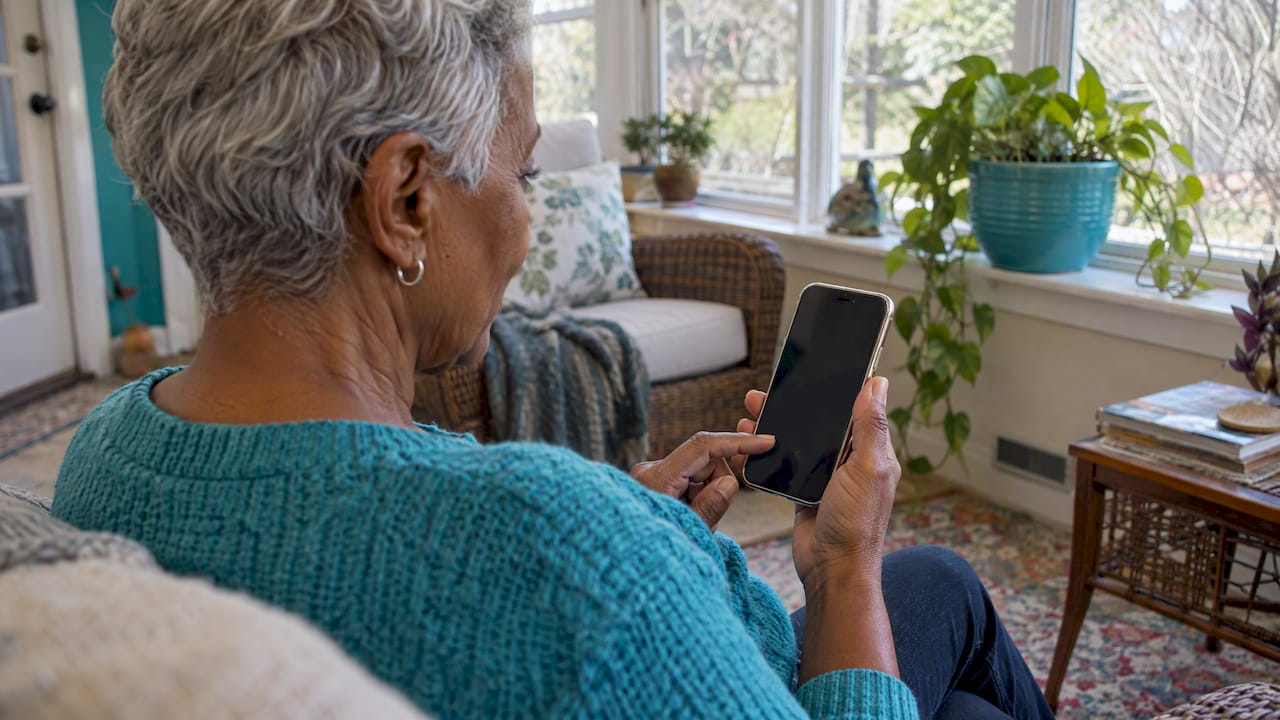
This is where settings meet family life. Many adult children want to see where Mom is. Many parents want to be left alone. Both are reasonable.
Childnet’s guidance, written for parents and carers, stresses informed consent and context. Location can support navigation and safety, but sharing with friends, family or strangers can disclose sensitive places such as home or regular destinations. That applies to adults too. A person who agrees to being followed has given consent. A person who is quietly tracked has not.
Have the conversation first
Before you change a setting on a parent’s phone, agree on a few points, together:
- What is shared: live location, a daily check-in or only emergency alerts.
- Who sees it: named people, not “the whole family”.
- When: always, during outings or only after a missed check-in.
- How to end it: who can switch it off, and how.
We turned this into a one-page template in our six-field agreement on location sharing etiquette. If you are choosing a GPS app, the three nonnegotiables for senior GPS apps are a good filter before you install anything.
Worked example
Say your mother lives alone and drives to a weekly appointment. A workable setup:
- On her phone, location access for most apps is “While Using” or “Never”.
- She shares a one-hour Live Location with you on appointment days only.
- She taps an “I’m okay” check-in each morning.
- If she misses the check-in, two named contacts get an alert.
She stays in charge, and you are not watching a dot all day.
Perspective: independence without surveillance
We built Well-Check around a simple belief: safety should not cost someone their dignity. Constant location tracking is often the first thing a worried family reaches for, and it is rarely the best fit. It tells you where a phone is, not whether the person holding it is fine.
A daily check-in answers the real question: is Mom okay today? A missed check-in tells family to call. Location can then be a tool for specific moments rather than a permanent feed. That is why we offer one-tap check-ins, customizable contact networks and GPS as one feature among several, not the whole product.
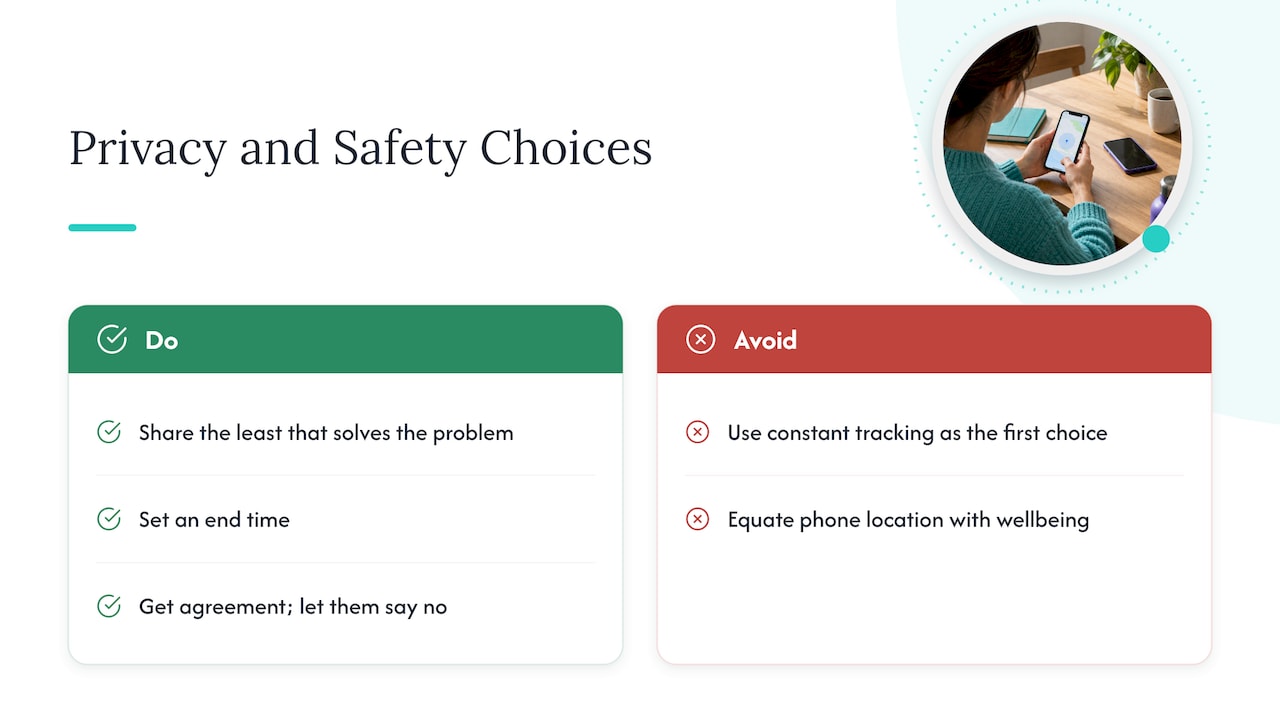
Our advice is the same whether or not you use our app. Share the least that solves the problem, set an end time, and make sure the person being looked after agrees to it and can say no. Privacy and safety are both easier to keep when nobody feels watched.
— Brian
A lighter way to keep an eye out
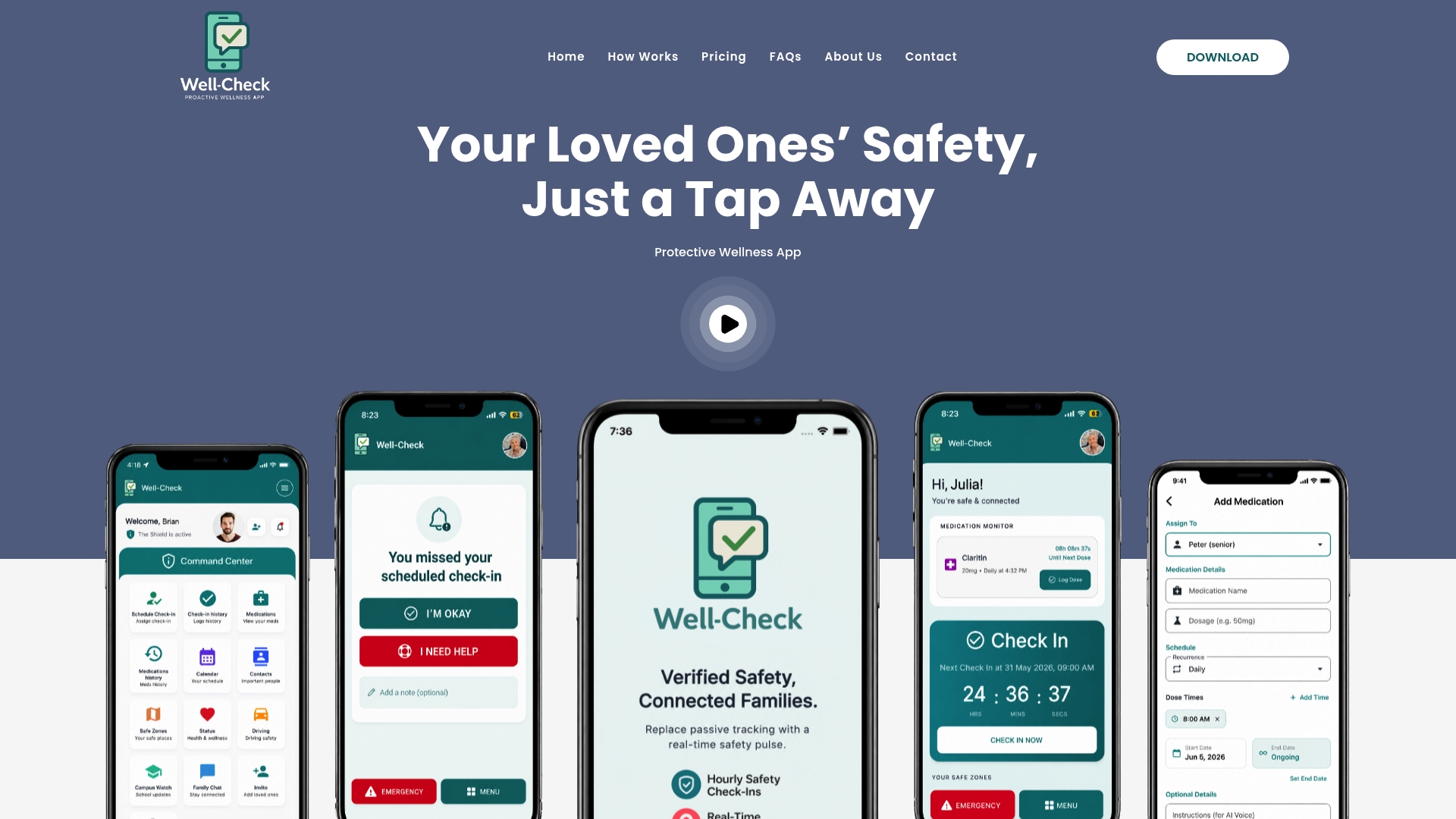
If your goal is peace of mind rather than a map, Well-Check’s daily check-in may be a better fit than permanent location sharing. Your loved one confirms they are okay with one tap, contacts are alerted if a check-in is missed, and GPS is available when you need it. Medication reminders and an emergency contact network are included.
The Essential plan is $5.99 per month and the Complete plan is $7.99 per month. See the Well-Check plans and pick the one that fits your family.
If you also want to set up the phone itself, these guides help: Emergency SOS on iPhone, emergency contacts on iPhone and Android battery optimization that keeps safety alerts working.
FAQ
How do I stop sharing my location without the other person being notified?
There is no guarantee that a platform will stay silent, and settings change between versions. On Google Maps you open Location sharing, tap the person and tap Stop. On iPhone you stop sharing in Find My or Messages. If you are worried about how someone will react, or you fear for your safety, talk to a trusted person or a domestic violence hotline before you change anything.
What is the safest location setting for most apps?
“While Using the App” on iPhone, or “Allow only while using the app” on Android, is the usual best choice. The app can work when you open it, and it cannot follow you in the background. Use “Never” for apps that have no reason to know where you are.
Does turning off location sharing stop apps from seeing my location?
No. Sharing with a person and app permission are separate. Stopping a share in Find My or Google Maps does not change what other apps can read, so check Location Services (iPhone) or App permissions (Android) as well.
Can I share my location for a limited time only?
Yes. Apple lets you share a Live Location for one hour, until the end of the day, indefinitely or for a custom period. Google Maps also asks you to choose a duration when you start a share. Short durations are the better default.
Is it okay to track an elderly parent’s location?
It can be, with their knowledge and agreement. Talk first, decide what is shared and with whom, and review it from time to time. A daily check-in plus alerts for missed check-ins often gives families the reassurance they want with far less intrusion.
Sources
- Location sharing | eSafety Commissioner
- Location, Location, Location | California Attorney General
- About privacy and Location Services | Apple Support
- Share your location with iPhone | Apple Support
- Apple Personal Safety User Guide
- Share your real-time location in Google Maps | Google Maps Help
- Location Services | Childnet



[…] screens on your phone are where tracking is turned on or off. If you want to check them, our plain guide to location sharing privacy settings for iPhone and Android walks through both platforms, and the two-minute Android location permissions check covers the […]